
updateWhat's new
What's new in Wasoolo 3.5.0: duplicate entries you can fix, khata numbers by type, khata groups inside the khata, and a suppliers list that matches your screen
Wasoolo 3.5.0 finds entries saved twice so you can fix them, numbers each khata type on its own, adds khata groups in a khata and a suppliers list by lens.
Wasoolo 3.5.0 in five lines
- 1Duplicate entriesFind copies saved twice and keep the right one.
- 2Khata numbers by typeEach type counts on from its own last Khata No.
- 3Khata groups in the khataAdd a khata to a group from its own page.
- 4Suppliers list by lensPaid, purchased or bonus, on paper as on screen.
- 5Safer staff approvalsA rejected edit brings the old line back.
Wasoolo 3.5.0 finds entries that were saved twice and lets you keep the right one. Each khata type now counts its own Khata No, a khata can join groups from its own page, and the suppliers list prints exactly what your screen shows. Staff approvals and Excel downloads got safer too.
Duplicate entries: a warning on Home, one page to fix them
A busy evening goes like this. Your helper takes Rs 2,500 from Farooq at the counter and writes it on the shop phone. That night Farooq calls, and you write the same payment on your own phone. His khata now shows Rs 5,000 received for Rs 2,500 paid, so he seems to owe you Rs 2,500 less than he does.
Android phones met this page in 3.4.1, and now every phone and computer has it.
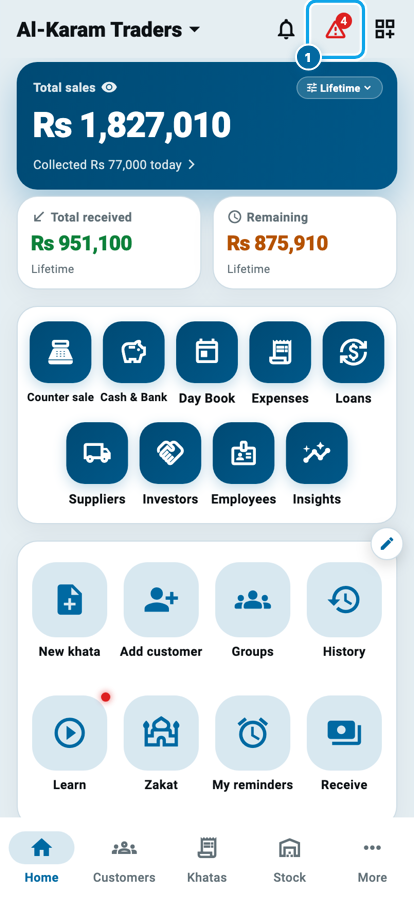
When an entry looks saved twice, a red warning sign with a number shows at the top of Home (1). Tap it.
The Duplicate entries page opens.
- Each card names the customer and the khata, with the amount, Gave or Received, and the date (1). Every copy under it says who added it and when, like Added by: Usman Ghani and Added by: Me on the Farooq Brothers card.
- Tap a copy to open it in its khata, where it glows among the other entries.
- Decide, copy by copy:
- Delete (2) sends the extra copy to the Trash, with Undo on the message in case you slipped. If your shop uses a delete PIN, it is asked here too.
- Not a duplicate (2) keeps that copy and stops asking. Use it for two real sales of the same amount on one day.
- Ignore · keep both (3) keeps every copy on the card. A card of three reads Ignore · keep all 3, and each copy on it also gets Keep only this.
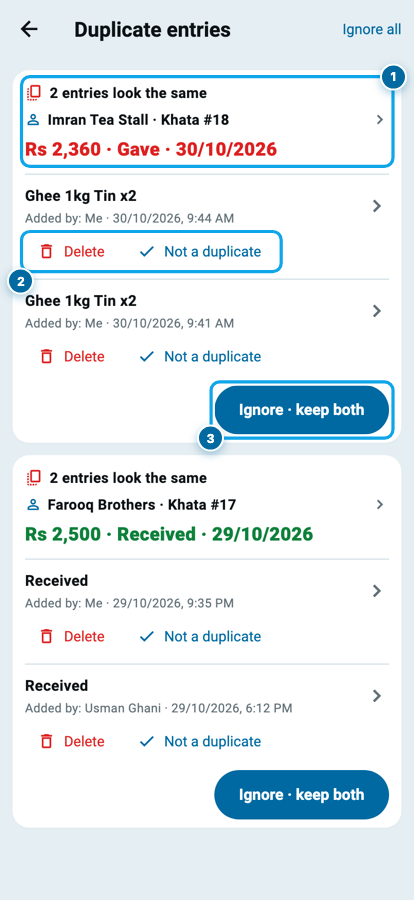
With several cards on the page, Ignore all at the top keeps everything as it is.
What Wasoolo counts as a duplicate
Wasoolo compares entries in one khata with the same amount, the same date and the same direction: two Gave or two Received.
- From two phones, a match is always shown, because two people writing one payment is the usual slip.
- From one phone, a match is shown only when the words are the same too and both were saved within 10 minutes. That is the double tap. Say Imran's two tins of ghee, Rs 2,360, were saved at 9:41 and again at 9:44: that pair is caught. Sugar for Rs 200 and rice for Rs 200 on one day are two items, so they are left alone.
- An installment plan's own profit lines never count as duplicates, so you are never offered a delete on one.
Nothing is deleted by itself, and a copy you delete waits in the Trash for 30 days. If two people write in your khata every day, when two people write in one khata has habits that stop most copies before they start.
Khata numbers by type
On a new khata, the Khata No box now follows the type you pick. Tap Full payment, Credit or Installments (1), and the box (2) offers the number after your last khata of that same type. Switch types before typing and the number follows; a number you type yourself stays.
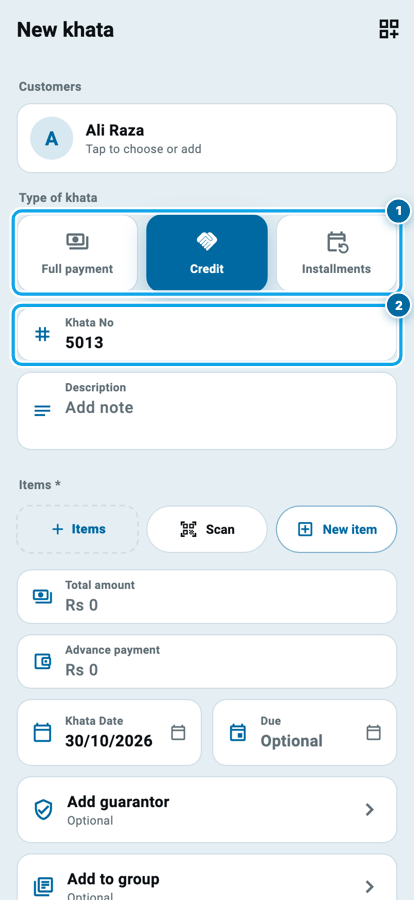
Want the types clearly apart? Give one type its own starting number once. Type 5001 on your next Credit khata, and from then on Credit offers 5002, 5003 and onward, while your other types keep their own count. The shop in the picture has reached 5012, so Credit offers 5013. Letters work too: after Q-14, Installments offers Q-15.
A type with no khata yet carries on from your newest khata. A number that another khata already has is always skipped, so two khatas never share a number.
Khata groups, from inside the khata
Khata groups used to live only on the Khatas tab. Now a khata joins them from its own page.
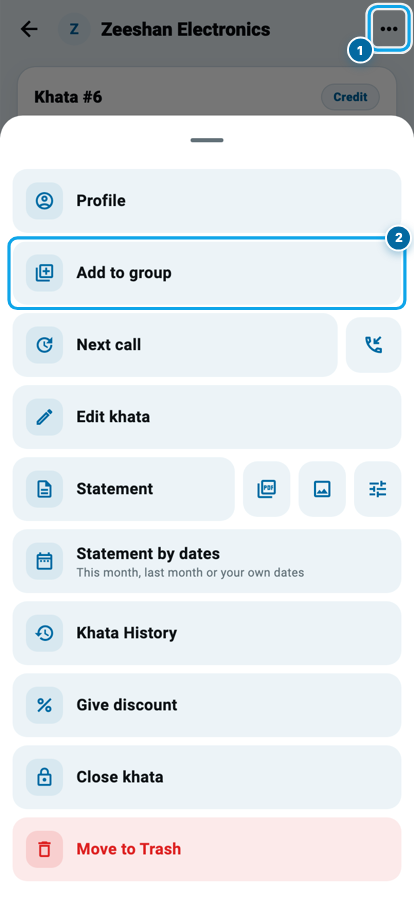
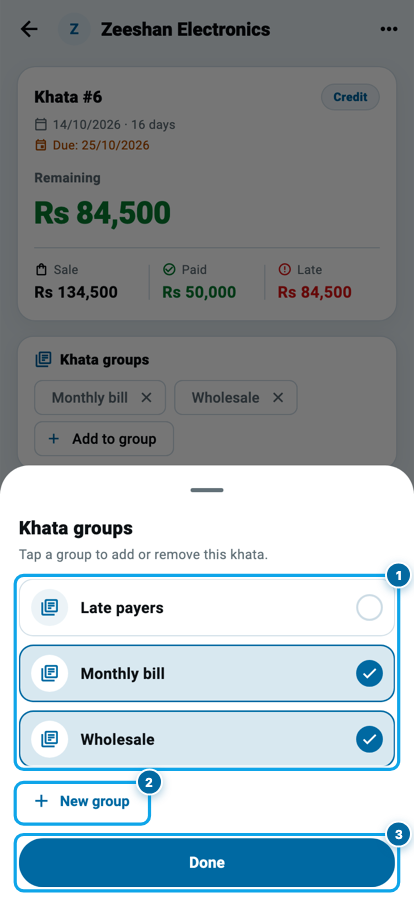
Open the khata, tap ••• at the top (1), then Add to group (2).
- In the Khata groups popup, tap a group to put the khata in it (1). Tap it again to take the khata out.
- New group (2) asks for a name, with its own Create button, and the khata joins the new group at once.
- Done (3) only closes the popup. Every tap is already saved.
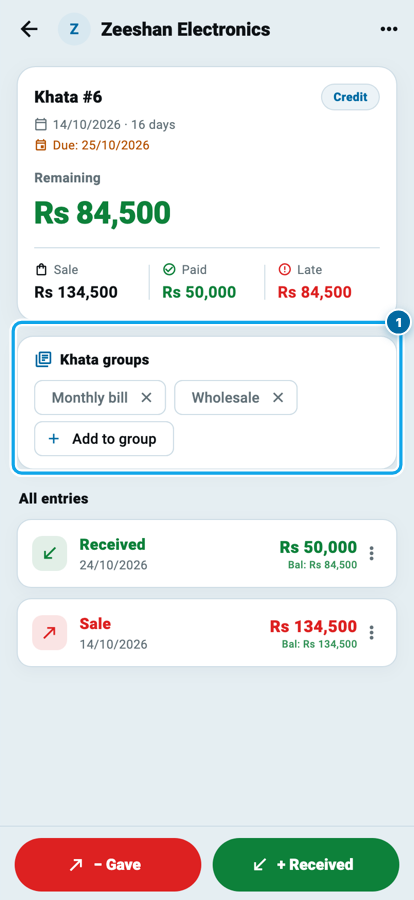
On the khata page, a Khata groups card (1) now lists its groups. Tap a name to open that group, tap × to take the khata out (Undo appears in case you slipped), or tap Add to group for more. The card shows only while the khata is in a group, so a shop that never uses groups sees its page as before.
Once your shop has groups, the new khata form gets an Add to group row too. Not needed? On the new khata page tap Customize this page and switch off Khata groups. Your khatas keep their groups. If you already sort customers into groups, as Class 7 shows, this is the same idea for khatas.
Your suppliers list, as you see it
At the start of the month, the ghee company's man asks what you paid his firm last month. You want one paper with that answer, not your whole supplier book.
- Open Suppliers and tap the filter button at the top right.
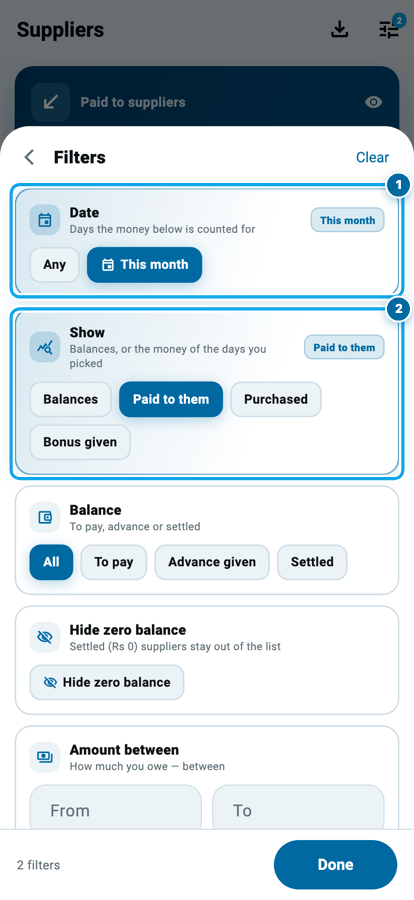
- Under Date, tap Choose dates, pick This month or your own days, and tap Apply dates (1).
- Under Show, pick Paid to them, Purchased or Bonus given (2), then tap Done.
The card on top now shows that total, Paid to suppliers here (1), and each supplier shows his own share. Tap the download button (2), choose PDF or Excel, and tap Export.
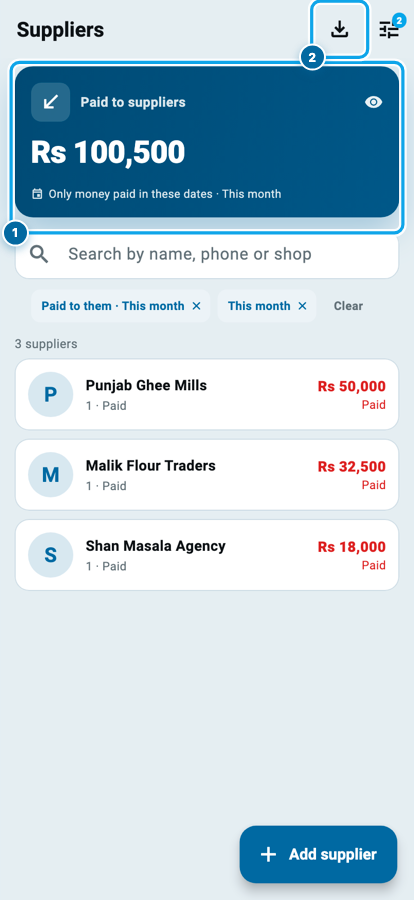
Say you paid Punjab Ghee Mills Rs 50,000, Malik Flour Traders Rs 32,500 and Shan Masala Agency Rs 18,000. Rs 50,000 plus Rs 32,500 plus Rs 18,000 is Rs 100,500, and that is what the card and the paper both say, with the same three names and amounts. Before, the paper printed the balances list, and a supplier paid this month but last bought from earlier could go missing.
Under a lens, the paper names the lens at the top (Paid to suppliers, Total purchases or Bonus received), always prints that money column, and makes its summary box the lens total. Under Bonus given, a bonus from a customer you bought from is on the board, so it prints too, in its own Customers you bought from part. That is why the Options sheet no longer shows that switch under any lens. A search narrows the paper the way it narrows the board, and the Bazaar row answers only to the word bazaar. Any Suppliers Excel file whose money is for chosen dates now states those dates in its first row.
The list first arrived in Wasoolo 3.2.0. If a supplier's total and yours disagree, when your supplier's total and yours do not match shows what to compare.
Staff approvals: waiting changes and Excel files
A staff change to a salary line waits whole. Say your manager's login changes a helper's salary line from Rs 28,000 to Rs 30,000. Until you decide in More, then Approvals, that login cannot change or delete the line again; it is told the change is waiting for you. Advance lines work the same way. If you tap Reject, the changed line is removed, as before, and Wasoolo reminds you to write the line again with the right amount if you need it. This works when the staff login has this update too, so update your staff's phones.
Excel waits for your OK too. If a staff login's papers need your OK (on its Approvals tab, under Documents (need my OK)), its Excel downloads now wait as well: the Khatas export, the Suppliers list, and the Customers list, Top debtors and Daily collection reports. The Customers and Guarantors files in More, then Export data, wait under the switch now named Reports & Export data. Those files and the Customers list and Top debtors reports show only the customers that login may see, and no phone numbers unless it may see them. Your staff member sees Sent for approval, and the request reaches your Approvals like any other paper. Class 20 covers staff logins and approvals from the start.
Smaller fixes
- In More, then Notifications, turning off All alerts now turns off Tips from Wasoolo too.
- When your papers print in Urdu, a return receipt writes the built-in Cash in hand as نقد and Cash in drawer, the galla, as گلہ. An account you named yourself prints as you wrote it.
- One name on papers: a name typed on a brand-new sale now saves with the sale itself, so it prints even when the sale came from a staff login that may add entries but not edit them. Emptying the name in Edit khata now always removes it, even on a sale that is down to one product, and pressing Back after typing a name asks before throwing it away.
- On an installment khata, a later sale keeps its own price on its invoice. Say a mobile went on a plan for Rs 20,000 with Rs 5,000 paid in advance and Rs 3,000 profit, and a charger for Rs 500 came later. The charger's invoice shows Rs 500, not Rs 3,500, and no advance. The mobile's shows Rs 23,000 with its advance.
- A customer you rename now shows his new name on a saved Khatas Customers filter, on its chip and on the export's filter line, the next time that filter loads.
On Windows, Mac and the web, 3.5.0 brings these same changes and nothing computer-only.
Common questions
Does Wasoolo delete a duplicate entry by itself?
No. It only shows the copies and asks. Nothing goes to the Trash until you tap Delete or Keep only this, and Undo brings it straight back.
Why can't I see the warning sign on Home?
It shows only when an entry looks saved twice. A staff login sees it only if it may delete entries.
Two real sales of the same amount on one day were caught. What now?
Tap Not a duplicate on either one, or Ignore · keep both. Wasoolo will not ask about that pair again.
Will my old khata numbers change?
No. Numbers you already gave stay as they are. Only the number the box offers for a new khata follows its type.
Can I hide khata groups on the khata page?
Yes. On the new khata page tap Customize this page and switch off Khata groups. Your khatas keep their groups.
Does the suppliers list still print balances?
Yes. With Balances picked under Show, it prints the balances list as before, with To pay, Advance and Balance at the top.