
GuideApp tutorials
Class 20: the employee login, permissions and approvals
Class 20 of the Wasoolo course: give your worker his own login, pick exactly what he may open, and decide which of his actions wait for your OK.
What Class 20 covers, in order
- 1Open the access pageOne list of everyone who can sign in to your shop, and everyone who cannot yet.
- 2Make his loginHis name and his number are enough; a username, a password and a QR code come back in one sheet.
- 3Hand it over safelySend it to his own WhatsApp, or let him scan the code from your screen.
- 4Give permissionsFeature by feature, he starts with nothing on and you switch on only the doors he needs.
- 5Choose the approvalsPick the actions you want to see before they are final, such as an edited amount or a deleted line.
- 6Keep or rejectEvery request waits in one list with his name and the time; Reject puts the shop back the way it was.
Your salesman can have his own login on his own phone, and still never see what you do not want him to see. Class 20 makes that login, hands it over, opens the doors he needs one by one, and then answers the question everybody gets stuck on: what is the difference between a permission and an approval?
Open the one page that lists who can sign in
Six in the evening, and you are at the wholesale market. A customer waits at your counter while your helper reads a khata down the phone to you. He could have written it himself an hour ago.
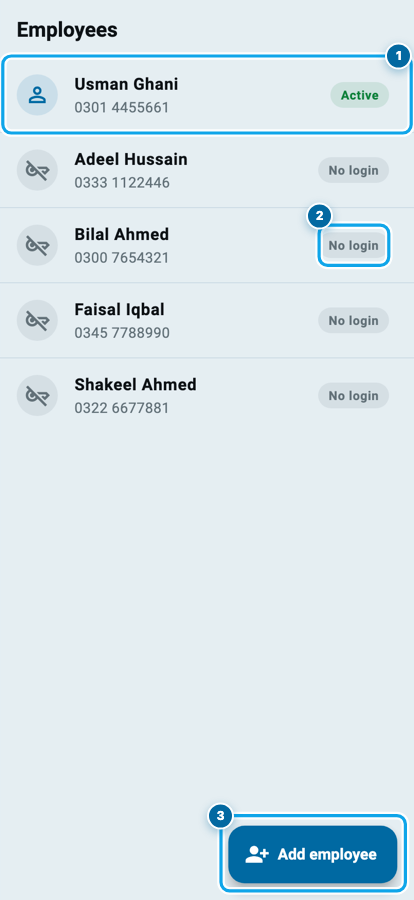
Go to More and tap Users & permissions, then Employees. Salary and attendance are Class 19. This page is about access: who can sign in, and what happens when he does.
Every man you have added is on it. The one who already has a login carries a green Active badge. The rest carry a grey No login: he exists in your khata, but he cannot open the app.
Make his login in under two minutes
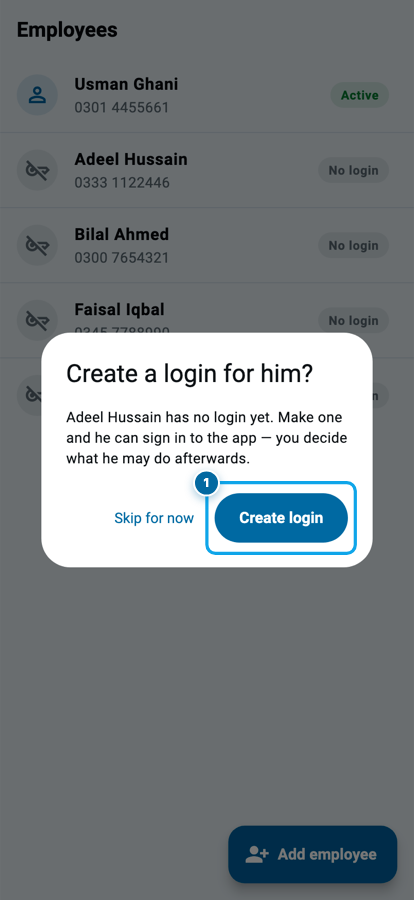
Tap the man you want to give access to. If he has no login yet, Wasoolo asks straight out and names him while it asks, so you can never make a login for the wrong Adeel. Create login is the whole decision. His name and number come from his own profile, because the man in your khata and the man with the login are one man, not two. Tap it and the account is made on the spot.
He starts with nothing switched on. That is the right place to begin: you open doors from there, instead of closing them in a hurry later.
Hand the login over without saying it out loud
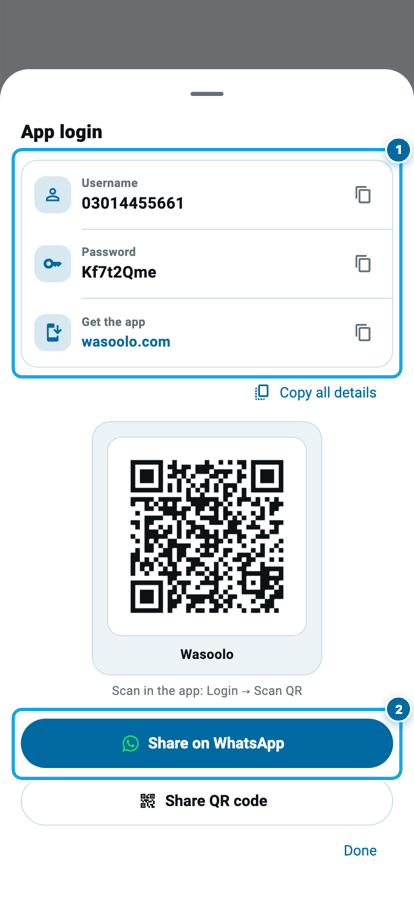
The moment the account exists, Wasoolo shows the login sheet: a Username, a Password, and a QR code carrying both. Do not read a password out across a shop counter; this sheet gives you three better ways. Share on WhatsApp opens his chat with the details and the download link already typed. The copy buttons put one line on your clipboard at a time. Or let him scan the QR code off your screen from Login → Scan QR, typing nothing at all.
Start your digital khata today
Free to start. Works offline. English, Roman Urdu & Hinglish. Your customers get their app free, forever.
Permissions: every door starts shut
Tap his name again and you are on his access page. Two tabs: Permissions and Approvals. Take them one at a time, because they answer two different questions.
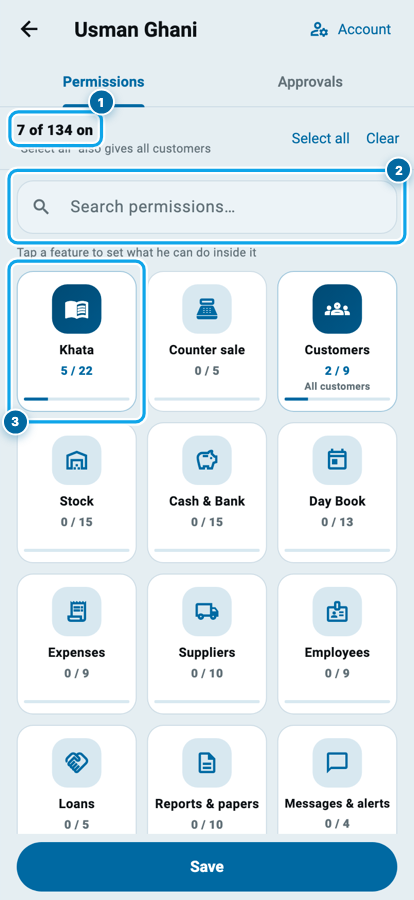
A permission answers can he do this at all? The header keeps the score for the whole man. On a new employee it reads 0 of 134 on, because not one is granted until you grant it.
Those 134 switches are not one long list. They sit in cards, one per part of the shop — Khata, Customers, Stock, Cash & Bank, Expenses, Suppliers, Employees, Loans and more — each showing how many of its own are on. Forgotten which card a switch lives in? Type trash, or pdf, or qist into the search box and it finds that switch and says where it lives.
Inside a feature: the switches he actually needs
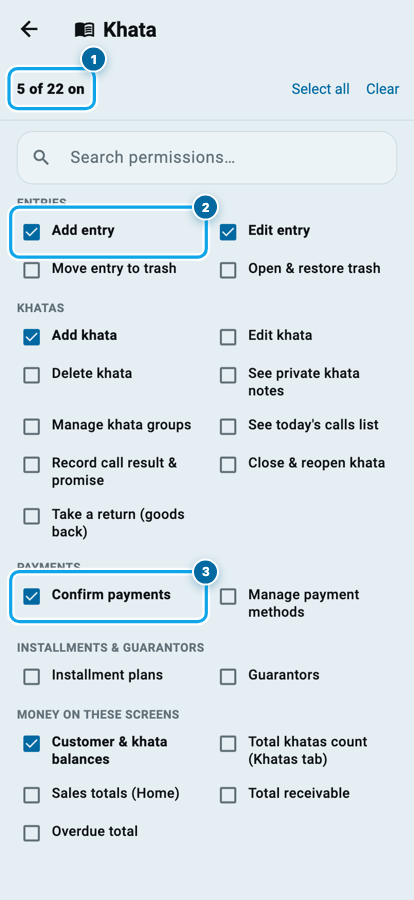
Tap Khata and you get only khata switches, in the sections a shopkeeper already thinks in: Entries, Khatas, Payments, Installments & guarantors, and the money on those screens. Here you decide the shape of his job. A salesman who writes udhaar all day needs Add entry and Add khata, and almost certainly not Move entry to trash. A man on the counter needs Confirm payments. Only you need See private khata notes.
The last section is the one people forget. Customer & khata balances, Sales totals, Total receivable and Overdue total are not actions, they are figures. Turn them off and he works on screens where your totals are not printed.
Approvals: the work you want to see before it is final
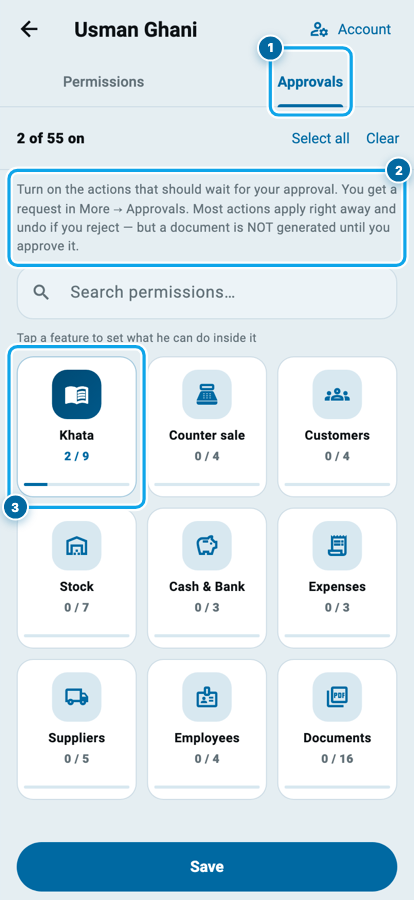
This part is worth reading twice. An approval asks a different question: he is allowed to do this, but does it stay without my OK? You are not locking the door; you are asking to be shown what came through it.
Switch on an approval and the action still works for him. Wasoolo applies it at once, so the customer in front of him never waits, and the same moment it drops a request into your Approvals list. Reject it and the app undoes the whole thing by itself.
One exception is deliberate, and the screen says so: a document is not generated until you approve it. An invoice leaves your shop in a customer's hand, so that one waits instead of undoing.
A permission and an approval are two different questions
The rule is short. If the work is not his job, turn the permission off. If it is his job but you want to see it, leave the permission on and switch the approval on.
The Approvals list: Keep, or Reject and undo
Open More → Approvals. The tile carries a number when anything is waiting, so a request cannot sit there for a week without you knowing.
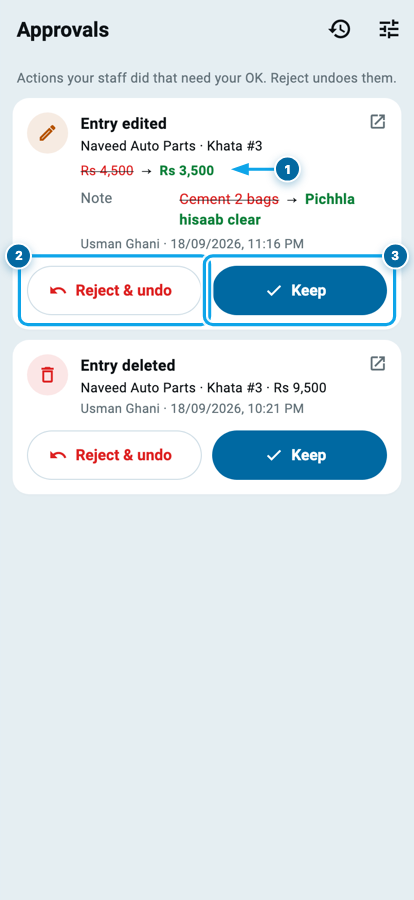
Every card tells the whole story without opening it: what he did, on which customer and khata, the money before and after, his name and the time. An edit shows the old figure struck through, the new one in green.
Two buttons end it. Keep approves the work and the card leaves. Reject & undo puts the shop back as it was: a deleted entry returns, an edited amount goes back, an added line to Trash.
Start your digital khata today
Free to start. Works offline. English, Roman Urdu & Hinglish. Your customers get their app free, forever.
When he leaves, or when you change your mind
None of this is written in stone. Open his page any day, flip a switch, tap Save, and his phone follows without him doing anything.
When a man leaves, do not delete him: that takes his khata with him. Use Account on his page to remove the login instead. He can no longer sign in, and every line he wrote stays where it is, under his name — the same way your khata is safe even when a phone is not.
One thing to know first: the free plan gives you one employee login. Pro Lite raises it to ten, Pro has no cap. Your khata and every customer you add are yours on every plan; the limit is only about how many people sign in.
Common questions
What is the difference between a permission and an approval, in one line?
A permission decides whether he can do the work. An approval decides whether it stays without your OK. Off means impossible; approval means visible.
If I turn on an approval, does my employee have to wait for me?
No, and that is the point. His work applies at once, so the customer in front of him is not kept waiting. Only a document is held back.
What exactly happens when I press Reject?
The app undoes it for you. A deleted entry comes back, an edited amount returns to the old figure, and a line he added goes to Trash. You repair nothing by hand.
Can my employee see how much profit my shop makes?
Only if you switch it on. Balances, sales totals, receivable and overdue each have their own switch, and all of them start off.
He forgot his password. Can I give him a new one?
Yes. Open his page, tap Account, and reset the password. The new one appears on the same sheet with its QR code, ready for his WhatsApp.
If I remove his login, do I lose his khata and his attendance?
No. Removing a login only stops him signing in; his salary, advances and days stay in his khata under his name. Deleting the man is what takes the record away, so never do that for someone who simply left.