
GuideApp tutorials
Class 7: customer groups, and sorting and filtering the list
Class 7 of the Wasoolo course: put your customers into groups, then sort and filter the list so the people you need are the only ones on screen.
What Class 7 covers, in order
- 1Tick the people who belong togetherSelect on the Customers tab turns every row into a checkbox.
- 2Drop them into a groupOne tap on the people icon: a new group, or one you already keep.
- 3Open the group's own pageIts members, what each still owes, and one total across all of them.
- 4Grow it whenever you likeAdd members opens the searchable customer picker; a person can sit in several groups.
- 5Sort and filter what is leftThree orders and three filters, so the list on screen is the list you need.
A customer group in Wasoolo is a named set of people you deal with together: a bazaar round, your monthly parties, the ones who only pay cash. Tick them once and the group is made. Class 7 builds one, opens it, grows it, and then sorts and filters the customer list around it.
The four tools above your customer list
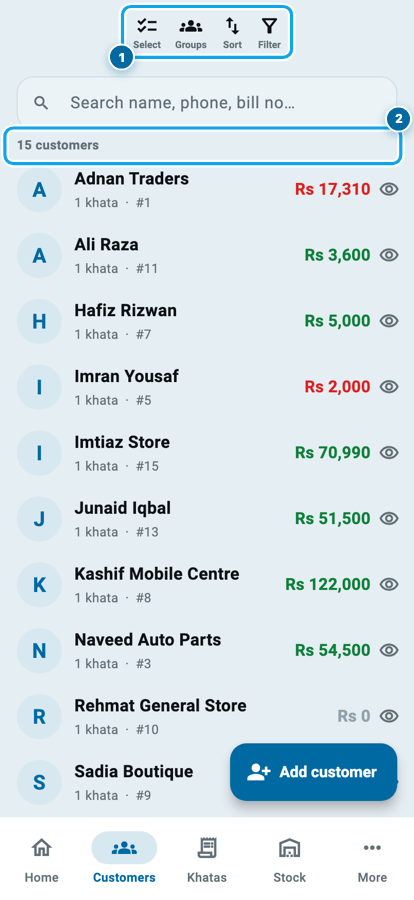
Open the Customers tab. Above the search box sit four small icons with their names under them: Select, Groups, Sort and Filter. Everything in this class lives in those four.
Under the search box is a line that just says how many people are on the list. Watch it. It is the number that changes every time you sort or filter, and it is the quickest way to know whether the list in front of you is the list you meant to make.
What Class 7 covers, in order
- 1Tick the people who belong togetherSelect on the Customers tab turns every row into a checkbox.
- 2Drop them into a groupOne tap on the people icon: a new group, or one you already keep.
- 3Open the group's own pageIts members, what each still owes, and one total across all of them.
- 4Grow it whenever you likeAdd members opens the searchable customer picker; a person can sit in several groups.
- 5Sort and filter what is leftThree orders and three filters, so the list on screen is the list you need.
Making a group in two taps
Friday morning, and the same five shops in your bazaar are the ones you visit. They are scattered through a list of a hundred names, and you find them again every single week.
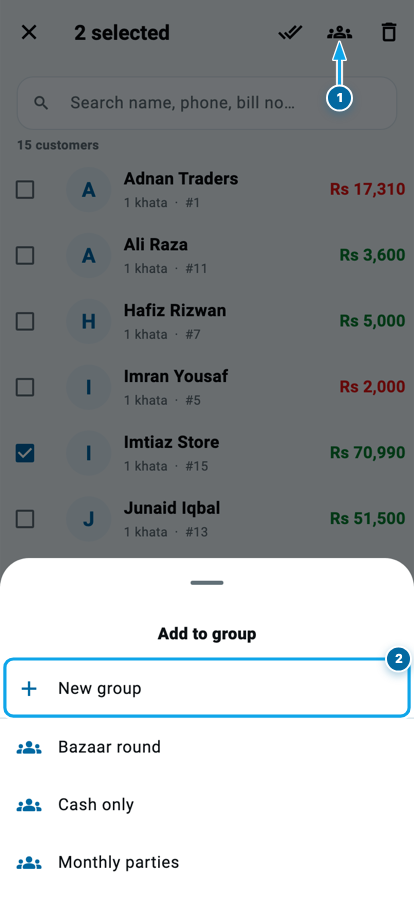
Tap Select. Every row grows a checkbox. Tick the five, and the bar at the top turns into a count with three icons on the right: select all, a people icon, and delete. Tap the people icon and a sheet opens with New group at the top and every group you already keep under it.
Tap New group, type Bazaar round, and it is done. Tap an existing group instead and the ticked people join it. A person can sit in as many groups as you like, so the shop that is both a monthly party and a bazaar stop belongs to both.
The Groups room
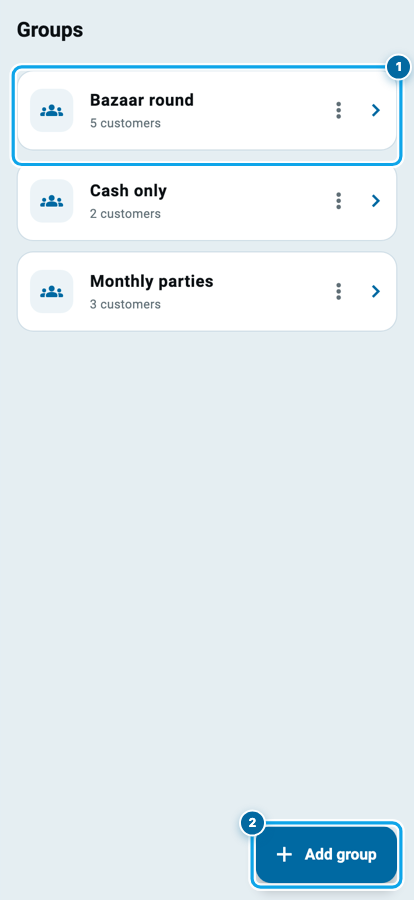
The Groups icon on the Customers tab opens the room where they all live. Each card carries the name and how many people are in it, and the ⋮ beside it gives three choices: send a message to the group, rename it, or delete it.
Deleting a group deletes nothing else. It removes the label, and every customer stays exactly where he was, with every khata and every rupee untouched.
One thing to keep straight: these are customer groups, sets of people. The Khatas tab has its own khata groups, which are sets of accounts. Different lists, different jobs.
What a group's own page adds up
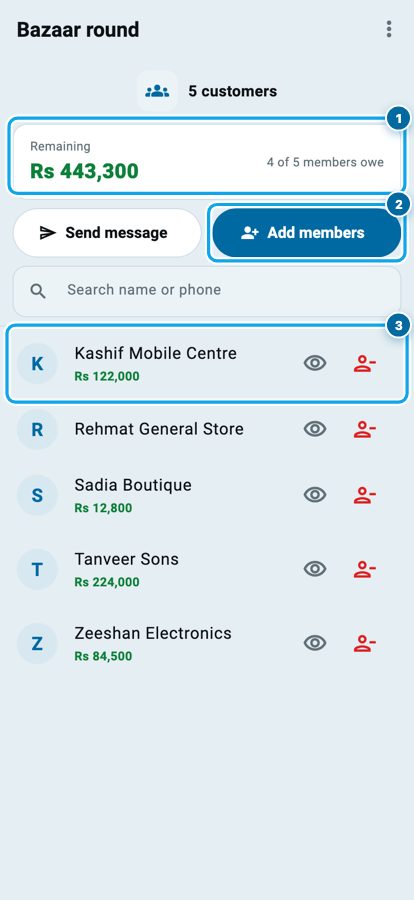
Tap a group and its page opens. The white card at the top is why the group is worth making: Remaining, added up across every member, and beside it a line that says how many of them still owe something.
Under it every member is listed with what he still carries, and a search box above them for when the group has grown past a screenful. So a round that used to mean scrolling and adding in your head is now one figure you read before you leave the shop.
What a group's own page adds up
The total is added from the members below it, so it moves the moment any one of them pays. Nobody types it, and nobody has to add five balances in his head at the counter.
Send message goes to the members who have the customer app on their phone. Each one gets it in their own chat thread, so it lands in Messages and they can reply to you. Members without a login do not get it, and nothing is ever sent on their behalf without you pressing send.
Growing a group later
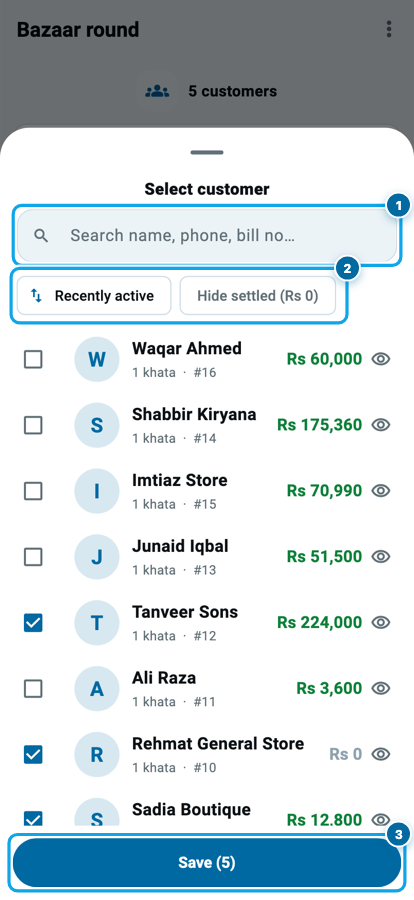
Add members opens the customer picker, and the picker has the same three tools this class is about, in small: a search box, a Recently active order, and a Hide settled (Rs 0) switch that drops everyone who is clear. Tick who you want and the button at the bottom says how many you are saving.
Removing someone is the small icon on his row on the group page. As with deleting a group, it takes away the label and nothing else.
Start your digital khata today
Free to start. Works offline. English, Roman Urdu & Hinglish. Your customers get their app free, forever.
Three ways to order the list
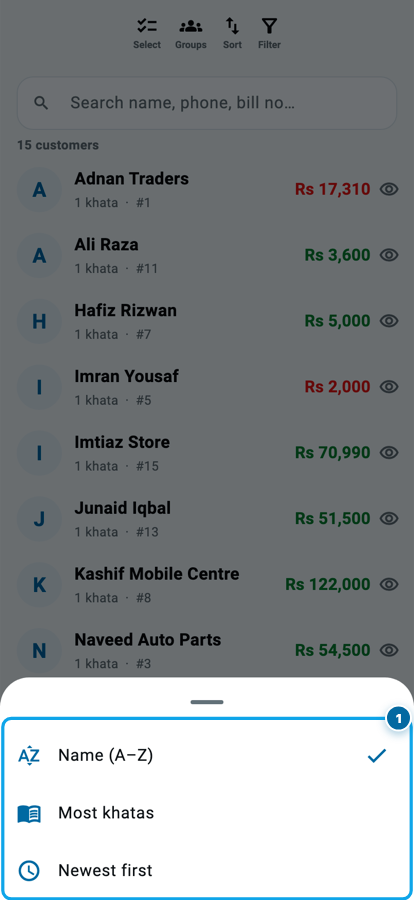
Back on the Customers tab, Sort offers three orders and nothing more, because three is all a customer list needs.
Name (A–Z) is the register order: you know the name, you go to the letter. Most khatas brings your busiest people to the top, which is where a shop's real money usually sits and where the regulars worth protecting are. Newest first puts the people you added most recently at the top, which is the honest way to check whether the ones who joined this week are behaving.
Three filters that shrink it
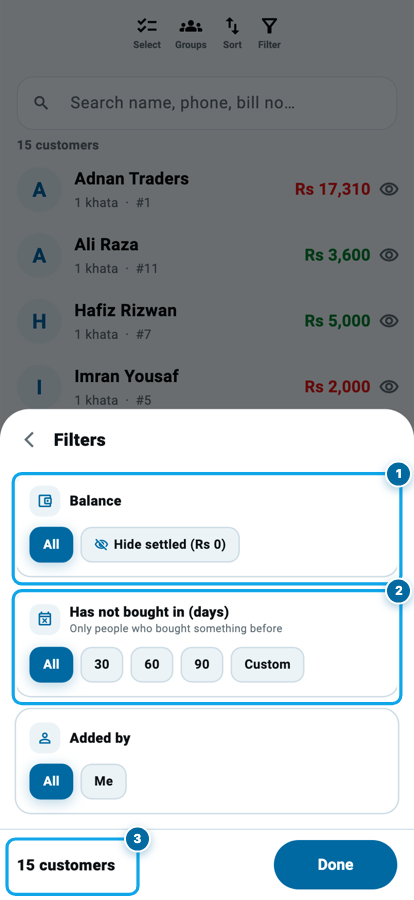
Filter opens three cards, and they work together.
Balance has one switch worth knowing: Hide settled (Rs 0) drops everyone who owes you nothing, which on most lists is half of it.
Has not bought in (days) is the quiet one. Pick 30, 60, 90, or type your own number, and you get the people who used to buy and then stopped. It only ever shows people who bought something before, so a name you saved and never sold to does not appear. That list is worth reading slowly, because a customer who drifted away usually leaves for a reason you can fix.
Added by matters when someone else saves customers for you. Pick yourself or pick a team member and you see only the contacts that person entered.
The footer counts what survives as you tap, then Done takes you back to that list, where the same search box Class 5 was about still works on top of the filter.
Common questions
Does putting a customer in a group change his khata?
No. A group is a label on the person. His khatas, his balance, his entries and his history are untouched, and deleting the group leaves all of it exactly as it was.
Can one customer be in two groups?
Yes, as many as you like. A shop can be in your bazaar round and your monthly parties at the same time, and it counts in both totals.
Do groups sync to my other devices and my team?
Yes. Groups and their members are part of your shop's data, so they appear on your other logins and for team members who are allowed to see them.
Can an employee make or change groups?
Only if you switch on his permission for it. Without that, he sees the customer list as usual but the Groups icon and the add-to-group action are not there.
Is a customer group the same as a khata group?
No. A customer group holds people, and lives on the Customers tab. A khata group holds accounts, and lives on the Khatas tab. Keep one of each if you need both.
Do the filters change what I export?
On the Customers tab they change what you see. Exporting a filtered list of who owes you is the Khatas board's job, which is what Class 8 covers.