
GuideApp tutorials
Class 22: how to customize the home screen
Class 22 of the Wasoolo course: make the home screen your own. Twelve ready designs, five button shapes, and every button moved, hidden or added by you.
What Class 22 covers, in order
- 1Open the customize doorOne icon at the top right of Home, and your home screen starts wobbling.
- 2Pick a ready designTwelve arrangements with live pictures — one tap and your Home becomes that one.
- 3Move, remove, addHold a button to drag it, the corner button to take it off, + to bring in a new one.
- 4Change a card's shapeTiles, Blocks, Big, Round or List — and how many you want in one row.
- 5Search the whole listEvery door the app has, in sections, with a search box at the top.
- 6Switch off what you never useA whole card, the money cards, the calling list — even the bottom menu.
- 7Put it back if you wantReset to default returns the home screen Wasoolo came with, in one tap.
Wasoolo's home screen is yours to arrange. Tap the customize icon at the top right of Home and every button starts wobbling: drag one, take one off, or add a new one. Twelve ready designs are a single tap away, and Reset puts the old screen back. Class 22 does all of it.
Where the customize door is
Think about the four things you actually open in a day. New khata. Receive money. A customer's page. Maybe the day book at closing time. Now look at your home screen and count how many taps stand between you and each of them.
Open Home and look at the top right. Beside the bell sits a small square split into blocks. That is the door.
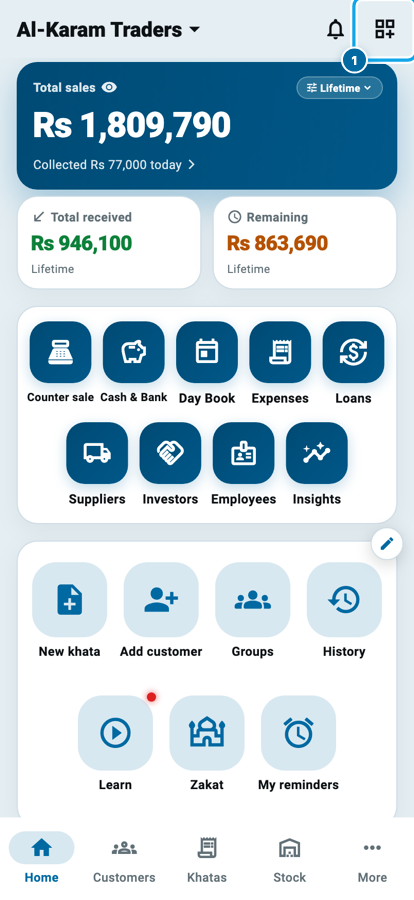
Tap it. Nothing is saved yet, and you can walk straight back out.
Make it yours: the page is your home screen
The page that opens is not a settings list about your Home. It is your Home, wobbling. Every button on it is the real button at its real size, so what you arrange is exactly what you get when you go back.
Three gestures do almost everything, and there is no Save button anywhere. Every change is written the moment you make it.
Hold a button and drag it. It moves inside its card, or into another card entirely.
Tap the small round button on a button's corner to take it off Home. The feature is not deleted or switched off for anybody; it just stops showing on this screen.
Tap + at the end of a card to bring in a new one.
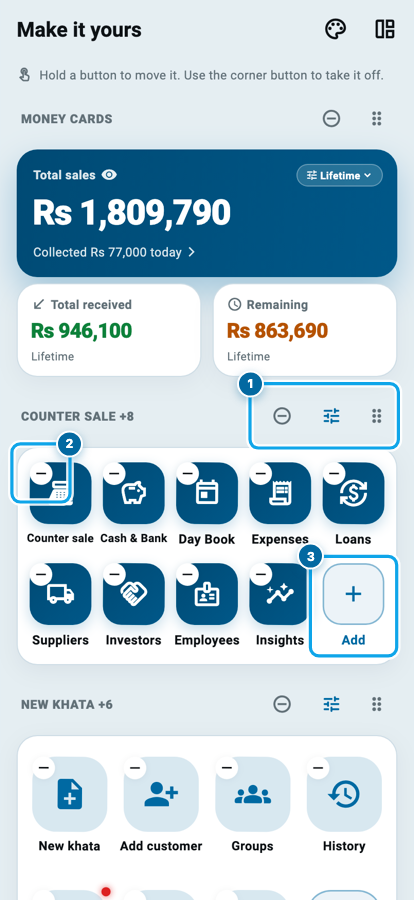
The three buttons on a card's heading belong to the whole card: one hides the card, one opens the card's own page, and the striped handle drags the whole card up or down. So you can put the calling list above the money cards, or the buttons above everything, in a few seconds.
Twelve ready designs, one tap each
If arranging from scratch sounds like work, start from something finished. The second icon in the header opens Home style: twelve complete arrangements, each drawn as a live picture of the home screen you would get.
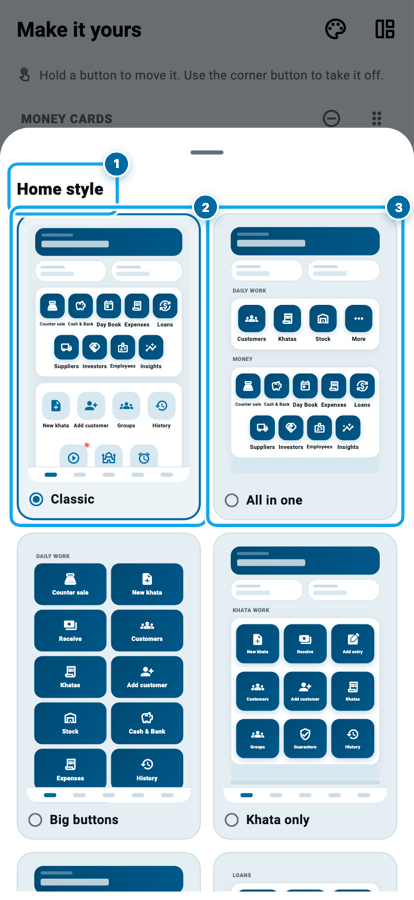
The twelve ready designs, and the shop each one suits
- Classic — the home screen Wasoolo came with
- All in one — every door on one screen, nothing hidden
- Big buttons — large, easy to hit, good for older eyes
- Khata only — udhaar and customers, nothing else
- Shop & stock — for the shop that lives on its maal
- Loans — money you lent and money you took
- Cash & money — cash, day book and expenses in front
- Owner view — this month's profit opens the screen
- Numbers — the live charts, one under the other
- Team & salary — for the shop that runs on workers
- Very simple — the money, four doors, the calling list
- Counter — big buttons, money hidden, for a shared phone
Tap any one and Home becomes it. Change a single button afterwards and the dot moves to My own — your arrangement is never called by a design's name.
The picture on each card is the real thing, not an artist's idea of it. Tap one and your Home becomes that design immediately. Change one button afterwards and the dot quietly moves to My own, because your own arrangement should never carry somebody else's name.
Start your digital khata today
Free to start. Works offline. English, Roman Urdu & Hinglish. Your customers get their app free, forever.
Every card has its own shape
This is where a home screen stops looking like everyone else's. Tap the sliders button on a card's heading and that card gets its own page.
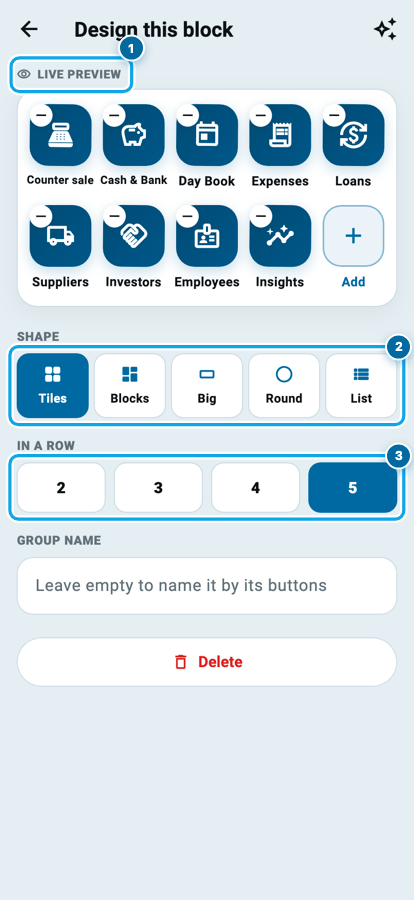
Five shapes are on offer. Tiles are today's square icons with the name underneath. Blocks turn the whole cell into the button with the name inside it, so two or three across leave no empty air. Big gives you two enormous buttons per row. Round is the soft-square shortcut look. List is one tidy row per button, the way the More tab reads.
Under that, In a row decides how many fit across: two, three, four or five. The preview at the top of the same page changes as you tap, so you are never guessing.
On a phone, blocks stop at four across: at five the cell is too narrow for the name to survive, so the app does not offer it.
You can also give the card your own heading. Leave the name empty and the card names itself after the buttons inside it.
Add any button from the full list
Tap + on any card and the whole catalogue opens: every door the app has, grouped into Money, Khata, People, Stock, Messages, Papers and App.
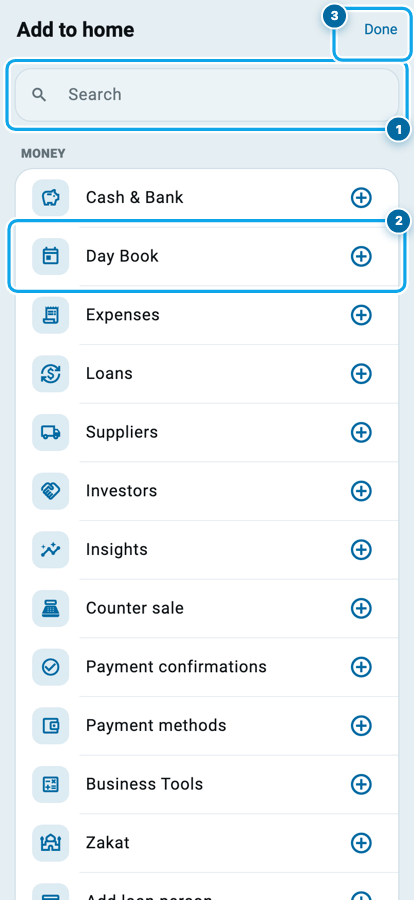
There is a search box at the top, because a list this long needs one. Type "day" and the Day Book comes to you. Pick as many as you like in one visit and tap Done once.
Two things worth knowing. A button already on your Home shows a tick and cannot be added twice. And a door your account is not allowed to open is not in the list at all, because a layout is only a view of the app, never a permission. If you share the app with workers, Class 20 on employee permissions is the one that decides who may open what.
Switch off what you never open
Scroll to the bottom of the customize page and the rest of the controls are waiting.
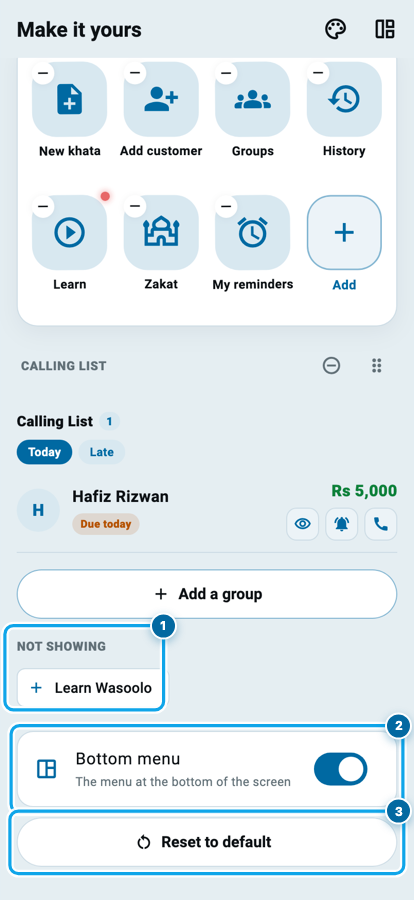
Anything you hid sits under Not showing as a small chip. Tap it and it comes straight back, in the same place it left. Nothing you take off Home is thrown away.
Bottom menu is the switch for the bar along the bottom of the screen. Turn it off and Home gives you the whole screen, with the tabs reached from the buttons instead. Some shopkeepers love it, some turn it back on the next day.
Say your helper runs the counter on a shared phone. Put the Counter design on it, switch off the money cards so the day's takings are not facing every customer who leans over, and leave the four buttons he actually needs. His screen does one job. Yours can still open the day book and everything else.
Start your digital khata today
Free to start. Works offline. English, Roman Urdu & Hinglish. Your customers get their app free, forever.
One design for every shop, and Reset when you want the old one
If you run more than one shop in Wasoolo, a switch near the bottom offers this same design to all of them. Turn it on and whatever you change here follows into the others.
And when an experiment goes wrong, Reset to default is right underneath. It asks first, then puts back the home screen Wasoolo came with. Your khatas, customers and money are never touched by any of this. A layout only decides what you see and in what order.
Spend five minutes on this once and every day after it is two taps shorter. If you are just starting, Class 1 adds your first customer and Class 2 sets up your cash and bank.
Common questions
If I take a button off Home, does the feature stop working?
No. Hiding a button changes what this screen shows, nothing else. The feature still works, it still syncs, and its chip is waiting under Not showing whenever you want it back.
Do I have to press Save?
There is no Save button in this feature. Every change is written as you make it, so you can just go back when you are done.
Will my arrangement come back if I change my phone?
Yes. Your home design is saved with your account, so signing in on a new phone brings the same screen with it.
Can I have a different home screen in each of my shops?
Yes, that is the normal behaviour. Each shop keeps its own arrangement unless you turn on the switch that says to use the same design in all of them.
I hid the bottom menu and now I cannot find the Customers tab.
The buttons take you everywhere the bar did, and a More button is always kept on Home while the bar is off. If you prefer the bar, turn Bottom menu back on at the foot of the customize page.
I made a mess of it. How do I get the old home screen back?
Tap Reset to default at the bottom of the customize page. It asks you first, then restores the home screen the app came with. Nothing in your khata is affected.