
GuideApp tutorials
Class 1: how to add a customer in Wasoolo, and make the page your own
Add a customer in Wasoolo step by step, then reshape the page: switch off boxes you never fill, drag the rest into your order and add your own fields.
What Class 1 covers, in order
- 1Open the pageCustomers, then the plus button. Or pull the name straight out of your phone book.
- 2Name and numberThe two boxes that are required, plus a father's name when two customers share one.
- 3The second numberA spare phone, and a separate WhatsApp number when he uses a different one.
- 4CNIC, photos, addressFront and back of the card, and the address that turns a list into a route.
- 5Customize the pageSwitch off what you never fill and drag the rest into the order you use.
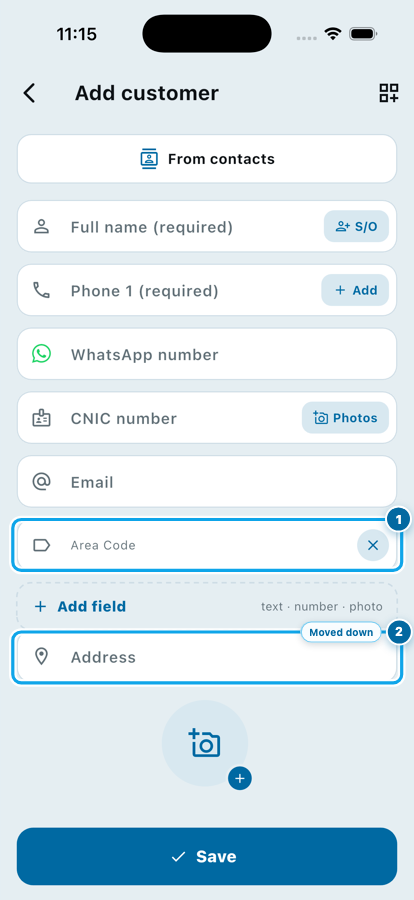
- 6Your own fieldAdd what your trade asks for, and keep it for every customer after this one.
Adding a customer in Wasoolo takes about twenty seconds: open the Customers tab, tap the plus button, type a name and a phone number, tap Save. The longer answer is the useful one, because this page can be reshaped. Switch off every box your dukan never fills, drag the rest into your own order, add your own.
Where the new customer page lives
Open Wasoolo and tap Customers in the bottom bar. The plus button at the bottom right opens Add customer. If the man is already saved in your phone, tap From contacts at the top and his name and number come across on their own.
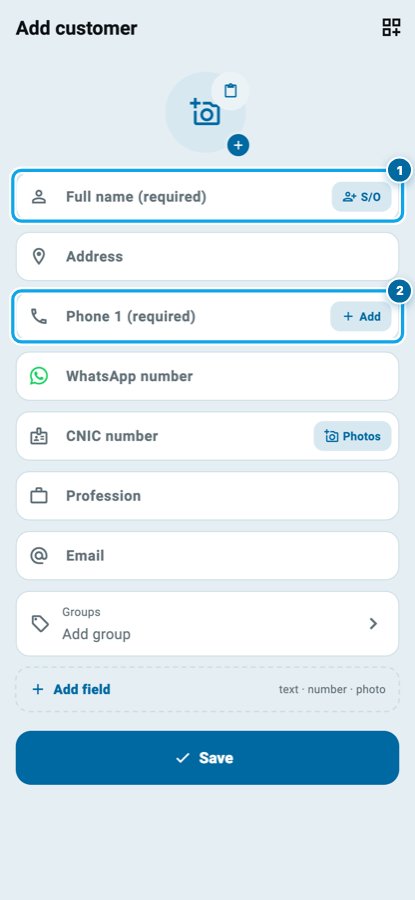
Two boxes are required and the rest are not: the full name and Phone 1. You can save a customer with nothing else filled in and come back to the page later.
Start with the name and the number
Write the name the way you say it in the shop, not the way it is printed on the CNIC. You are going to search for this man at six in the evening with one hand on a shopping bag. "Adnan Cloth" finds him. "Muhammad Adnan Bin Abdul Raheem" does not.
If two customers share a name, tap S/O beside the name box and a father's-name field appears under it. Three men called Aslam stop being a guessing game.
The phone number is the one part worth slowing down for. Wasoolo treats one number as one person: type a number that already belongs to another customer and the save is blocked, with the app naming who holds it. That single rule is what stops the same man existing twice with half his udhaar in each copy.
One man, more than one number
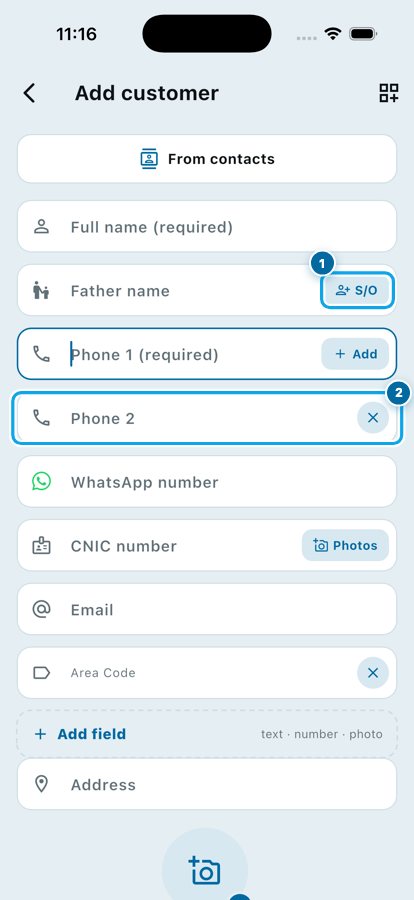
Tap + Add beside Phone 1 and a Phone 2 box appears. Use it for the number his son answers, or the landline at his shop. Under it there is a separate WhatsApp number box, because plenty of people give one number for calls and a different one for WhatsApp.
That box is not decoration. When you want to remind him later, Wasoolo gives you a one-tap button that opens a WhatsApp chat with him, already addressed, and you send the message yourself. Nothing goes out without you pressing send.
CNIC, photos and the address
CNIC number has a Photos button on the right. Tap it and two boxes open: front and back. Photograph the card once and it stays with his record.
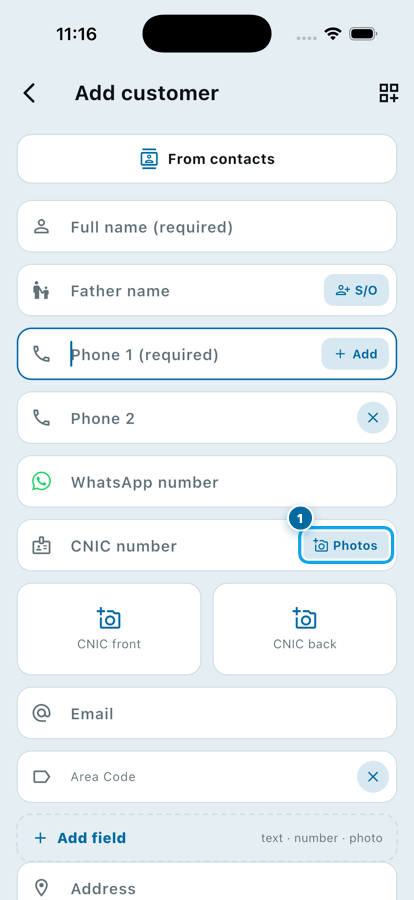
Not every customer needs this. For the man buying a Rs 200 packet of tea it is too much, and it slows you down at the counter. For the man taking Rs 40,000 of goods on a plan, it is the difference between a record and a story. Use it where the amount justifies it, and remember you are holding somebody's identity card, so keep your phone locked.
Address matters more than most shopkeepers expect. On the day you go out to collect, an address turns a list of names into a route. Working out how much udhaar to give is easier when you know where the man actually lives.
The part most people never find
Look at the top right of the Add customer page. There is a small icon there, and it opens Customize this page.
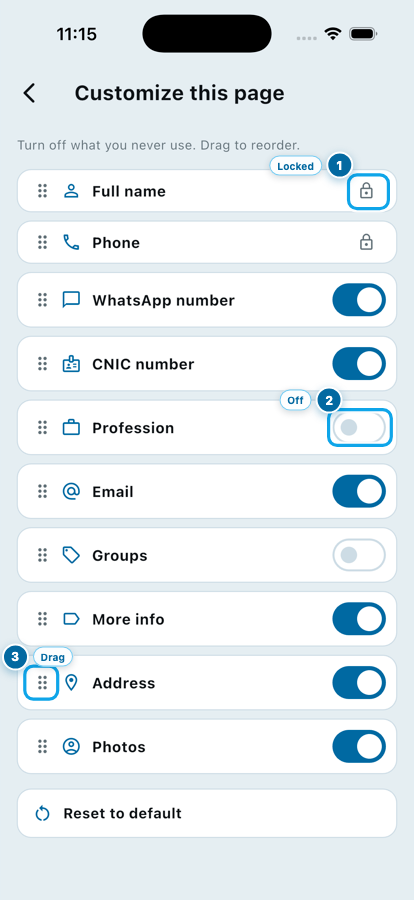
Three things are happening on that screen.
- Full name and Phone carry a lock instead of a switch. They cannot be turned off, because a customer with neither is a customer you will never find again.
- Every other row has a switch. Turn off Profession, Email, CNIC, anything your dukan never fills in. The box simply stops being asked for.
- The dotted handle on the left drags. Put the boxes in the order you actually fill them, so your thumb runs straight down the page.
One thing is worth knowing before you start flicking switches: turning a field off hides the question, it never deletes an answer. A customer who already has an email keeps it, and switching the row back on shows it again. Reset to default at the bottom puts the whole page back the way it came.
Add a field your shop actually needs
Every trade asks for something the next one never does. A cloth shop wants the tailor's name. A dairy wants the delivery slot. A hardware shop wants the site address.
Tap + Add field, type what you want to call it, and choose the type: text, number or photo.
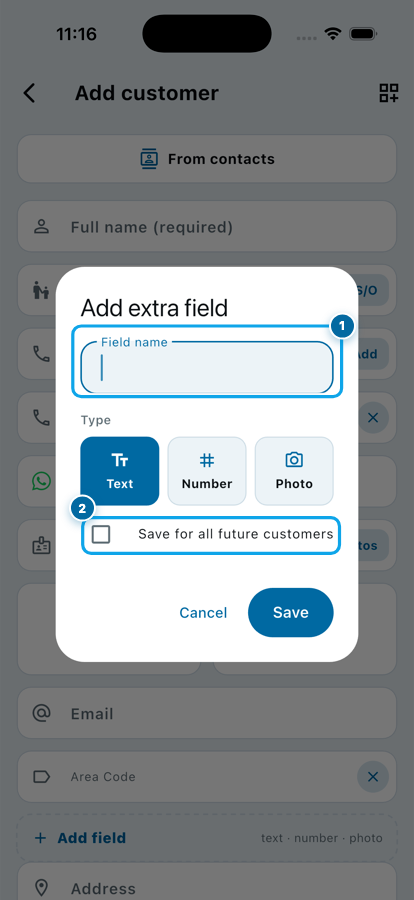
The checkbox underneath is the one to notice. Save for all future customers means you build the field once and it appears on every customer page you open from then on. Leave it unticked and the field belongs to this one man.
Groups, and the one thing this page will not ask
Near the bottom sits a Groups row. Tap it while you are creating him and he goes straight into "Monday route" or "Bazaar shops". Later, when you want one list or one round for that set of customers, the group is already built. Keeping your regular customers gets a lot easier when they are sorted before you need them sorted.
What you will not find on this page is a money box. There is nowhere to type what he already owes you, and that is deliberate. A customer is a person; what he owes is an agreement. The old balance goes in when you open his khata, as an entry called Old balance, so six months later that figure carries a date and a reason instead of appearing from nowhere. That one habit is what ends the arguments about who paid what.
Before you tap Save
- The name is the one you would shout across the shop
- The number is the one he actually answers
- A father's name, if two customers share his name
- The WhatsApp number, if it is a different one
- CNIC photos, only where the amount justifies it
- An address, if you ever go out to collect
- A group, so the list is sorted before you need it
- What he owes, typed on this page
Start your digital khata today
Free to start. Works offline. English, Roman Urdu & Hinglish. Your customers get their app free, forever.
Common questions
Do I have to fill in every box?
No. Only the full name and Phone 1 are required. Everything else is there for the customers who need it, and you can come back and add it any time by opening the customer and tapping edit.
What happens if I type a number another customer already has?
The save stops and Wasoolo tells you which customer holds that number, with a shortcut to open him. It is the same check that keeps one man from turning into two half-records with half his balance in each.
I switched a field off by mistake. Is the old information gone?
No. A switch controls what the page asks you, never what is already stored. Turn the row back on and every value that was saved is still sitting there.
Can I put a customer's opening balance on this page?
Not on this page. The old balance belongs to his khata and goes in as an entry called Old balance when you open it, which keeps the amount attached to a date instead of floating on the person.
Where do the CNIC photos go?
They are stored with that customer's record and travel with your account backup, so they open on any device you log into. Treat them the way you would treat the card itself and keep your phone locked.
Will my customized page follow me to my computer?
Yes. The layout is saved to your account, not to one handset, so the same page opens on your phone, on the web and on the desktop app. Your helper keeps his own layout on his own login.
Wasoolo is 100% FREE to download on Android and iPhone, and every customer you add here syncs to every device you sign in on. Class 2 of the course opens the first khata for the customer you just made.