
updateWhat's new
What's new in Wasoolo 3.1.0: a new upgrade page, supplier payment receipts and approvals for installment plans
Wasoolo 3.1.0 brings a clearer upgrade page, a receipt for every supplier payment, approvals for installment plans and closing a khata on any date.
Wasoolo 3.1.0 in seven lines
- 1A new upgrade pageSwipe the cards, pick a plan, see your saving.
- 2Supplier payment receiptPDF or Image, in A5 or A4.
- 3Approval for installment plansAnother plan, or a switch, waits for you.
- 4Deleted salary comes backFrom Trash, with Staff entries.
- 5Close a khata on any dateAn earlier day or a later one.
- 6All entries in one listDay Book and every account.
- 7Smaller fixesWaiting to upload, approvals and more.
Wasoolo 3.1.0 gives the upgrade page a clean new look, adds a receipt for every payment you make to a supplier, and lets a shop owner approve an employee's installment plans. You can also close a khata on any date, see the Day Book as one list, and bring a deleted salary back from Trash.
A new upgrade page
The page that shows Pro and Pro Lite has been rebuilt so you can see what you get before you pay anything. Open More and tap Subscription.
- Swipe the cards at the top (1) to see what a paid plan adds, like working on the shop's computer and your own stamp on every bill.
- Tap Pro Lite or Pro (2). The page opens on Pro Lite, and each tab lists what that plan gives you.

- Scroll down to the prices. Choose Monthly or Yearly (2). Yearly shows how much you save and what it costs per month.
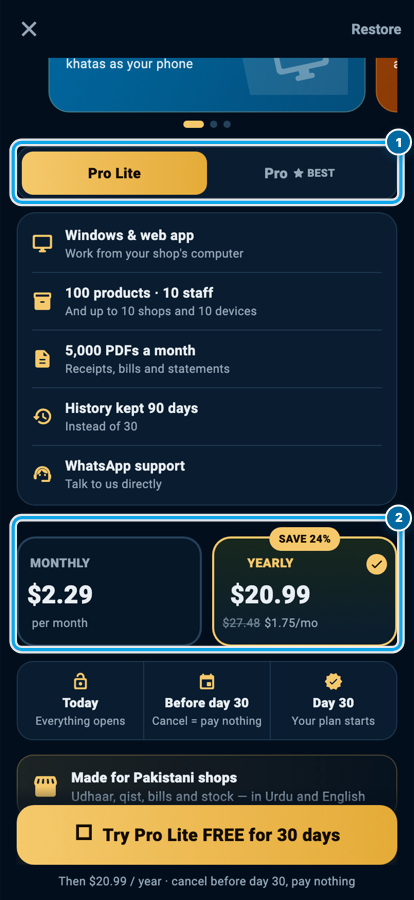
The prices come from Google Play or the App Store, in your own money. The pictures here show US dollars because they were taken on a test phone.
If your shop has never had a paid plan, the first 30 days are free. The page shows three steps: everything opens today, cancel before day 30 and pay nothing, and your plan starts on day 30.
- Further down, Compare plans puts Free, Pro Lite and Pro side by side. Tap All features (1) to see every row.
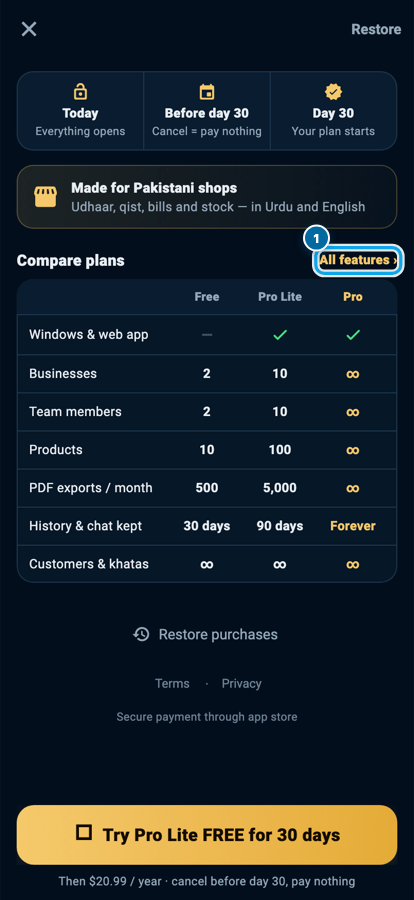
Restore purchases stays at the bottom, for a new phone or a reinstall.
A receipt for every supplier payment
When you pay a supplier, they often want it in writing, and so do you. Now every payment has its own receipt.
- Open the supplier's page and tap the payment in the list.
- On the payment page, find the Payment receipt bar (1). Tap PDF for a paper you can print or share, or Image for a picture you can send on WhatsApp.
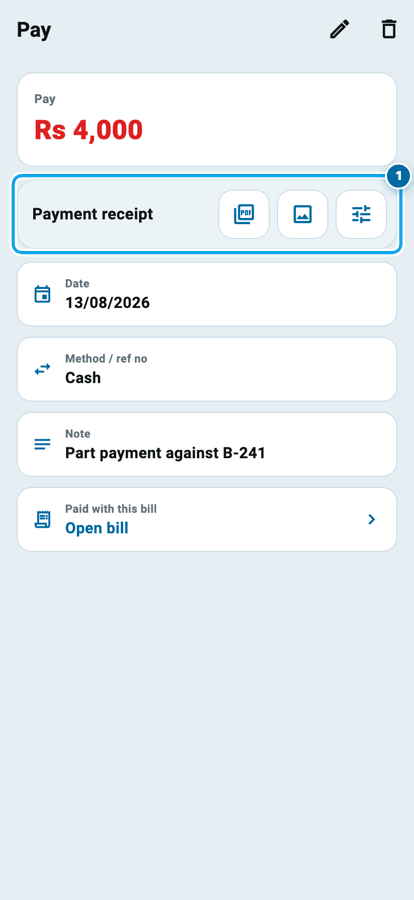
The receipt shows your shop, who you paid, the amount, the account the money came from, the method and your note. The settings button at the end of the bar lets you choose A5 or A4 paper.
The supplier khata class covers the rest of the supplier side, from the first bill to the last payment.
Approve an employee's installment plans
Some shops let a salesman make khatas but want the owner to agree before a plan changes. Two new approvals do exactly that.
- Open More, then Users & permissions, then Employees, and open the employee.
- Tap the Approvals tab, then Khata.
- Under Installments (1), tick Add another installment plan and Switch to another plan.

Now when the employee adds a second plan to a khata, or moves a khata to another plan, you get a request in More, Approvals. Like most approvals in Wasoolo, the change shows at once. If you reject it, the khata goes back the way it was. The same Approvals tab also appears when you add a new employee.
The employee login class explains every permission and approval in one place.
A deleted salary comes back
If a salary was deleted from an employee's khata by mistake, you can bring it back from Trash again. Before this update the restore could stop with a "deleted account" message. That no longer happens.
Paid salaries and advances now show in Trash too, under their own kind: Staff entries. Open Trash, pick Staff entries, and restore the line you need. If a line was edited after it was deleted, Trash keeps the old copy out, so the same money is never counted twice.
Close a khata on any date
A customer settled last week but you are closing the khata today. Or you want to close it on the first of next month. Now the closing date is yours to choose.
- On the khata, tap ••• at the top and choose Close khata.
- Tap Close date (1) and pick the day: an earlier day or a later one.
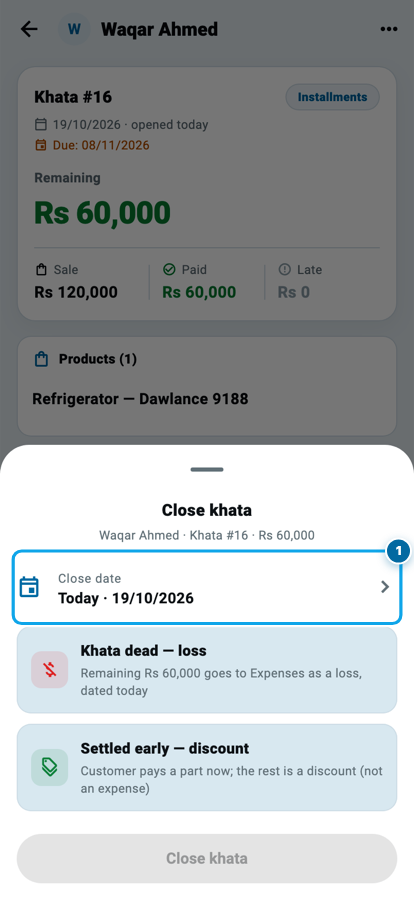
- Choose how it ends, like Khata dead — loss or Settled early — discount, and tap Close khata.
The khata, its closing receipt and any amount that goes to Expenses all use the day you picked, so your reports for that month stay right.
All entries in one list
The Day Book shows Received and Spent as two separate lists. Some shopkeepers would rather read the day from top to bottom in one go.
- Open the Day Book and tap ⋮ at the top right (1).
- Choose All entries in one list (2).
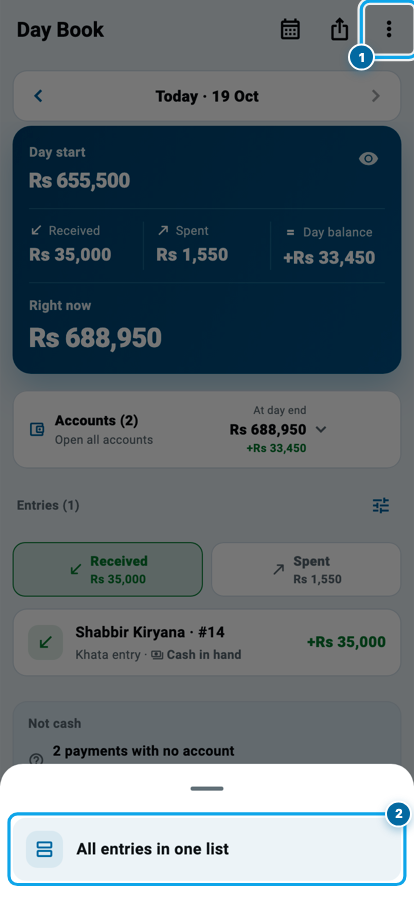
Now received and spent money show together, in the order they happened. Money that came in keeps its green arrow and money that went out keeps its red one.

To go back, tap ⋮ again and choose Received and Spent separate. The same choice is on every account in Cash & Bank: open the account and tap its ⋮. The Day Book class walks through the rest of the page.
The smaller fixes
- A change left behind by another account on the same phone no longer stays stuck under Not accepted in Waiting to upload, and Send again moves a change back up to Waiting to upload.
- Rejecting an employee's Invoice / receipt request works again. It used to stay stuck with a "deleted account" message.
- Tapping a khata-group approval now scrolls straight to that khata.
Common questions
Where do I find the new upgrade page?
Open More and tap Subscription. The page opens on Pro Lite. Tap Pro to see the bigger plan.
Does the supplier payment receipt cost anything?
No. Open any supplier payment and tap PDF or Image on the Payment receipt bar.
Can I close a khata with a date in the past?
Yes. On the Close khata sheet, tap Close date and pick any earlier day. A later day works too.
Will one list change my Day Book totals?
No. Only the way the entries are shown changes. The totals at the top stay exactly the same.
What if a salary line was edited after it was deleted?
That old copy stays in Trash and cannot come back, so the same money is never counted twice. The edited line is the one that counts.
Do I need to set anything up after updating?
No. Everything works after the update. The installment approvals start switched off until you tick them.
If a supplier of yours never gives a bill at all, what to do when a supplier gives no bill goes deeper.