
updateWhat's new
What's new in Wasoolo 2.5.1: profit on every entry, the buy rate you really paid, and a simpler stock-in
Wasoolo 2.5.1 shows the profit on each sale entry, lets you pick the buy rate you really paid, pre-fills stock-in, and imports products into folders.
Wasoolo 2.5.1 in eight lines
- 1Profit on the entryA Profit row on the sale entry, the day book, the account entry and the counter bill.
- 2The rate you really paidBought at two rates? A list opens by itself; pick the one this piece cost you.
- 3Stock-in, pre-filledLast buy rate and current price come filled, with a live profit chip beside them.
- 4Buy rate 0 is freeFree stock counts as free; an empty box means the rate is not known.
- 5Supplier: Pay and ReceivedPay left, Received right, with reasons, including he paid an expense for us.
- 6Jumps that land and glowA row opens its own page, scrolled to the entry, with the entry lit up.
- 7Import, two waysOur sample file, or any AI with your old app's file. Both end in Upload the file.
- 8Folders on importGroups become folders, Parent > Child nests, the preview shows every folder first.
Wasoolo 2.5.1 puts your profit on the entry itself, lets you pick the buy rate you really paid when a product came in at more than one rate, fills the stock-in page for you, gives the supplier page Pay and Received with reasons, and makes importing products a two-way job: our sample file, or any AI with your old file.
Wasoolo 2.5.1 in eight lines
- 1Profit on the entryA Profit row on the sale entry, the day book, the account entry and the counter bill.
- 2The rate you really paidBought at two rates? A list opens by itself; pick the one this piece cost you.
- 3Stock-in, pre-filledLast buy rate and current price come filled, with a live profit chip beside them.
- 4Buy rate 0 is freeFree stock counts as free; an empty box means the rate is not known.
- 5Supplier: Pay and ReceivedPay left, Received right, with reasons, including he paid an expense for us.
- 6Jumps that land and glowA row opens its own page, scrolled to the entry, with the entry lit up.
- 7Import, two waysOur sample file, or any AI with your old app's file. Both end in Upload the file.
- 8Folders on importGroups become folders, Parent > Child nests, the preview shows every folder first.
Profit on the entry itself
Until now the profit of a sale lived on one page, the Profit page, and you had to go looking for it. Now it sits where the sale is.
Open a customer's khata and tap the sale entry. Under the items you find a Profit row (1): what that one sale earned you, in green, or in red if it lost money. The row is a door. Tap it and the Profit entries page opens for that month with this sale glowing, so you see it among its neighbours.
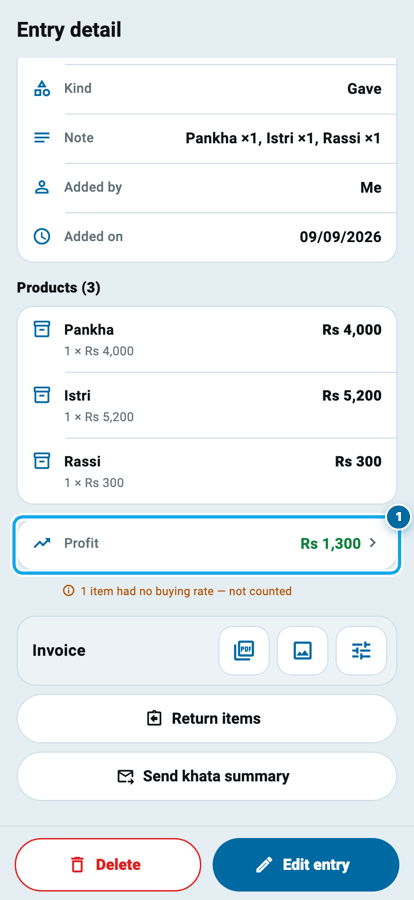
The same row now sits in three more places. On the day book (Roznamcha) it hangs under the receipt of a sale that was paid on the spot, so the day's list already tells you what the day earned. When you tap a day-book line, the cash or bank ledger opens with that line lit up, and its own detail page carries the Profit row too. And a counter bill shows its profit under its date and who entered it.
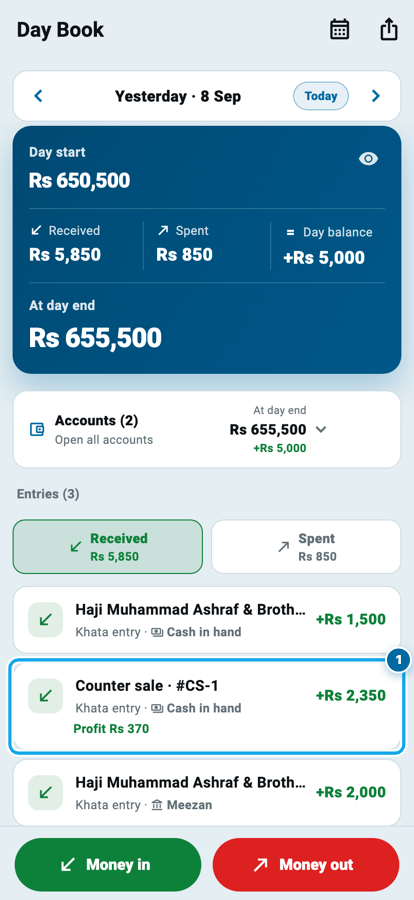
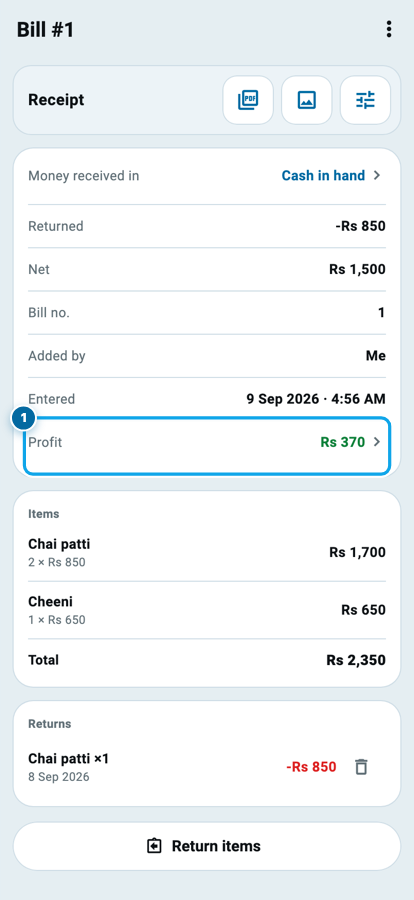
Two honest rules. The row shows only to the shop owner, never to staff, and it obeys the same switch that hides profit on the Profit page. And when a line on that sale had no buy rate, the row says profit not counted for that part instead of inventing a number.
The buy rate you really paid
Say you bought the same fan twice: ten pieces at Rs 1,700 in June and ten at Rs 1,900 in August. Wasoolo used to count every sale's profit from the average, Rs 1,800. Sell one for Rs 2,300 and the profit read Rs 500, whether the fan on the counter was the June one or the August one.
Now the form asks you. On the khata form and on the counter form, when you pick a product you bought at two or more different rates, a small list opens by itself: the rates you paid, each with its quantity and its date, oldest first (1). Pick the one this piece cost you and that becomes the line's buy rate, and the profit is counted from it. Pick the June fan and the profit on that Rs 2,300 sale is Rs 600; pick August and it is Rs 400.
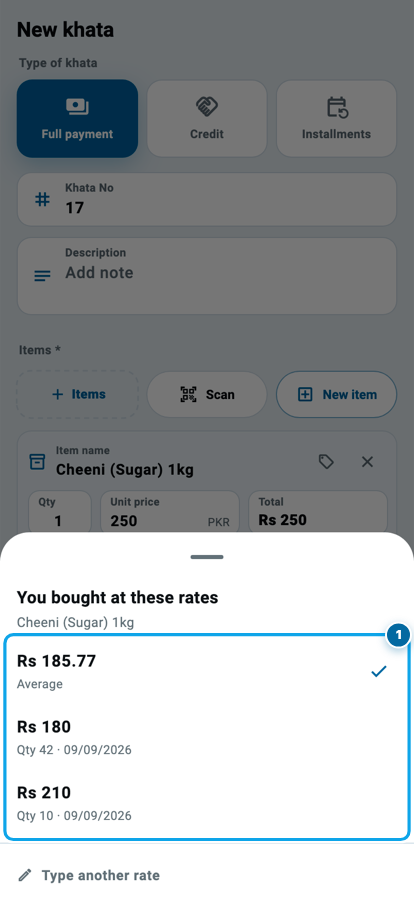
If you close the list without choosing, nothing changes: the line uses the average, exactly as before. A product bought at one rate only never opens the list. Under the buy-rate box a short line, Rates you bought at (1), reopens it whenever you want, and typing your own figure in the box always wins.
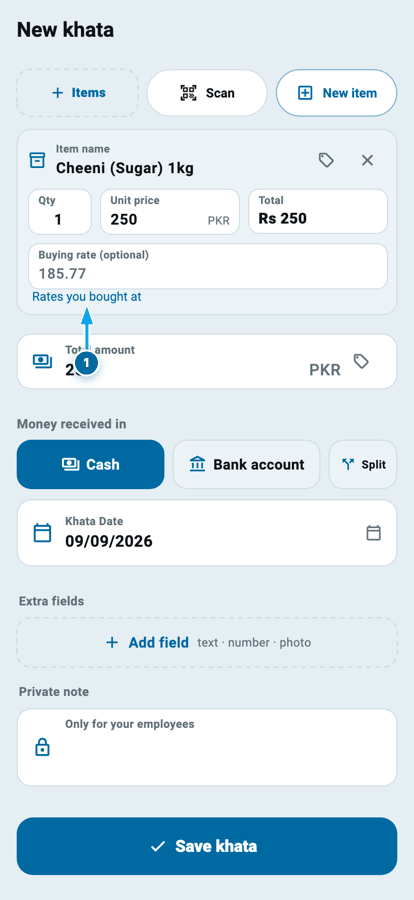
The list can only show rates you actually paid, so stock that came in without a buy rate is not in it. Which brings us to stock-in.
Stock-in, simpler
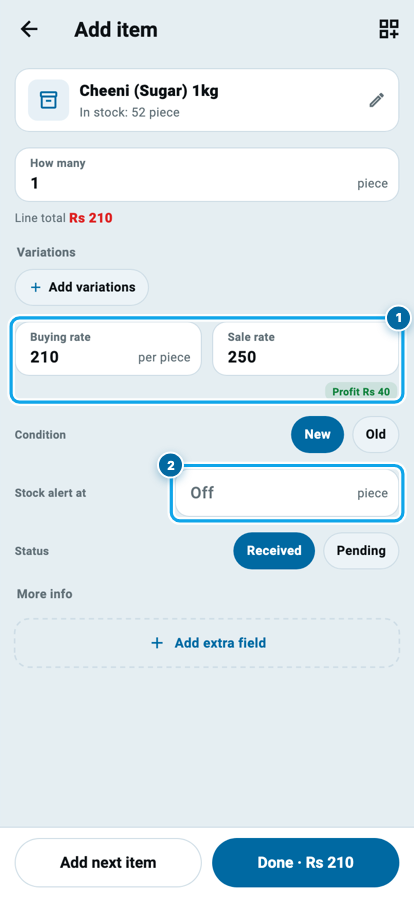
The stock-in item page used to arrive empty and ask for every number. Now it arrives filled. The buy rate box holds your last purchase rate for that product, the sale rate box holds its current price, and when a product has types, every type card carries its own last rate. Change what changed, leave the rest.
Beside the rate a small green chip shows the profit per piece as you type (1). Clear the buy box and the chip turns red: profit not counted, so you know that delivery will carry no rate. And a buy rate of 0 now means free: stock you got for nothing counts as free, so its whole sale price is profit. An empty box means "rate not known", which is different, and the profit says so. If your old stock carried zeros that meant "unknown", they were converted once when you updated.
When the product has types, every type gets its own card with its own buy rate, sale rate and profit chip.
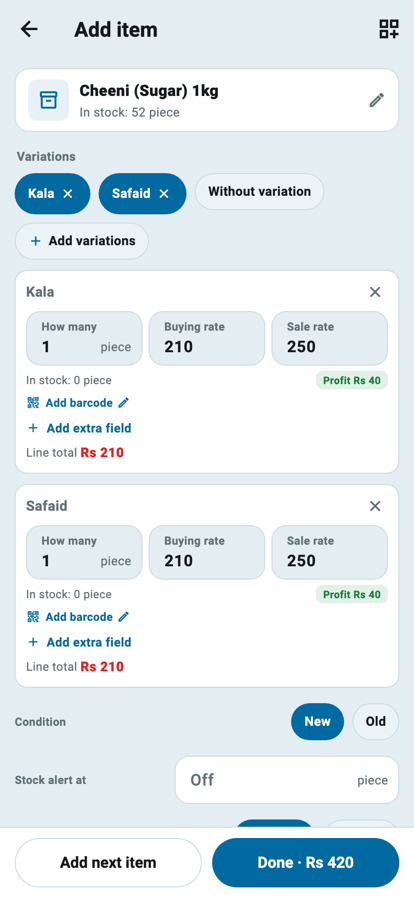
The rest of the page tidied up too. Condition, Stock alert at and Status are one neat table with everything on the right; the stock alert is a single small box, empty for off. A pencil on the barcode line says it can be edited. And when you finish an item and go back to the bill, the page slides back the right way, one clean motion.
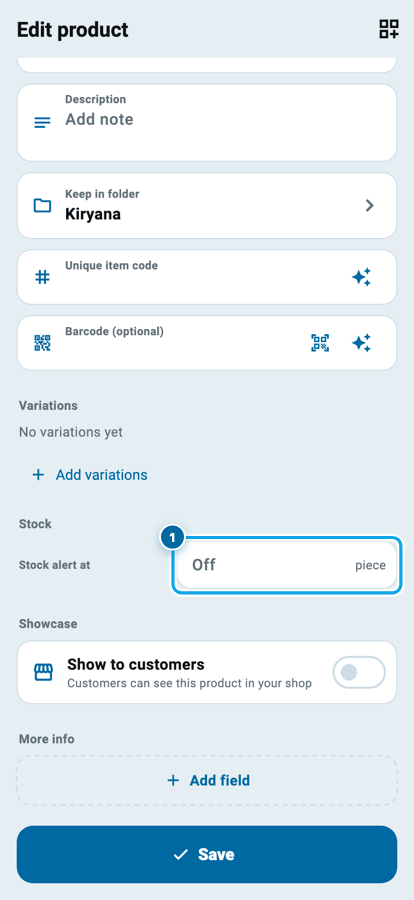
The product's own form got the same small Stock alert at box, so both places ask the question the same way.
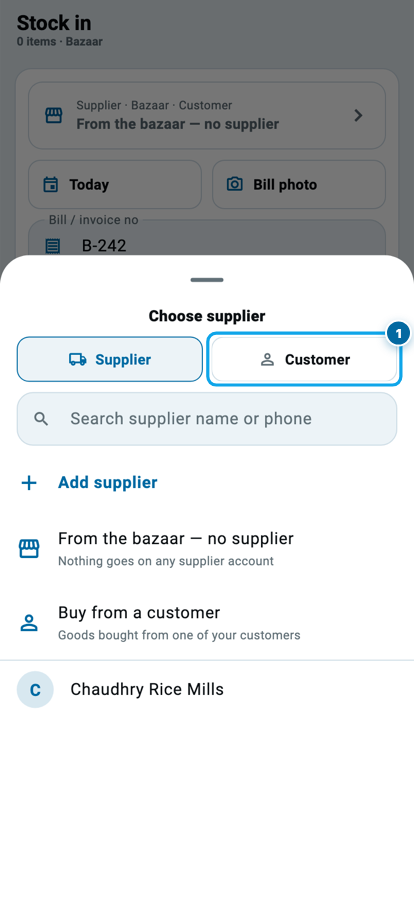
The supplier picker on stock-in also grew a switch: Supplier or Customer (1), so buying from a customer starts from the same place as buying from a supplier.
Supplier: Pay and Received, with reasons
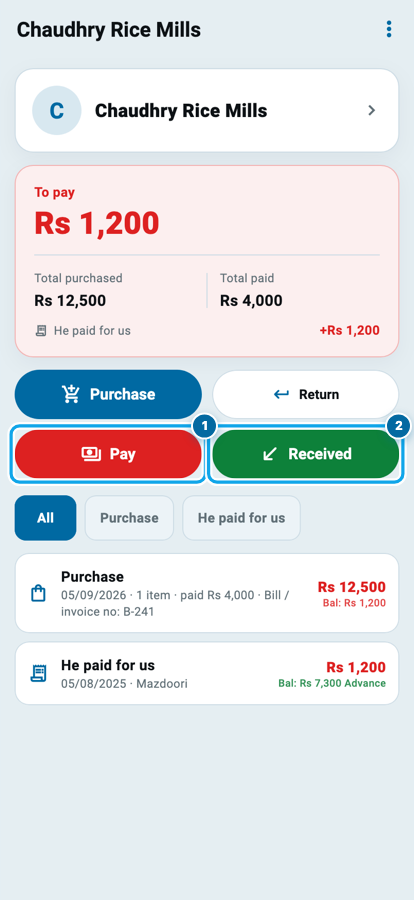
A supplier's page has four doors now: Purchase and Return on the first row, Pay and Received on the second, Pay on the left in red and Received on the right in green, the same order every money pair in Wasoolo uses. The Bazaar page uses the same face.
Pay asks why. Gave money is the ordinary payment. He paid an expense for us is new: your supplier paid the electricity bill or the transport for you, so you owe him more and it is a real expense of the shop. Wasoolo writes that expense into your Expenses, in the folder you pick (Rent is pre-picked the first time; after that it remembers your last choice), links it to the supplier, and raises what you owe him by that amount. Only write entry records the fact without moving money from any account. Received has its own reasons: Refund, Bonus (with a cut, if part of it was kept), and the same only-write-entry.
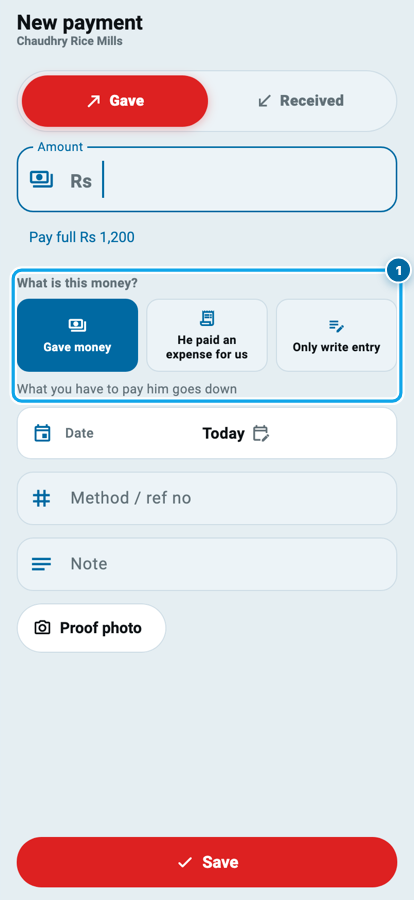
The gave/received switch is back at the top of both pages, so a wrong door is one tap away from the right one, and when you came from a supplier the page no longer asks you to pick him again.
The balance card is shorter. It shows what you owe or he owes, the purchases, the payments, and a correction or an expense he paid, and nothing else. Your starting balance is still there, one row down in the ledger, on every tab, with the word that says which way it points. Two old mistakes behind that row are fixed: changing the start date, or removing the starting balance, used to wipe out every correction you had made. It keeps them now.
Every jump lands where the row lives
An entry that belongs to another page now opens that page, scrolled to the entry, with the entry lit up. Tap a profit row and you land on its khata, its bill, its expense, its supplier, its product or its loan. Tap a day-book line and the account's ledger opens on that line. An approved payment lands on the account it went into.
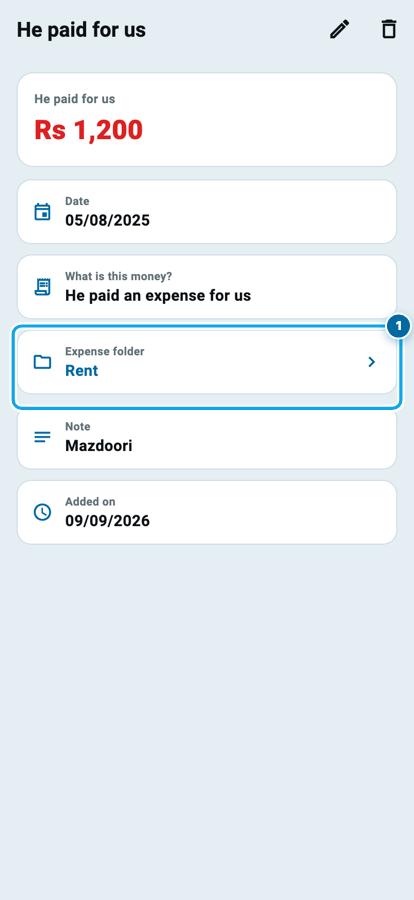
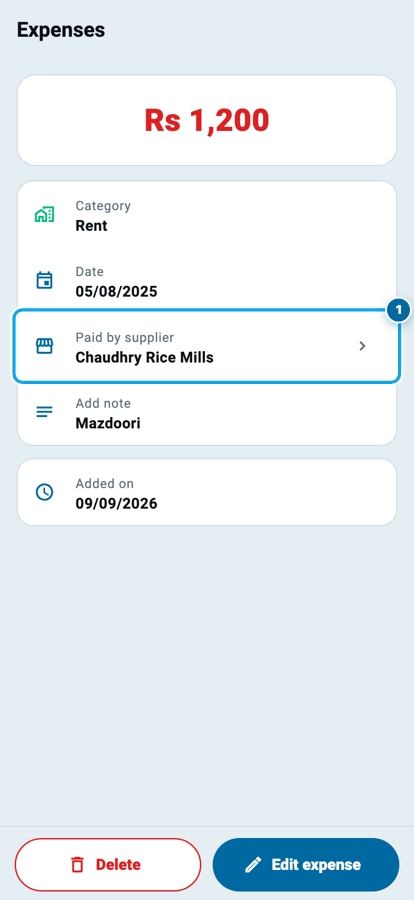
The supplier's he paid an expense for us row opens its own detail page (1): amount, date, reason, the folder, the note. Its folder row is a door to that expense, lit up in your Expenses. And on the expense's own page a new row, Paid by supplier, names him and jumps back to his entries with that row lit up. The two halves of one fact always find each other.
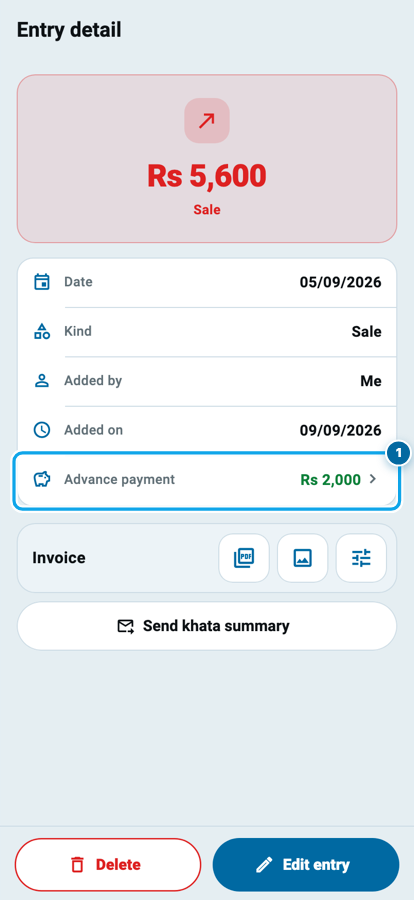
A sale entry also shows the advance you took with it (1). When you made the khata with money paid on the spot, that receipt stays its own entry in the ledger, and the sale's page now shows the amount as a row that jumps to it.
Import products the easy way
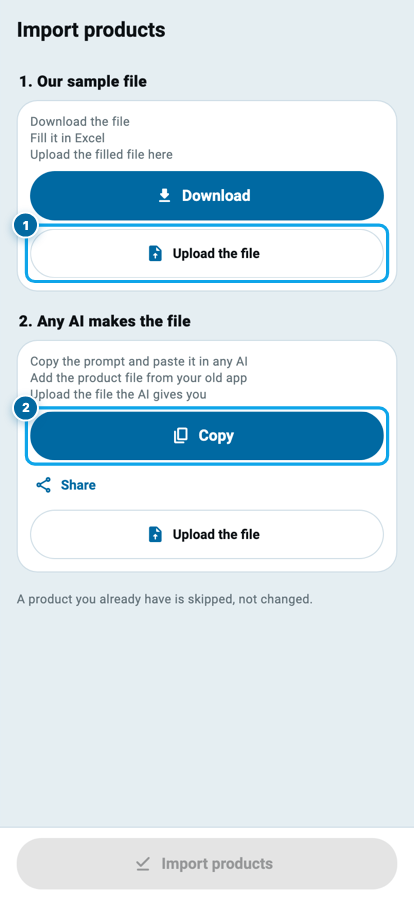
Products come in from another app, from an Excel sheet or from a paper register, and the old import page hid the two ways under a lot of text. The new page shows both, and both end the same way: upload the file.
1. Our sample file. Download it, fill it in Excel or any sheet app, upload it.
2. Any AI makes the file. Copy our prompt, paste it into any AI together with the product file you downloaded from your old app, and upload the file the AI gives back. The prompt tells the AI exactly which columns Wasoolo reads and asks it for a file you can download, never a table in the chat.
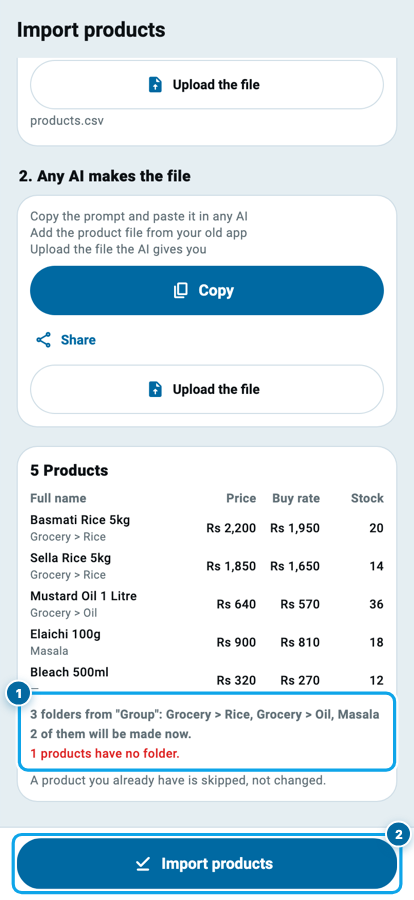
Folders were the weak spot. A group column only counted when its heading was exactly "folder" or "category"; a column called Group or Department was kept as plain text, and "Grocery > Rice" became one flat folder with that whole name. Now eleven common headings count, Parent > Child makes a nested folder, missing folders are created, and the prompt asks the AI for a group on every product. Before you import, the preview lists each product's folder, tells you how many folders will be made, and marks in red any product with no folder at all (1). Then Import (2) writes it all.
A short row no longer ends the file, and an empty or unreadable file says so instead of importing nothing in silence. If you are new to folders, Class 11 shows how they work, and Class 12 walks through stock-in.
The rest
- A full-payment khata no longer gets a counter-bill number.
- Clearing a buy box on one type of a stock-in item stays cleared; it is not refilled from another type's rate on save.
- A returned item on a hand-priced sale line no longer teaches the stock average a price nobody paid.
- The khata form's "Add field" button fits small phones.
- Condition and Status stay on one line on every phone.
- Every jump above obeys your permissions: a page you may not see stays closed, and profit rows never show to staff.
Wasoolo is 100% FREE to download on Android and iPhone, and the previous update explains the counter sale, returns on any khata and one account across shops.
Common questions
Do I have to do anything to get the Profit row on my entries?
No. Update from the Play Store or the App Store. The row appears on the owner's phone by itself, and it follows the same switch that hides profit on the Profit page.
I picked a rate from the list. Can I change it later?
Yes. Open the entry, edit the line, and type another figure in the buy-rate box or reopen the list with Rates you bought at. The average is used only while you leave the box empty.
Does "he paid an expense for us" count as a purchase?
No. It raises what you owe the supplier and writes an expense in your Expenses, but it stays out of your total purchases. Deleting it removes both halves together.
My old stock had a buy rate of 0. What happens to it?
Zeros that meant "not known" were converted once to "no rate" when you updated. From now on a typed 0 means free stock, and an empty box means the rate is not known.
The AI gave me a table in the chat, not a file.
Copy the prompt again and paste it; it asks for a downloadable CSV file, or an Excel file if the AI cannot make a CSV. Only a file can be uploaded.
Can my staff see the profit chip on stock-in?
Only staff with the View profit permission. Without it the chip is simply not drawn, and the buy rate box needs View buy rate.
Working out what your shop really earns explains the number the Profit row now brings to every entry, and Cash and Bank is where a day-book line lands.