
updateWhat's new
What's new in Wasoolo 2.5.0: the counter sale, returns on any khata, and one account across your shops
Wasoolo 2.5.0 adds a counter sale for walk-in customers, returns on any khata, buying from a customer, one bank account across shops, and a PIN before delete.
Wasoolo 2.5.0 in eight lines
- 1Counter saleA bill for a walk-in customer, its own page, its own receipt.
- 2Returns on any khataGoods come back, the khata or the cash is adjusted, and the Profit page shows the loss.
- 3Buy from a customerA purchase on his own row, kept apart from what he owes you.
- 4One account, many shopsShare a bank account across your shops and see one balance or each shop's own.
- 5Two or three plans on a khataDraft alternatives, switch with the difference dated today, let the customer ask for one.
- 6Profit entriesEvery rupee behind the profit number, one row each, and your own lines too.
- 7Expense categories as foldersBoxes with totals, sub-categories inside, a path at the top.
- 8A PIN before every deletePlus a Trash that says who deleted what, and approval cards that show the change.
Wasoolo 2.5.0 is the biggest update since 2.0: a counter sale for the walk-in customer, returns on any khata with the loss on the Profit page, buying from a customer, one bank account across several shops, two or three installment plans on one khata, a page listing every rupee behind your profit, expense folders, and a PIN before every delete.
Wasoolo 2.5.0 in eight lines
- 1Counter saleA bill for a walk-in customer, its own page, its own receipt.
- 2Returns on any khataGoods come back, the khata or the cash is adjusted, and the Profit page shows the loss.
- 3Buy from a customerA purchase on his own row, kept apart from what he owes you.
- 4One account, many shopsShare a bank account across your shops and see one balance or each shop's own.
- 5Two or three plans on a khataDraft alternatives, switch with the difference dated today, let the customer ask for one.
- 6Profit entriesEvery rupee behind the profit number, one row each, and your own lines too.
- 7Expense categories as foldersBoxes with totals, sub-categories inside, a path at the top.
- 8A PIN before every deletePlus a Trash that says who deleted what, and approval cards that show the change.
The counter sale: a bill for the walk-in customer
Somebody walks in, takes two things, pays and leaves. Until now you either opened a khata for a stranger or wrote nothing. Now it is a counter sale: a bill paid in full on the spot, with its own number series, and no customer in your customer list.
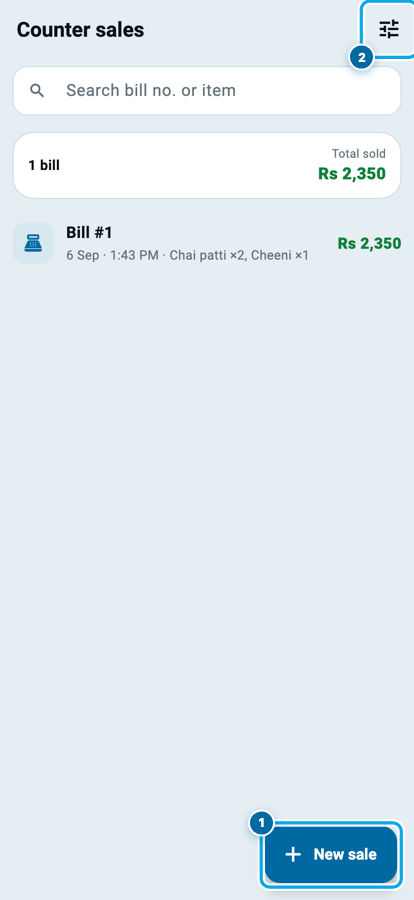
A new Counter sale tile sits first on Home. If you have rearranged Home and it is not there, add it from Customize Home. It opens the Counter sales page: a search box for a bill number or an item, a summary of bills and money sold, and a New sale button (1). The filters wait behind the tune icon (2): sale date, who made the sale, and the sort order.
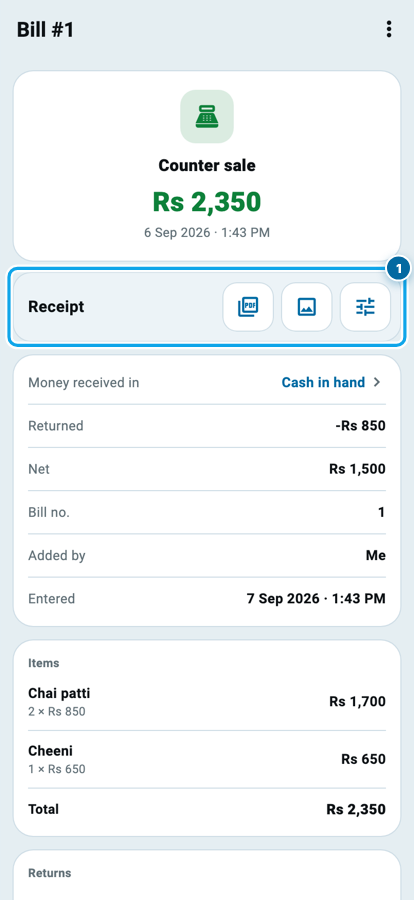
A bill's page shows the items, the discount, the net, which account the money went into and who entered it. The row under the total (1) makes the receipt as a PDF or an image, and its third button opens the receipt's design settings.
The receipt is a real document, sized for an 80 mm or 58 mm roll and for A4, with three looks, an item table, a PAID mark, your own thank-you line and a cut line. It lives under More, in Documents, as Counter sale receipt.
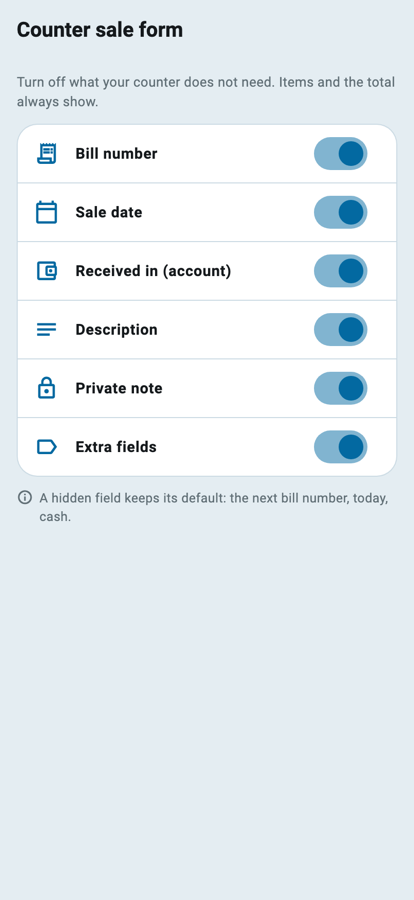
The form is short, and you can make it shorter. Open the tune icon on the counter form and switch off what your counter does not need: bill number, sale date, account, description, private note, extra fields. A hidden field keeps its default, so the next bill number, today and cash are filled in for you.
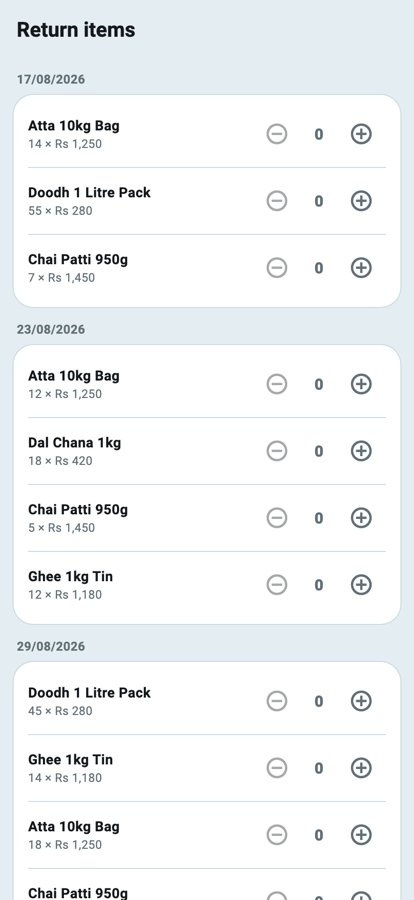
Goods come back over the counter too, so a bill has Return items: pick the lines, the refund leaves the account you choose, the stock goes back on the shelf. The refund amount is yours to type, up to the price on the bill, and a line already returned cannot be returned again. While a return is live the bill cannot be edited.
Your staff get their own switches: seeing counter sales, making one, editing, deleting and taking a return, each with an approval switch.
Returns on any khata, and the loss they cost you
The same return now works on every customer khata. Open the khata, press the three dots and choose Return items, or start from the sale entry itself while it still has items to return.
The form lists every item you ever sold on that khata, grouped under its sale date. Tap the plus on what came back.
Then decide what happens to the money (1). Adjust in khata means the customer simply owes you less. Refund cash means money goes out of the account you pick, and the khata balance does not move. Either way the khata shows a grey Items returned row, and a refund adds a red Refund paid row. The statement, the invoice and the close receipt print the same rows, and the customer sees them in his own app.
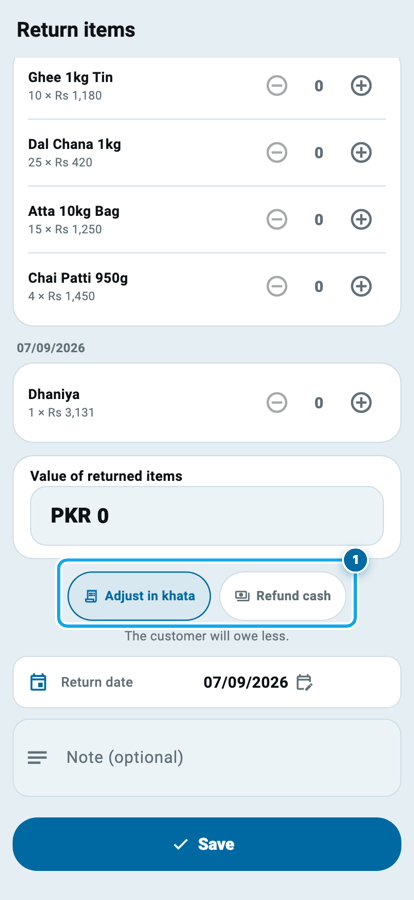
On an installment khata there is no cash refund. The return is adjusted in the plan: the credit fills the next installments, and the installment profit that belonged to those items comes off, so the last installments get smaller. The form says so under the items.
A closed khata refuses a return until you reopen it, a return cannot be dated before its sale, and a sale with a live return cannot be edited or deleted until the return is deleted.
Returns cost money, and the Profit page says how much. Say you sold a fan for Rs 1,500 that cost you Rs 1,000, and the customer brought it back for a full refund of Rs 1,500. Your loss is Rs 500, the refund minus what the fan cost you, and it lands on the day of the return. That is the new Loss in returns line on the Profit page, with its own switch and its own rows on the Profit entries page. Because the list of profit parts changed, your saved profit customization is reset once, with everything on.
Staff need a new switch, Take a return (goods back), and you can ask for approval on every return they take.
Buying from a customer
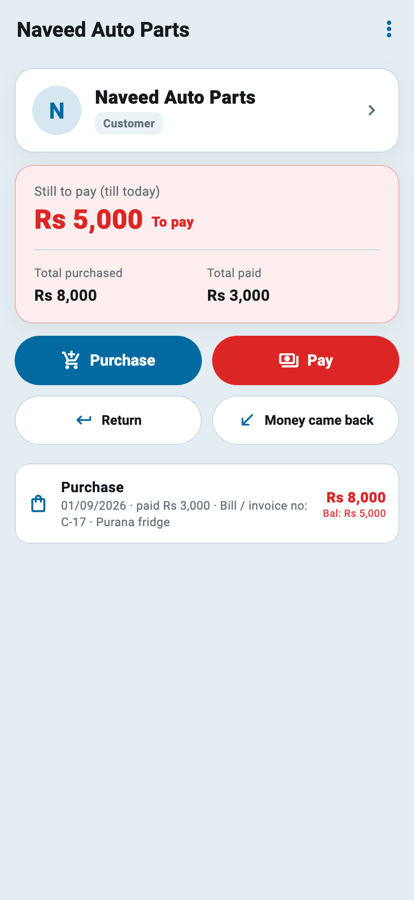
Some customers also sell to you. The rice dealer who owes you for sugar brings you a fridge. Until now you had to make him a supplier as well. Now you buy from him on his own row, and the two books stay apart: what he owes you and what you owe him never touch.
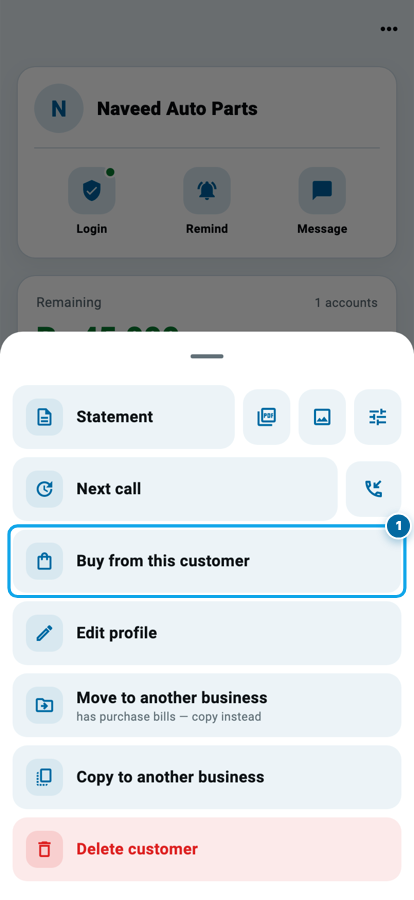
Open his profile, press the three dots and choose Buy from this customer (1). It opens Stock in with him already chosen.
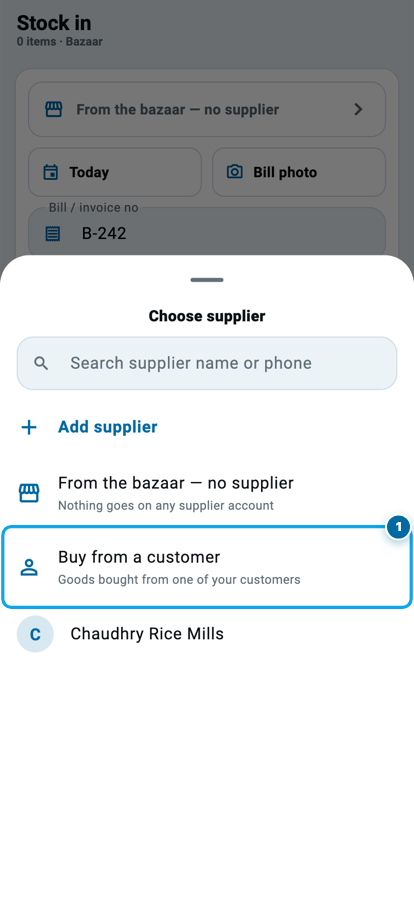
You can also start from Stock in. The supplier picker has a new row, Buy from a customer (1). It does not dump your customer list in front of you; it opens the customer picker only when you ask, and the chosen name wears a small Customer tag on the stock-in header.
Once you have bought from him, his profile grows a separate Purchases block under the balance card (1): what you bought, and what you still owe him. It is never mixed into his khata balance.
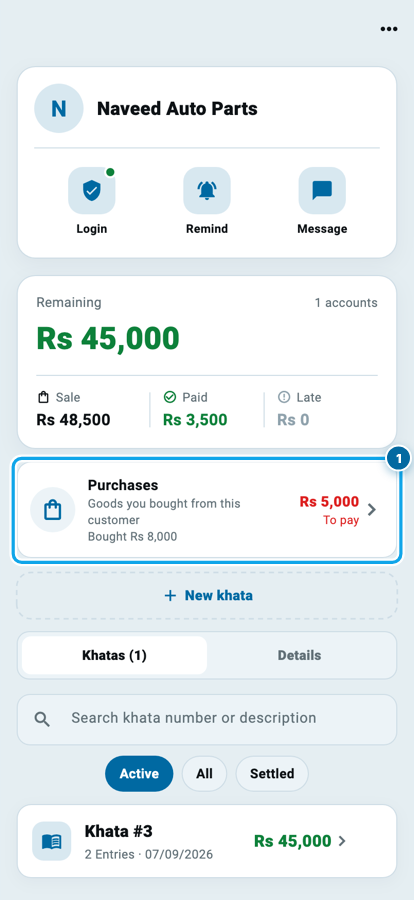
Tap it and you get the same page a supplier has: purchases, payments, returns, money that came back, a running balance under every row, and a statement, retitled Purchase statement. Paying him works exactly like paying a supplier.
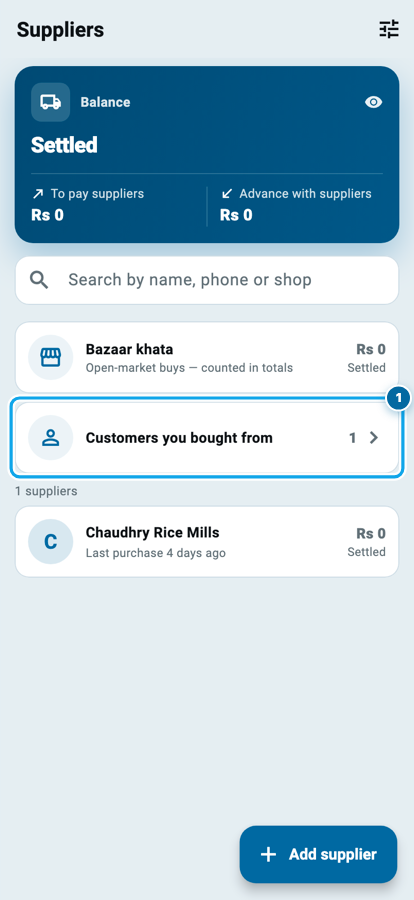
The Suppliers page grows a card, Customers you bought from (1), which opens its own list. It appears only once you have bought from a customer.
Two rules. A customer with purchase bills is trashed or restored only by the owner or a seat with Manage suppliers, and cannot be moved to another shop while those bills exist (copy him instead); the doors say so. And staff see his name on stock screens only with the customer permissions they already have.
One bank account across your shops
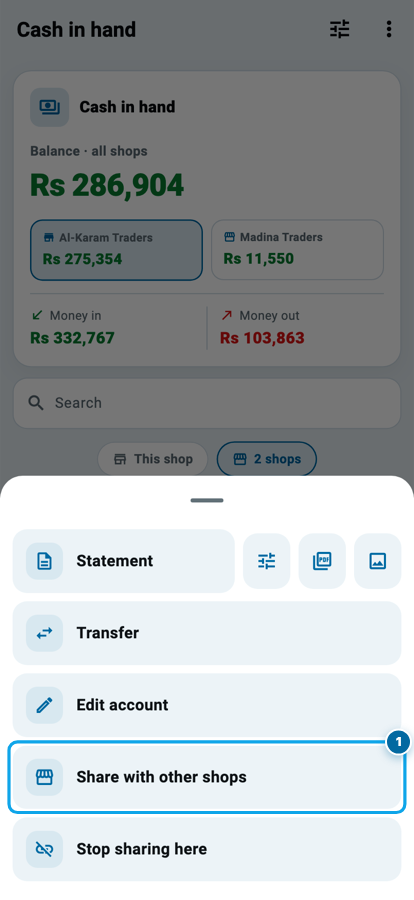
Many shopkeepers run two or three shops through one bank account. That account can now live in several of your shops: open it, press the three dots and choose Share with other shops (1). Only the owner can.
For each shop you type what the account starts with there, because each shop's books are its own. Cash in hand is shared by linking the other shop's own cash row. From then on the account page has two chips above Received and Spent: This shop and All shops (1), which reads 2 shops when two share it. The first shows this shop's own balance and entries. The second adds every shop up, one tile per shop, and lists every shop's entries in one ledger.
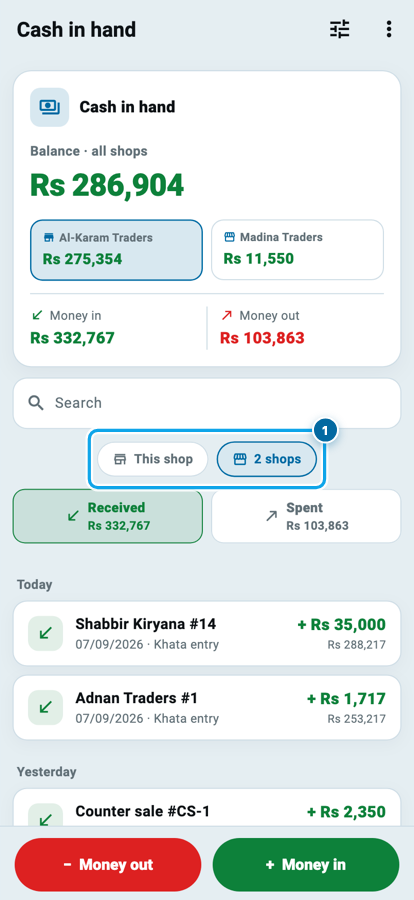
Another shop's rows are tinted, carry a tiny shop tag, and are view only; tap one to edit it and Wasoolo offers to switch to that shop and lands you on the entry. Rename the account or change its bank details and the change travels to the other shops, with a warning first. The statement prints across all shops with a Shop column, and the Cash and Bank list marks a shared account with a 2 shops tag.
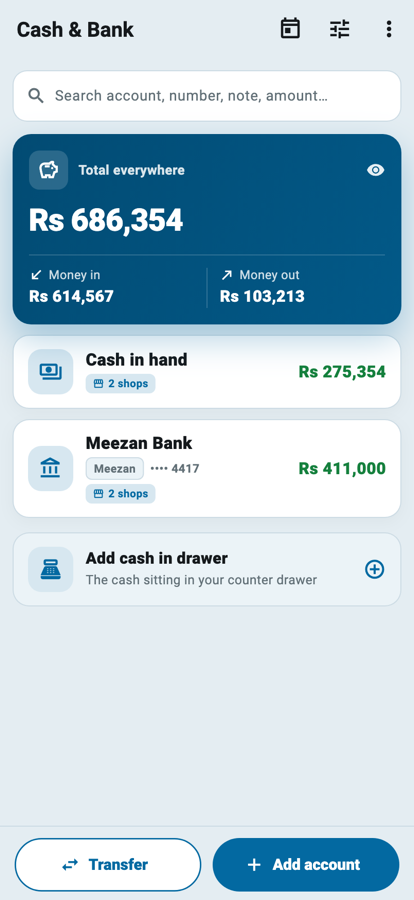
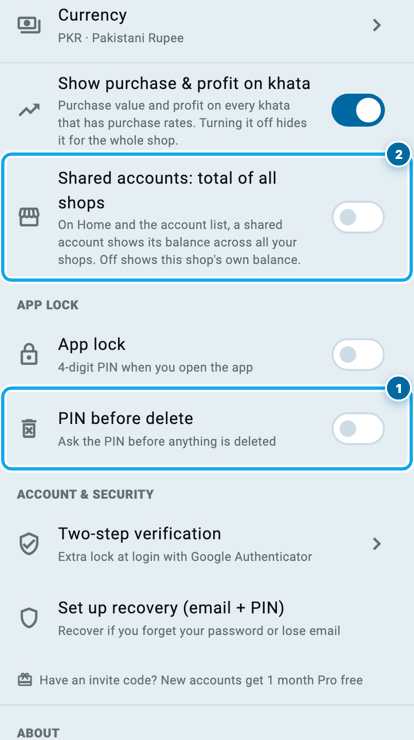
A new Settings switch, Shared accounts: total of all shops, puts the all-shops figure on Home and on the account list. It appears only once you have a shared account. Staff see the other shop's half only if they work there and have Cash and Bank permission there.
Two or three installment plans on one khata
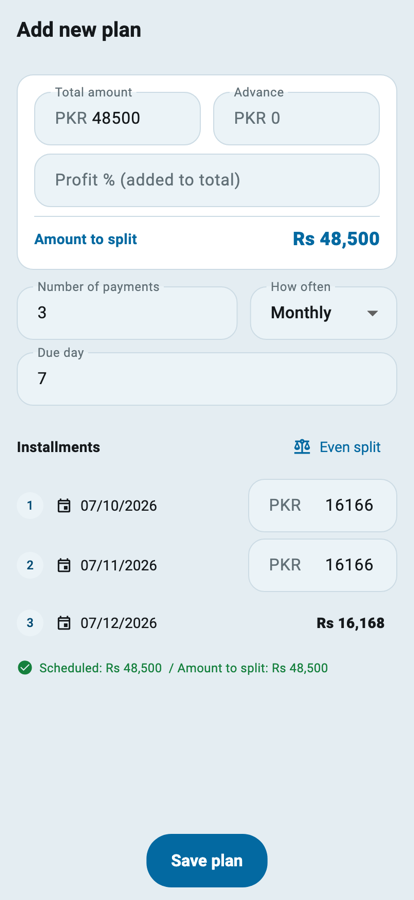
A customer asks the price over five months, then over nine. You can now keep both plans on the khata, one active, the others drafted. The plan card shows a chip per plan (1); the active one is dark. Tap another chip to see its total, installment and length, with a preview of how the profit changes, then Select, Edit or Delete it. Add new plan drafts another.
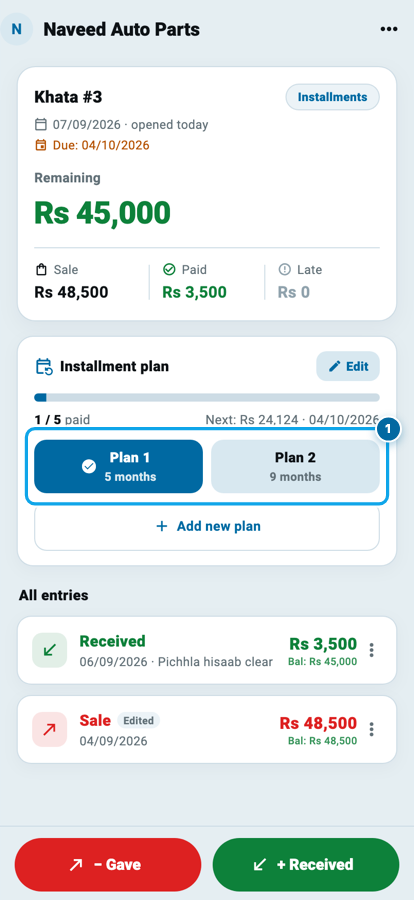
You can draft alternatives before saving a new khata too, and rename a plan from its editor. Switching plans posts the difference as its own entry dated today, and payments already made fall into the new schedule by themselves. See full plan shows the whole schedule read only, to anyone who may see the khata.
How many plans a khata may hold depends on your tier: one on Free, three on Pro Lite, and as many as you need on Pro.
The customer sees every plan in his own app, with a tick on the one he is on, and can press Request this plan on another. You get a banner on the khata with Approve and Reject, and Approve does the ordinary switch.
The invoice keeps up. With more than one plan, making the invoice first asks Which plans on this invoice?, so you print only what you want. A document setting decides whether the plans sit together on one page or each get a page of their own. The active plan carries an ACTIVE tag, the plans print in order, and the stamp moves to the last page when the paper runs long.
One fix matters for people already on 2.4.0. Changing a plan used to mark the new first installment part paid, and that reached the customer's phone. The balance was always right; only that installment row was wrong. It is fixed in this build.
Profit entries, and expense categories as folders
The Profit page has always shown a number. Now it shows where the number comes from. Tap All profit entries (1) for a ledger of every event the page counted, one dated row each: sale profit, installment profit, loss in returns, discounts, expenses, salaries, and the rest. The rows always add up to the headline.
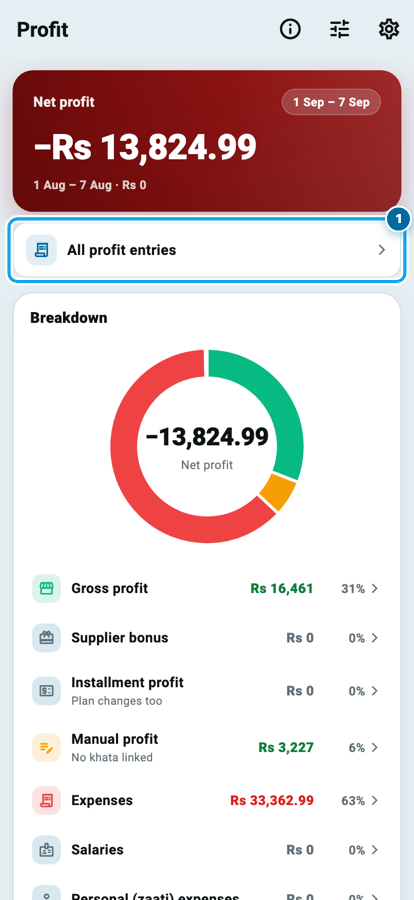
Each row opens a full page with the facts, who entered it and when, and a door back to where it came from, landing on the exact entry. A date door and kind chips narrow the list. And if the app cannot know about a profit, a cash job on the side, a loss nobody recorded, press Add profit (1) and write it yourself: profit or minus, a date, an amount and a note. It can be edited, deleted and restored from Trash.
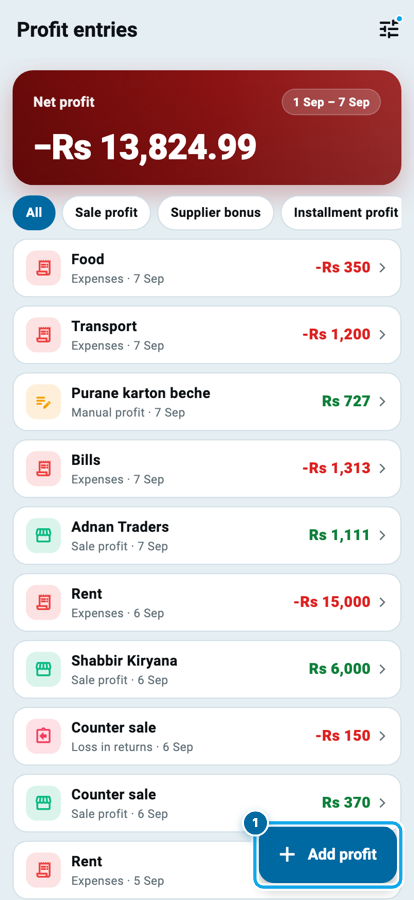
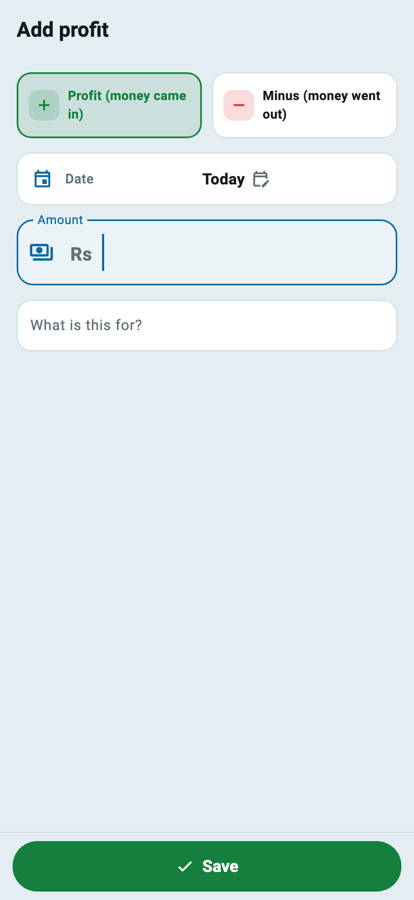
Installment profit is back as its own part of the Profit page, on by default, and negative rows carry a minus sign. A salary paid from a personal category was counted twice; it is counted once.
Expenses got the folder treatment. Open the three dots on the Expenses page and choose View settings: keep the plain list, or put Categories first, as boxes or a list. Each box shows the total spent and how many entries it holds.
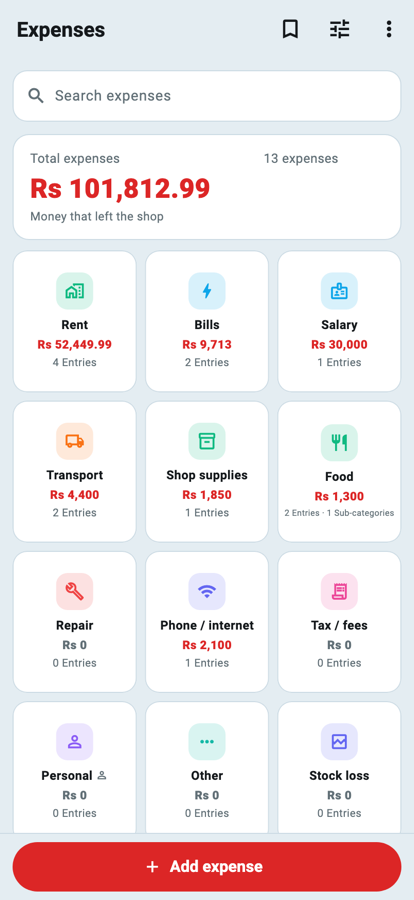
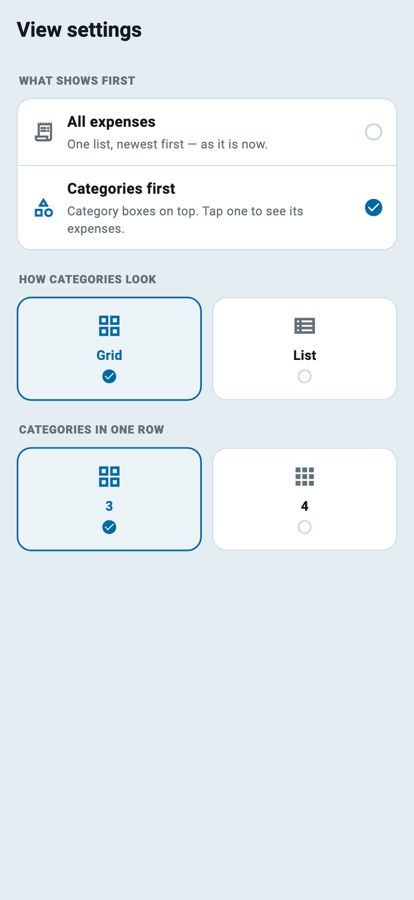
Tap a box and it opens as its own page, titled with the category: its sub-categories as boxes, its own expenses as rows, and a path at the top that walks you back one level at a time. A parent box counts its entries and sub-categories, and a parent page totals the whole tree. Add an expense from inside a category and that category is already picked. The prefilled templates moved to a bookmark button in the top bar, an Other box holds expenses with no category, and rows inside a category are thin lines.
A PIN before every delete, a Trash that talks, and approvals that show the change
A wrong tap on Delete has cost shopkeepers real records. Settings has a new switch, PIN before delete (1). Turn it on and every delete in the app asks for your app-lock PIN first, about eighty doors, including Delete forever in Trash. It uses the App lock PIN, so App lock has to be on, and switching App lock off turns this off with it. Doors that already ask for an email code, and unsaved form rows, stay as they were. The switch is the owner's and lives on this phone only.
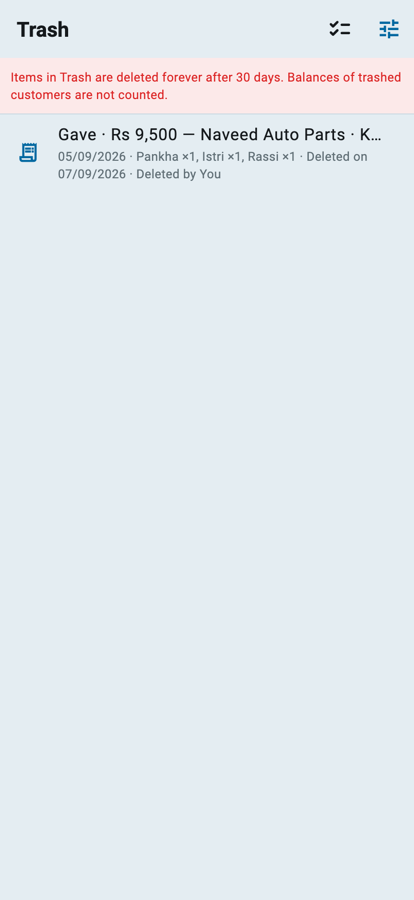
Trash learned to talk. Every row now says who deleted it, you or the staff member by name. Tap a row and a sheet opens with what it was, where it came from, who deleted it and when, and its full history. Restoring or deleting several at once is a checklist icon away.
Approval cards for edits used to say only that something changed. Now they show What changed, field by field, old and new, phone numbers included, and a rejected edit rolls back cleanly. Two bugs went with that: rejecting a name change could delete a real payment the customer had just made, and rejecting a name-only edit could wipe a bill's items. Both are fixed.
Complaints have their own permission card now, with separate switches for seeing, replying, changing the status, deleting and opening a new one.
More in this update
- A running balance under every entry on khata, supplier and loan pages, the same ladder the statement prints.
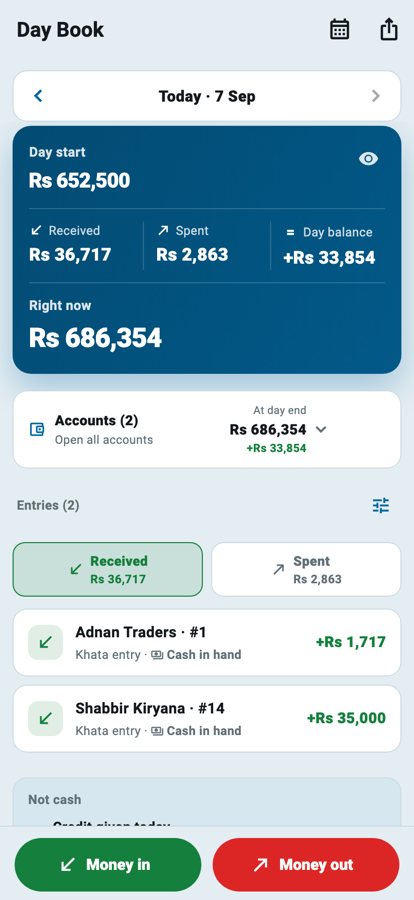
- Day book rows name the account the money moved through, and for a bank the bank's name, not the holder's.
- Stock-in history rows carry the bill's total, and the Home period is remembered per shop.
- Folders survive a filter on the products board.
- Excel import reads big numbers. A cell like 1.5E3 is Rs 1,500 now, not Rs 1.53.
- Loans. The person's photo shows again, a loan entry names its bank, a loan row in Cash and Bank lands on the loan page, the loan statement has a switch for every column, and the loans list is its own document, Loans list, with its own switches.
- Urdu prints properly on every paper. No more black boxes, no more clipped tops.
- Documents. The footer, signature and stamp never split across pages, and the previews are sharper.
- Adding a field no longer freezes the app on the loan, investor and employee forms.
- Password reset. The code screen no longer goes white, and every code you were sent is accepted.
- Two permission leaks closed: a folder's sale value and an item's stock value showed to staff who should not see them.
- The customer app says a trashed khata is not available instead of showing a Pay button.
- Sync. A shop's sync could stop for ever without a word, for example after creating and renaming a khata offline in one go. It cannot any more.
- Reopening a khata re-charged a customer who had paid in full, or money you had forgiven. Fixed.
- The page-in jerk is gone on Pay and Money came back, the stock-in item page, Add bill, the customer form and the loan form.
Wasoolo is 100% FREE to download on Android and iPhone, and the previous update explains Invite and earn.
Common questions
Do I have to do anything to get these features?
No. Update from the Play Store or the App Store; everything appears by itself, and every new staff permission defaults to off.
Does a return on a khata change my old profit figures?
No. The loss lands on the day of the return as its own line, Loss in returns. The sale keeps its date and its profit.
Can a refund be paid in cash on an installment khata?
Not in this version. On a plan khata the return is adjusted in the plan and the last installments get smaller. To hand money back anyway, record it as an ordinary entry.
Is buying from a customer the same as settling his udhaar?
No, on purpose. What he owes you and what you owe him are two separate books. Nothing moves from one to the other by itself.
Who can share a bank account across shops?
Only the shop owner, across shops he owns. Staff see the other shop's entries only if they work there and have Cash and Bank permission there.
I turned on PIN before delete. Does it ask my staff too?
The switch lives on the phone it was turned on. On a staff phone, deletes follow that person's permissions and your approval switches, as before.
Cash and Bank is the class to read before sharing an account, and working out what your shop really earns explains the number the Profit entries page now opens up.