
GuideApp tutorials
Class 12: how to add new stock (stock in)
Class 12 of the Wasoolo course: write the delivery as one bill, so your shelf count goes up and what you owe the supplier is recorded in the same tap.
What Class 12 covers, in order
- 1Open Stock inThe bill in your hand becomes the bill on the screen: date, number, photo.
- 2Say who you bought fromA supplier, the bazaar with nobody's account, or one of your own customers.
- 3Put the items on itPick from your list, scan the barcode, or write a brand new item.
- 4How many, at what rateThe line total appears as you type, and the next item is one tap away.
- 5Say what you paidAll of it, some of it, or nothing — the rest stays owed to him.
The delivery arrives, the supplier hands you a paper, and two jobs start: put the goods on the shelf and remember what you owe him. Stock in does both from one screen. Write the bill once, press Save, and your stock count and his balance move together. Class 12 does it end to end.
Where Stock in lives
Open the Stock tab and tap Stock in, third in the row of doors at the top.
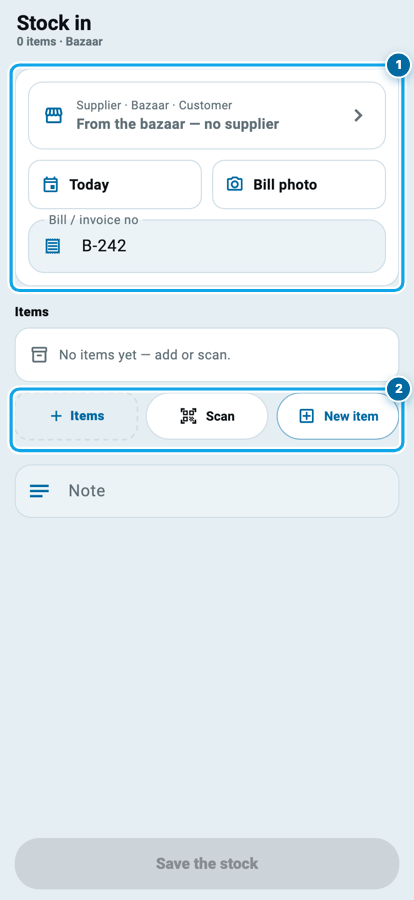
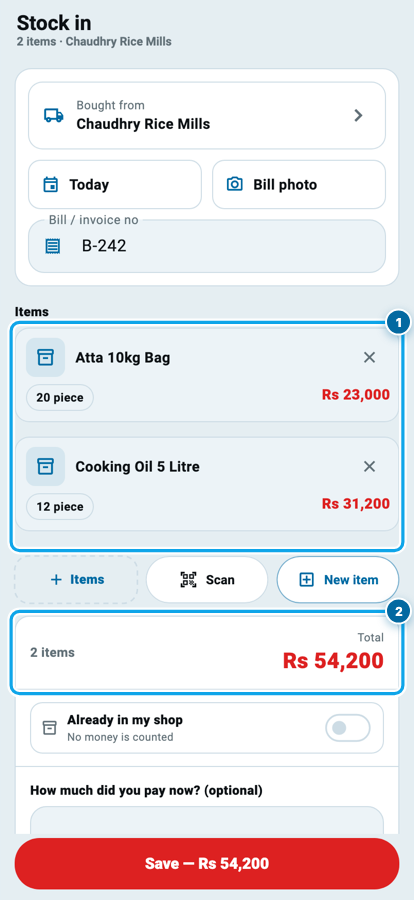
The page opens as an empty bill. The card at the head holds the paper: the row that says who you bought from (Supplier · Bazaar · Customer), the date (Today, and tappable if the goods came yesterday), Bill photo for a picture of the paper itself, and Bill / invoice no, which fills in with the next number so you never have to invent one.
Under it, Items with nothing in it yet, and three doors: Items, Scan, New item. At the very bottom, the Save button, grey until the bill has something on it.
What Class 12 covers, in order
- 1Open Stock inThe bill in your hand becomes the bill on the screen: date, number, photo.
- 2Say who you bought fromA supplier, the bazaar with nobody's account, or one of your own customers.
- 3Put the items on itPick from your list, scan the barcode, or write a brand new item.
- 4How many, at what rateThe line total appears as you type, and the next item is one tap away.
- 5Say what you paidAll of it, some of it, or nothing — the rest stays owed to him.
Say who you bought from
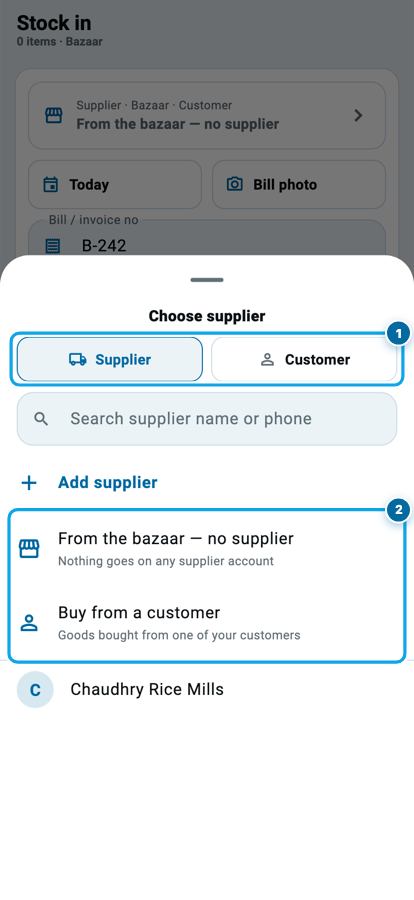
Tap that top row and a sheet opens with a Supplier / Customer switch at the top and a search box under it.
Three answers, and all three are real. Pick a supplier from your list and the money on this bill goes onto his account. Pick From the bazaar — no supplier and nothing goes on anybody's account, which is the honest answer for the day you bought cash from a stall. Pick Buy from a customer and the goods come from one of your own customers, which happens more often than any app admits.
Add supplier is there too, so a new man is added without leaving the bill.
Three ways to put an item on the bill
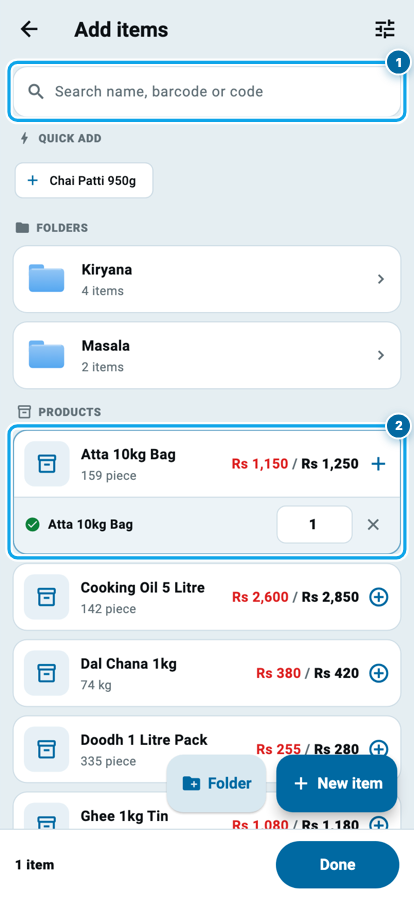
Items opens your whole shelf, with a search box that matches a name, a barcode or an item code. Folders sit at the top, QUICK ADD offers whatever is running low, and a + on each row puts it on the bill.
Scan turns the camera on and reads barcode after barcode without stopping, so an unpacked carton goes on the bill as fast as you can turn the packets over. A code Wasoolo does not know stops and offers to make the item then and there.
New item is for goods you have never sold before: the add-product form from Class 11 opens, and when you save it the new product lands straight on this bill.
Pick everything first, then tap Done, and Wasoolo hands you to the first item's own page.
How many, and at what rate
The item page asks about one item only, and it is short.
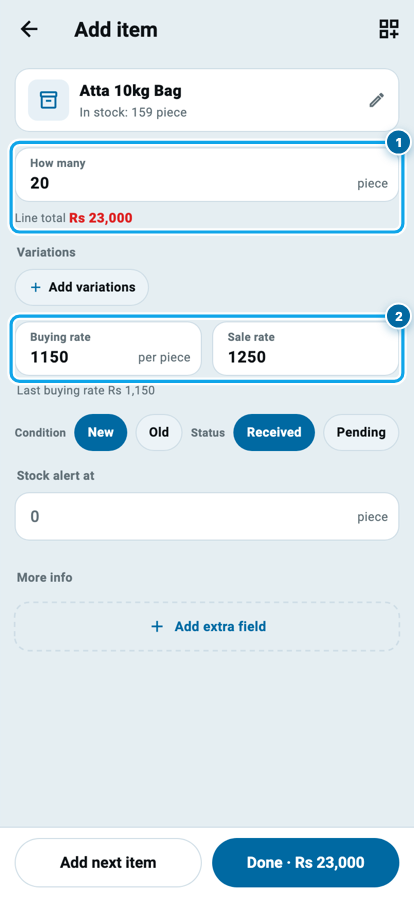
How many takes the count, and Line total appears under it the moment a rate is there. Buying rate is what this delivery cost you per piece; Last buying rate sits under it as a reminder, which is how you notice a supplier who raised his rate quietly. Sale rate is beside it, and changing it here updates the product's own rate.
Condition says New or Old. Status says Received or Pending, and that one matters: a Pending line is on the bill and owed for, but nothing is added to the shelf until the goods really arrive. Stock alert at sets the level that puts this item on your buy list.
Then Add next item goes back to the picker, and Done carries the line, and its total, back to the bill.
What one stock-in bill works out
The bill total is simply the two lines added up, so it can never drift from what you typed. Your shelf goes up by 20 bags and 12 tins in the same save.
The bill adds itself up
Back on the bill, each item is a row: name, how many, and what that line comes to. The ✕ on a row removes it, and tapping the row opens it again.
Under the last row sits Total, and it is simply the lines added together. Nothing on a new bill can move that figure away from its items, which is the point: if your paper says a little more or less, the difference is inside a line, a rate or a quantity, and that is where you go and fix it.
Beside the total sits Already in my shop. Turn it on when the goods are yours already and no money is involved: the stock is added and nobody is owed. The buying rate is still saved as your cost.
Start your digital khata today
Free to start. Works offline. English, Roman Urdu & Hinglish. Your customers get their app free, forever.
The money you handed over
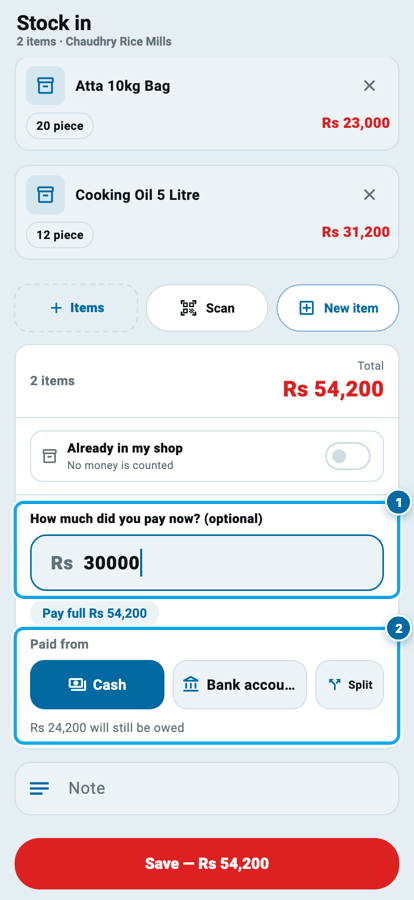
How much did you pay now? (optional) is the last question, and an empty box is a complete answer: the whole bill stays owed to the supplier.
Type something and the page answers straight away. Pay full Rs 54,200 is a one-tap chip. Pay less and a grey line tells you exactly what is left: Rs 24,200 will still be owed. Pay more than the bill and it says the extra becomes an advance sitting on his account.
Paid from decides which of your accounts the money left: Cash, Bank account, or Split for half from the till and half by transfer. That is the same Cash & Bank from Class 2, and the movement lands there with the supplier's name on it.
What one Save actually writes
Press Save — Rs 54,200 and four things happen at once, from one bill.
The shelf count goes up by every Received line. The supplier's account carries the bill, so his balance is right without a second entry. The payment, if you made one, leaves the account you named. And the bill itself is kept, with its number, its date and its photo, so it can be opened, edited or looked at months later from the stock-in history.
No separate stock register, no second app, and no evening spent working out where the goods went.
Common questions
I bought from the bazaar with cash. Do I still make a bill?
Yes, and it is worth it. Choose the bazaar answer, and nothing goes on anybody's account. Your shelf count and your buying cost are still recorded, which is what makes your profit true.
The goods are ordered but not here yet. What do I do?
Set that line's Status to Pending. The bill and the money are recorded, and the shelf count waits. Open the bill and set it to Received on the day the goods arrive.
Can I change a stock-in bill after saving it?
Yes. Open it from the stock-in history and edit it. The old movements are reversed and rewritten, so the shelf count follows the change instead of adding a second time.
Where does the money I paid show up?
In Cash & Bank, in the account you chose, with the supplier's name on the entry, and on the supplier's own page as a payment against this bill.
My salesman receives the deliveries. Can he do this?
With stock or purchase permission, yes. The money part is a different key: without it the paid box is simply not on his screen, so he can receive goods without touching your accounts.
Does this work when the phone has no internet?
Yes. The bill is saved on the phone and uploads by itself when the signal comes back, the same as every other entry in the app.