
GuideApp tutorials
Class 6: how to make your invoices, receipts and statements
Class 6 of the Wasoolo course: make a sale invoice, a receipt and a khata statement as a PDF, then customize the paper so it carries your own shop.
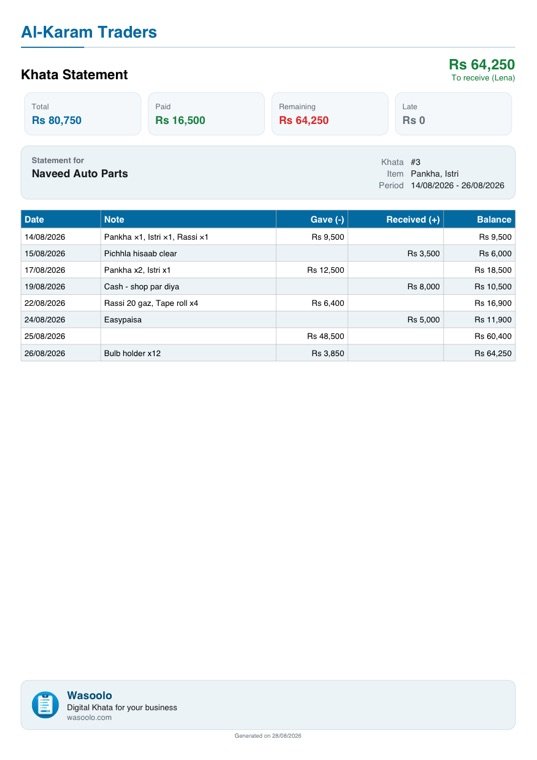
Every khata in Wasoolo can print. Pick one and you get a sale invoice, a receipt for a single entry, or a full statement, as a PDF you save, print or send. Class 6 makes all three, then customizes them so the paper carries your own shop instead of a plain template.
Where every paper is made
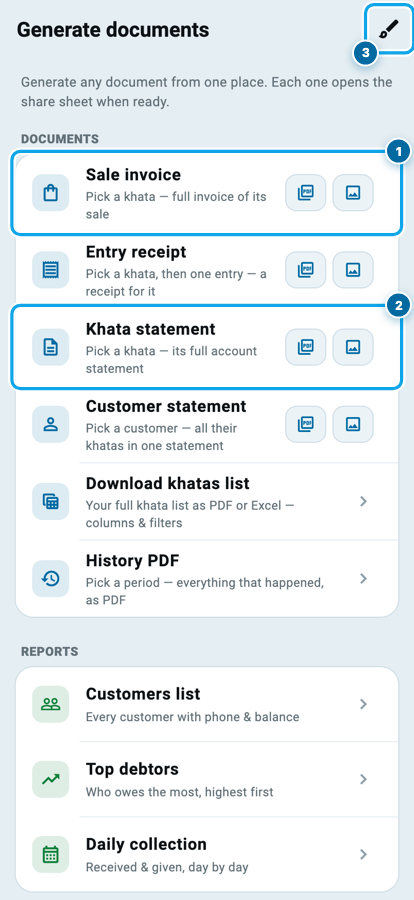
There are two doors. Any khata or entry you have open carries its own document button, and More → Generate documents is the room where all of them live together.
Each line says what it makes: Sale invoice, Entry receipt, Khata statement, Customer statement, Download khatas list, History PDF. Under those sit three reports: your customers list, top debtors, and daily collection.
The two small icons on the right of a line matter. The left one builds a PDF. The right one builds a picture of the same paper, which is what you send when the man on the other end will not open a file.
The brush at the top right is the second half of this class. It opens the room where the look is decided.
What Class 6 covers, in order
- 1Open Generate documentsOne room holds the sale invoice, the entry receipt, both statements and the reports.
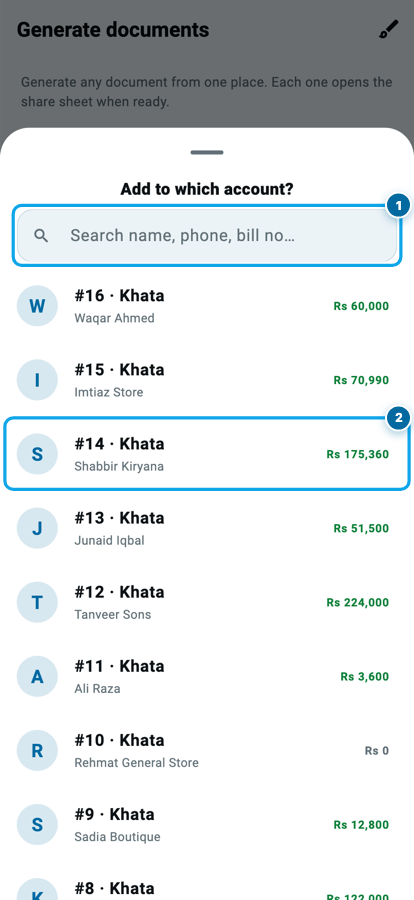
- 2Pick the khata, get the paperThe search box finds the account; the PDF or the picture is built from it.
- 3Choose which paper to changeFourteen documents, each with its own settings and its own live preview.
- 4Put your shop on topLogo, phone, address, tax number — switch on only what belongs on that paper.
- 5Decide the middle and the bottomCustomer block, totals band, table columns, signature, stamp, footer note, colour.
The sale invoice and the entry receipt
Press Sale invoice and your khata list opens with a search box above it. Three letters of a name or three digits of a number leave one row standing, using the same box Class 5 was about. Tap the khata and the invoice is built from the sale that opened it: the items, the rates, the total, what is paid and what is left. If it is an installment khata, the whole schedule prints under the total.
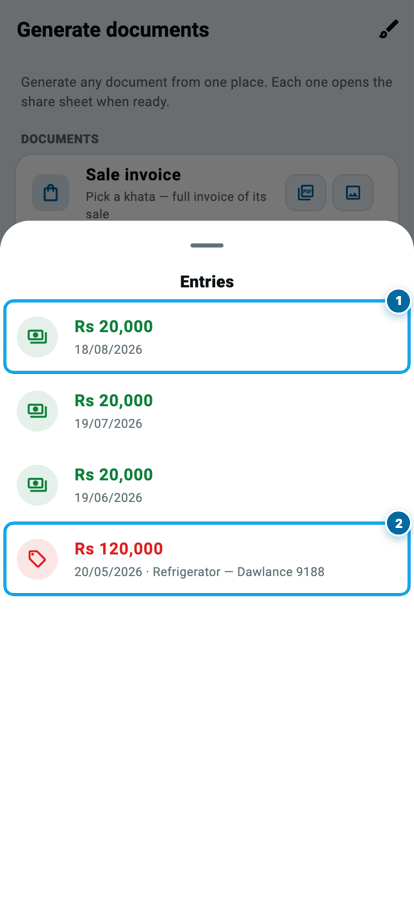
Entry receipt asks for the khata first, then for one line inside it. Every entry is listed newest first, green for money that came in and red for goods that went out. Pick a green line and you get a receipt for that payment. Pick a red one and you get a small invoice for that delivery.
That slip is what a man asks for at the counter, and it takes four seconds. The free plan builds 500 documents a month, more than most counters produce.
The statement, and what it proves
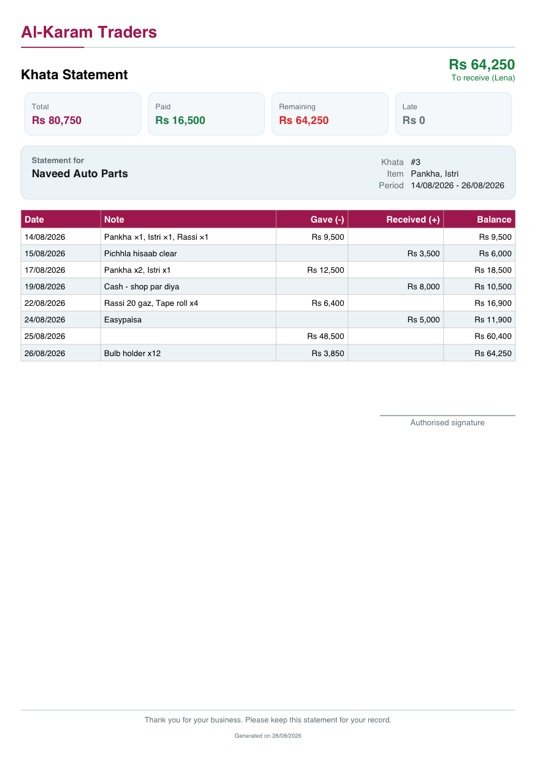
A statement is the whole account on one page: every entry in date order, with the balance after each one. Khata statement prints one account. Customer statement prints the person, all his khatas together.
The four figures across the top are added up from the entries below them, so nothing on the page is typed by hand. That is why a statement ends an argument about a payment faster than any conversation can. He is holding the dates.
What the four figures at the top of a statement mean
Total minus Paid is Remaining, on every statement. The entries table below it shows exactly which lines built each number.
Where the look is changed
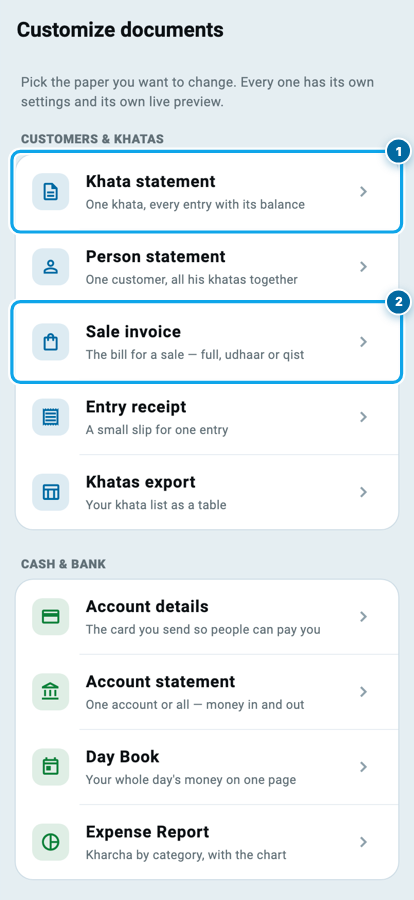
Settings → Customize invoices & receipts, or the brush on the documents screen, opens a list of every paper you can change, grouped by the part of the shop it belongs to: customers and khatas, cash and bank, suppliers and stock, partners.
Fourteen papers, and each keeps its own settings: the khata statement can stay plain while the sale invoice carries your stamp. Pick one and its page opens with a live preview of the real paper at the top, drawn from your own shop, redrawn every time you touch a switch.
Your shop at the top of the page
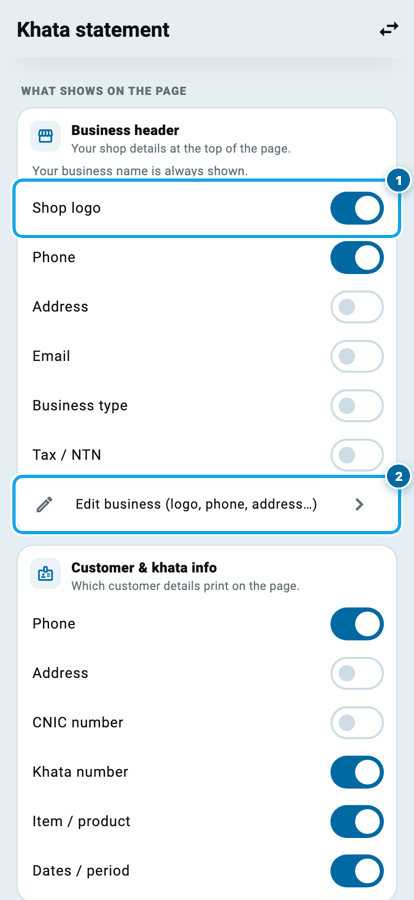
The first card is Business header, and it decides what a customer reads before he reads a single figure.
Your business name always prints. Under it you switch on the shop logo, the phone, the address, the email, the business type and your tax or NTN number. Turn on only what belongs on that paper: a regular customer needs a number to call, a bill going to an office may need the tax line.
If a detail is missing, Edit business at the bottom of the card takes you to the page that holds your logo, your numbers and your address, and brings you straight back.
What prints in the middle
Customer & khata info is the block under the heading: his phone, his address, his CNIC number, the khata number, the item, the dates. A shopkeeper who does not want a CNIC on a paper that travels switches it off here once, and it stays off for every statement after that.
Summary totals is the band of figures near the top. Keep all four, or hide the ones you would rather not put in front of him.
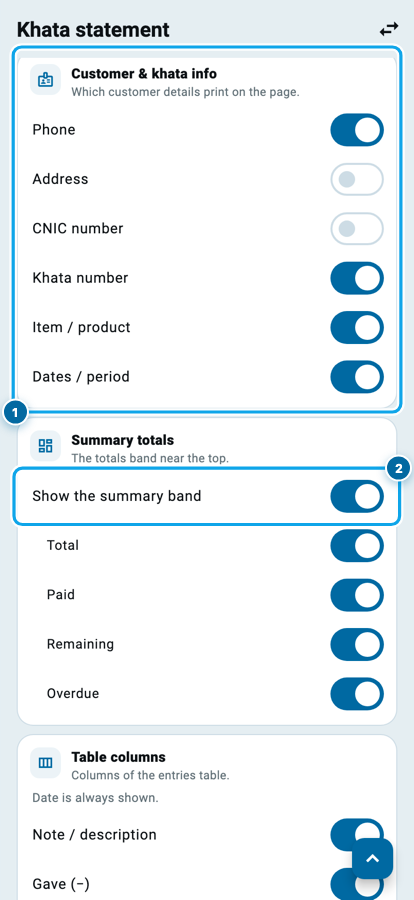
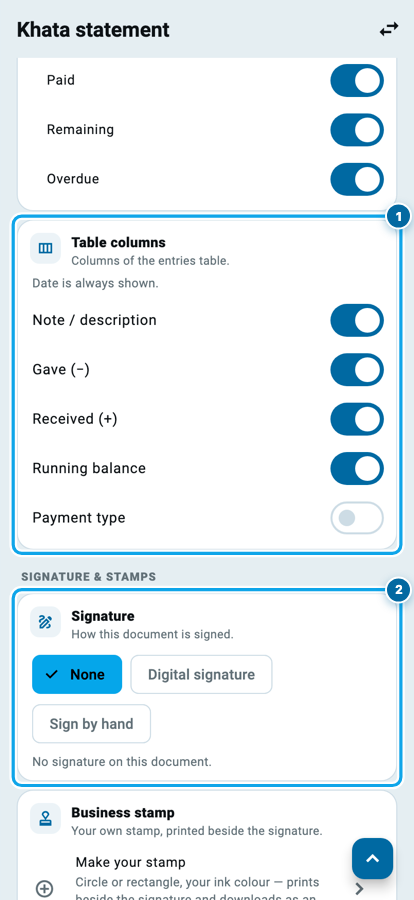
Table columns decides the entries table. Date always prints. Note, Gave, Received, running balance and payment type are yours to keep or drop. A narrow paper with three columns reads better across a counter than a wide one with six.
Signature offers three answers: none, a digital line with your business name, or a printed line you sign by hand. Business stamp builds a round or rectangular stamp in your own ink colour, beside the signature.
Start your digital khata today
Free to start. Works offline. English, Roman Urdu & Hinglish. Your customers get their app free, forever.
The bottom of the page, and the colour
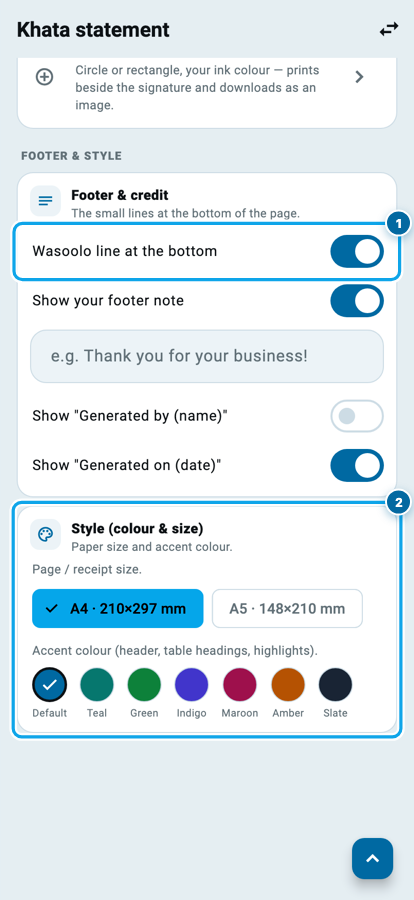
Footer & credit holds the small print. Your own footer note is the useful one: Thank you for your business, your return rule, or a bank line. Two switches beside it name who generated the paper, and on which date.
The Wasoolo line at the bottom is the small band that says the document came from Wasoolo. Turning it off is a Pro feature, and it is the one thing on this screen that is.
Style is the last card: A4 or A5, and seven accent colours that repaint the header rule, the table headings and the highlights. The same statement in maroon, with a footer note and a signature line, is a different paper.
Common questions
Do I have to customize a paper before I can send it?
No. Every document prints with sensible settings from the day you install. The customization room exists so the paper looks like your shop, not so you can use the app.
Which parts of this are free?
Nearly all of it. The header, the customer block, the totals, the table columns, the signature, the stamp, the paper size and the accent colour are free. Pro and Pro Lite add your own footer note, the extra info table on an invoice, the dated line inside a stamp and its colour. Removing the Wasoolo line at the bottom is Pro.
If I change a setting, do my old documents change too?
No. A PDF is built at the moment you press the button, so what you already sent stays exactly as it was. The next one you build uses the new settings.
My customer cannot open a PDF. What do I send him?
The second icon on every line of the documents screen builds the same paper as a picture. A picture opens inside the chat with no file to download, which is why the button is there.
Can I print on a small thermal roll instead of A4?
The entry receipt prints on an 80mm roll by default, which is the counter slip. The statements and the sale invoice offer A4 and A5. All of them open in your phone's own print sheet, so a printer your phone already knows will take it.
Can my employee generate documents?
Only if you gave that seat the permission. Making invoices, khata statements and customer statements are three separate permissions, and changing how documents look needs the business-editing permission on top.
Wasoolo is 100% FREE to download on Android and iPhone. Class 5 found the khata. This class turned it into paper a customer can keep, and a record you still hold if the phone is lost tonight.