
GuideApp tutorials
Class 3: how to create a new khata in Wasoolo, full payment and credit
Class 3 of the Wasoolo course: open the New khata screen, pick the customer, choose Full payment or Credit, add the items, and save the khata.
What Class 3 covers, in order
- 1Open the formThree doors reach the same New khata screen.
- 2Pick the customerSearch by name, phone or bill number, or make a new one on the spot.
- 3Choose the typeFull payment or Credit. The boxes below change with your answer.
- 4Add the itemsPick from your list, scan a barcode, or write a line by hand.
- 5Name the moneyThe total, the advance if there is one, and where the cash landed.
- 6Save and checkThe khata page tells you what is settled and what is still owed.
Every sale is either paid on the spot or it goes on udhaar. A khata in Wasoolo is that sale, written once. Class 3 opens the New khata screen and builds both kinds from zero: the customer, the type, the goods, the total, and the money that did or did not come in.
Where the New khata button sits
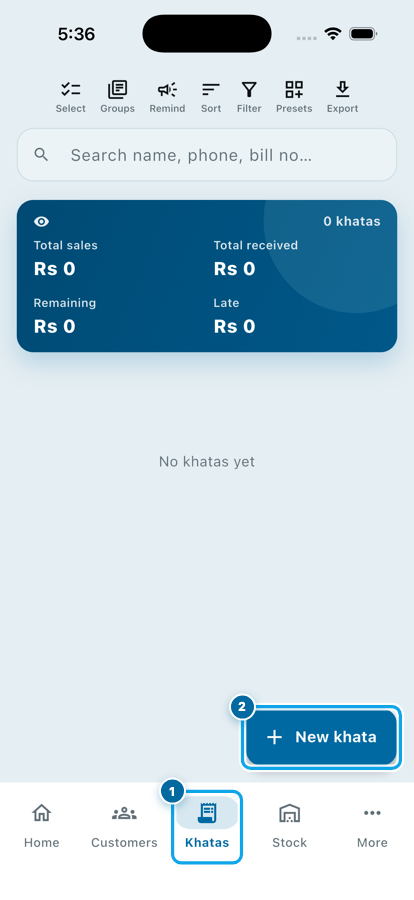
Three doors reach the same screen. The Khatas tab carries a blue New khata button at the bottom right. The Home screen keeps the same door on its shortcut row. And a customer's own page has a + New khata line, the quickest of the three, because the customer is already chosen.
On a fresh phone the Khatas tab says "No khatas yet". That empty screen is the one this class fills.
Pick the customer first
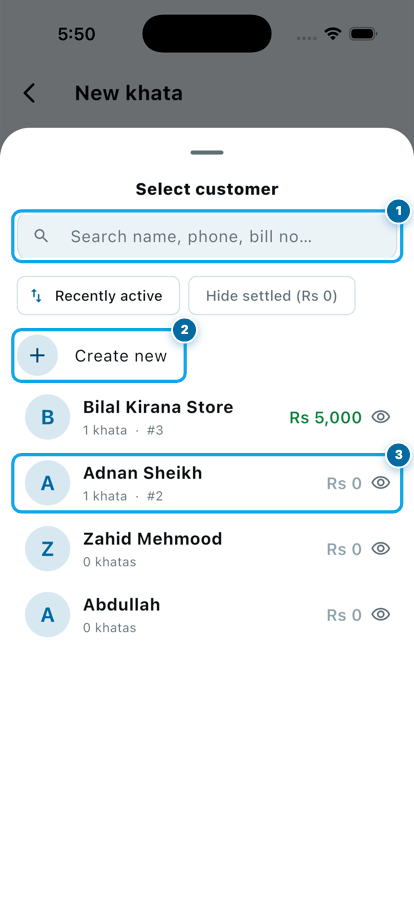
The form opens with Select customer at the top, and nothing under it can be saved until that row is answered. Tap it.
The picker gives you a search box that matches a name, a phone number or a bill number, a Create new row for the man at your counter who has never been written down, and your customers below, each carrying what he owes today.
Type three letters instead of scrolling. Once the list passes fifty names, that search box is what keeps a khata down to ten seconds. Class 1 built that customer page, and this is where it pays you back.
Choose the type: Full payment or Credit
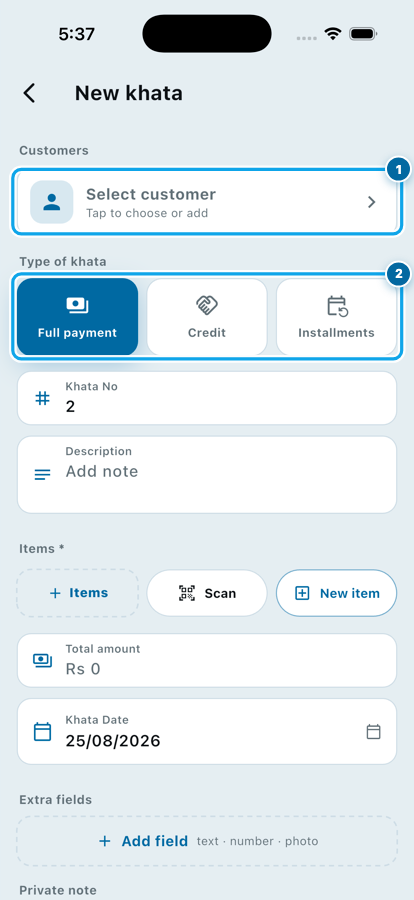
Under the customer sit three cards: Full payment, Credit and Installments. That one tap decides which boxes the rest of the form shows, so press it before you type anything else.
Full payment is the sale that is over: he took the goods, he paid, nobody owes anybody. Credit is udhaar: the goods left, the money did not. Installments is a plan with a screen of its own, and not this class.
Press the wrong card and you can simply press the right one; the lines you added stay.
Put the goods on the khata
Below Khata No and Description sits Items, with three inline doors.
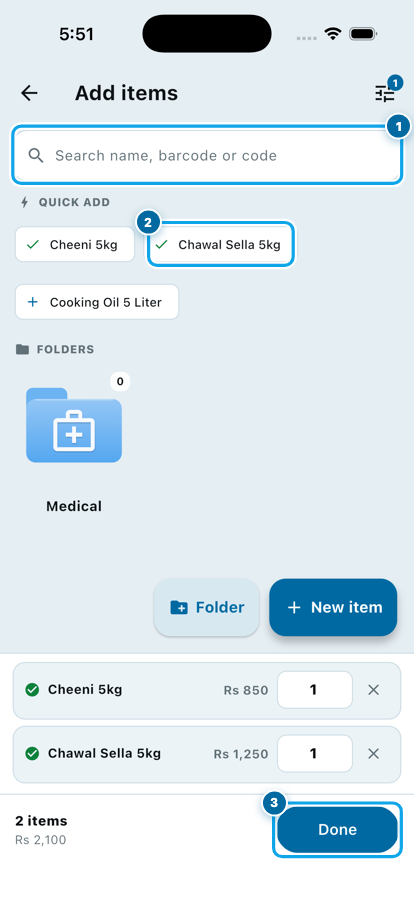
- Items opens your product list, with a search box and a Quick add row of what you sell most. Tick two of them and the bottom bar counts them for you: "2 items, Rs 2,100".
- Scan turns on the camera for a barcode.
- New item writes a blank line straight into the khata. Use it for what is not in your list at all, like delivery or labour. It creates no product and moves no stock; the app only asks afterwards whether to file that line.
Every line becomes its own block: the item name on top, then Qty, Unit price and Total on one row. Change the quantity and the total follows. The Total amount box below adds every block up, and it works the other way too: type a round figure into it and the lines move to match.
Full payment or Credit: what changes
A full payment khata, start to finish
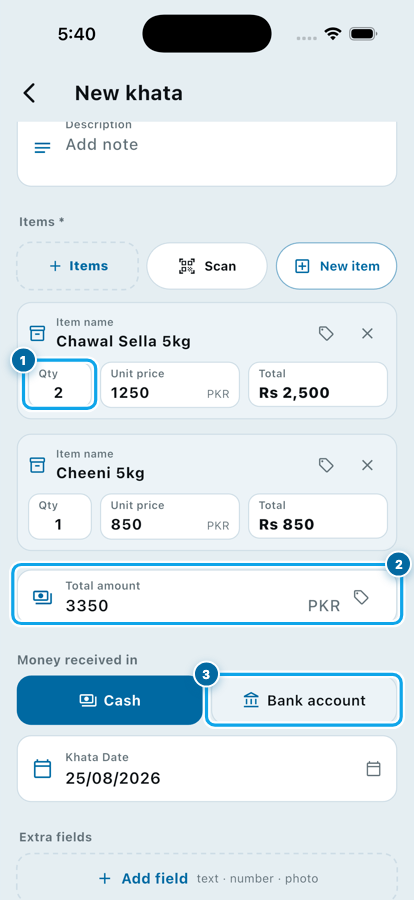
Say a customer takes two bags of rice at Rs 1,250 and one bag of sugar at Rs 850. Pick him, leave Full payment on, add the two lines, and the total reads Rs 3,350 by itself.
Now the one box people skip: Money received in. Cash sits selected already; tap Bank account instead when he sent it online. That answer is what puts the Rs 3,350 on the right account page, so your count at closing time matches. Class 2 gave those accounts their own pages, and this row is the door between the two classes.
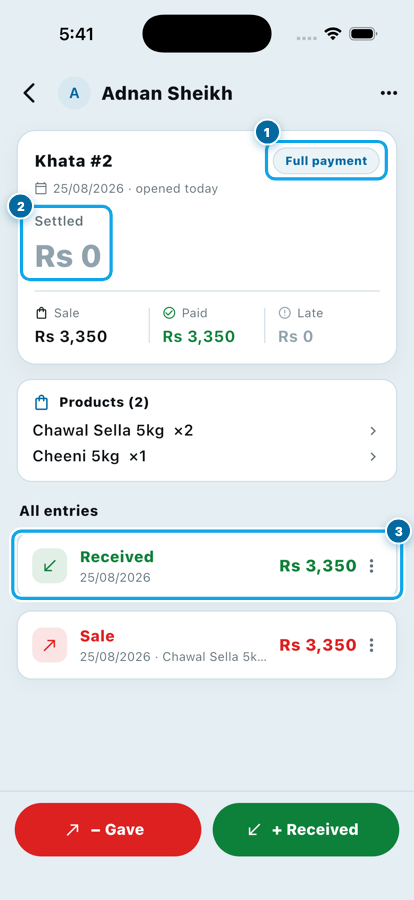
Press Save khata. The khata page opens with a Full payment badge, the word Settled and a balance of Rs 0: a sale of Rs 3,350, paid Rs 3,350. Two entries sit under it, a Sale and a Received, and neither was typed twice.
One thing surprises people. That khata does not show under Active on the Khatas tab, because nothing is owed. Tap All or Settled and there it is.
A credit khata, start to finish
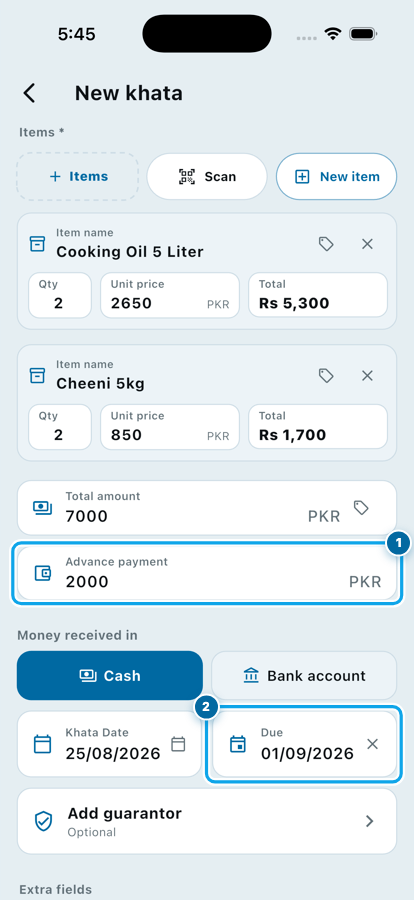
Same form, one different card. Press Credit and two boxes appear that Full payment never showed: Advance payment, and a Due date beside the khata date.
Say a shop takes two tins of cooking oil at Rs 2,650 and two bags of sugar at Rs 850. The total is Rs 7,000, he hands over Rs 2,000, and he will clear the rest on the first. Type 2000 into the advance, pick 01/09/2026 as the due date, and leave Cash selected under Money received in, because that Rs 2,000 is real money and it landed somewhere.
Under the dates sits Add guarantor, optional. On a large amount from someone new it is the row worth using; when to ask for a guarantor is a decision of its own, and so is how much udhaar to give.
The credit khata in this class, line by line
Rs 7,000 of goods, Rs 2,000 in hand. You type those two numbers; the last line writes itself.
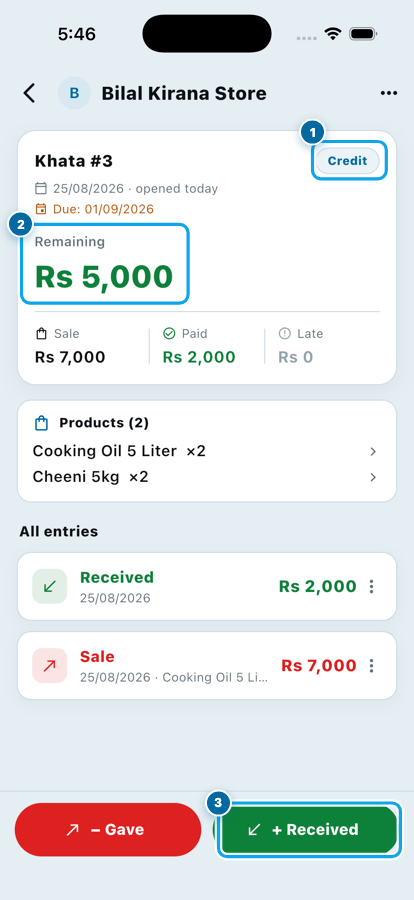
Save it, and the khata page reads Credit, Due: 01/09/2026, Remaining Rs 5,000. The green + Received button at the bottom is where his next payment goes, and every rupee of it comes off that remaining figure. Nothing is ever added on top for the days he takes.
Start your digital khata today
Free to start. Works offline. English, Roman Urdu & Hinglish. Your customers get their app free, forever.
The boxes most people leave alone
Four more boxes sit on that form, and every one is optional.
Khata No fills itself with the next number, and you can overwrite it, letters included, so a khata can carry your own bill number. Description is the note that may print on a statement. Extra fields builds your own box, text, number or photo, for a vehicle number or a picture of the signed slip. Private note is the last, and only your team sees it, never the customer.
Leave all four empty and the khata is still complete. Fill them, and it answers questions six months from now that your memory will not.
Common questions
Do I have to add goods, or can I just write an amount?
Add at least one line. Tap New item, type a name or leave it, and put the amount in as the rate. That line keeps the khata honest, and it is what your statement prints later.
I chose Full payment and he only paid half. What now?
Press Credit instead. The lines stay, an Advance payment box appears, and you type the half he did pay. The khata carries the rest as remaining, which is the truth.
Can I change a khata after saving it?
Yes, as long as no payment has been taken against it. Open the khata and edit it. Once real money has come in, the amounts lock and you correct them through the ledger, so a payment that already happened can never quietly vanish.
Does the due date charge him anything?
No. A due date only sorts your list and marks the khata Late on your own screen. Wasoolo has no late fee and no charge for time, and it never will.
Where did my full payment khata go?
To Settled. The Khatas tab opens on Active, and a khata with nothing owed is not active. Tap All or Settled at the top of the list.
Can my helper create khatas without seeing my buy rate?
Yes. Permissions carry the buy rate as its own switch, so a helper can open a khata, pick products and take payments while the purchase rate stays hidden from him.
Wasoolo is 100% FREE to download on Android and iPhone. Class 1 gave you the customer, Class 2 gave the money somewhere to land, and this class puts the two together, cash or udhaar, both counted.