
updateWhat's new
What's new in Wasoolo 3.6.0: transfers in your Day Book, filters that stay on, and a This month that moves with the calendar
Wasoolo 3.6.0 shows transfers in your Day Book as one line in and one line out, keeps your filters on after you close the app, and moves This month by itself.
Wasoolo 3.6.0 in four lines
- 1Transfers in the Day BookOne line in, one line out, balance unchanged.
- 2Tap for full detailsFrom, To, note, Edit and Delete in one tap.
- 3Filters that stay onTwelve lists open the way you left them.
- 4This month moves onToday and This month follow the calendar.
Wasoolo 3.6.0 shows money you move between your own accounts in the Day Book, as one line in and one line out. Your filters now stay on when you leave a list, even after you close the app, and This month moves with the calendar.
Transfers now show in your Day Book
It is closing time. You take Rs 20,000 from the cash in hand and deposit it in your bank account. Next morning you open the Day Book to check yesterday, and until now that money was not in the list. The cash went down and the bank went up, and only a small note on the top card said why.
Now a transfer is two lines. Open the Day Book from Home.
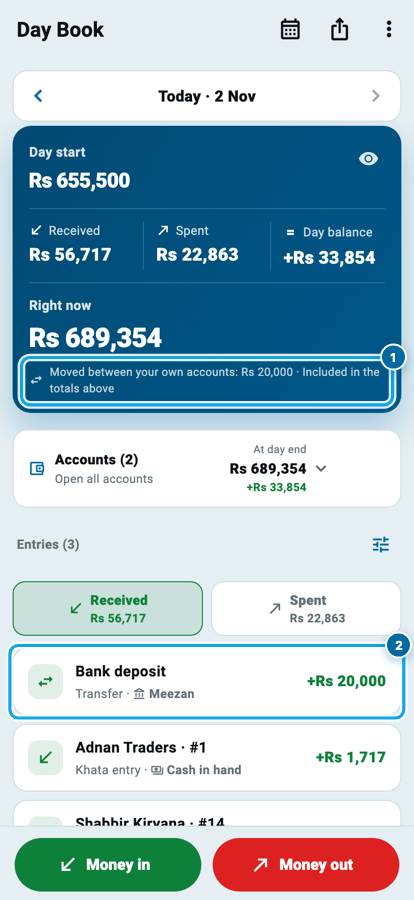
- The top card says how much was only moved between your own accounts (1).
- Under Received, the transfer is a green line with its own swap icon (2). It names the account the money went into.
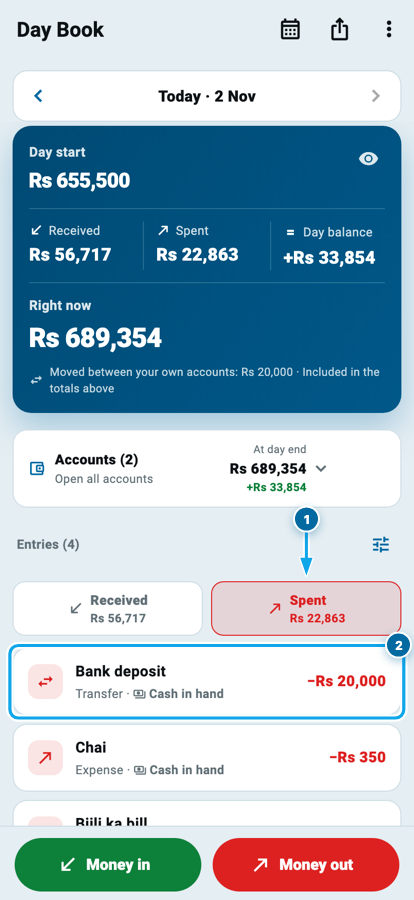
- Tap Spent to see the other side.
Under Spent (1), the same transfer is a red line that names the account the money came out of (2).
What the numbers mean now
Received and Spent both include the transfer, so the lines under each button always add up to the total on that button. Day balance does not change, because the same money sits on both sides.
Take the day in the pictures. Say your customers paid Rs 36,717 and you spent Rs 2,863, and you moved Rs 20,000 to the bank.
- Received: Rs 36,717 + Rs 20,000 = Rs 56,717
- Spent: Rs 2,863 + Rs 20,000 = Rs 22,863
- Day balance: Rs 56,717 − Rs 22,863 = +Rs 33,854
Without the transfer the balance is Rs 36,717 − Rs 2,863, which is the same +Rs 33,854. That is why the note on the card matters: it tells you that Rs 20,000 of those totals never left the shop. Your profit does not count a transfer either.
The Day Book PDF follows the screen. The transfer prints on both sides, a note says how much was moved, and a transfer with a note prints as Transfer - Bank deposit.
Tap a transfer for its full details
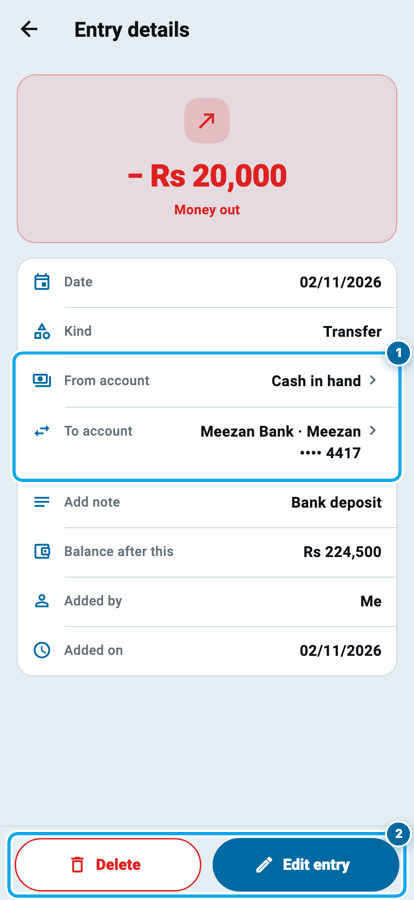
Tap a transfer's line in the Day Book and Entry details opens straight away. It shows the date, From account and To account (1), your note, the balance after it, who added it and when. Delete and Edit entry (2) are at the bottom, and they act on both lines of the transfer together.
Other lines in the Day Book still open their account's list, with that line marked, as before. If you are new to this page, the Day Book class walks through all of it, and the Cash & Bank class shows how to make a transfer.
The eye hides more of the Day Book
Someone is standing at your counter while the Day Book is open, so you tap the eye on the blue card (1). It used to hide only that card and the account figures. Now the moved amount in the note (2), the amounts on the Received and Spent buttons (3), and the figures on the Accounts card show dots too.
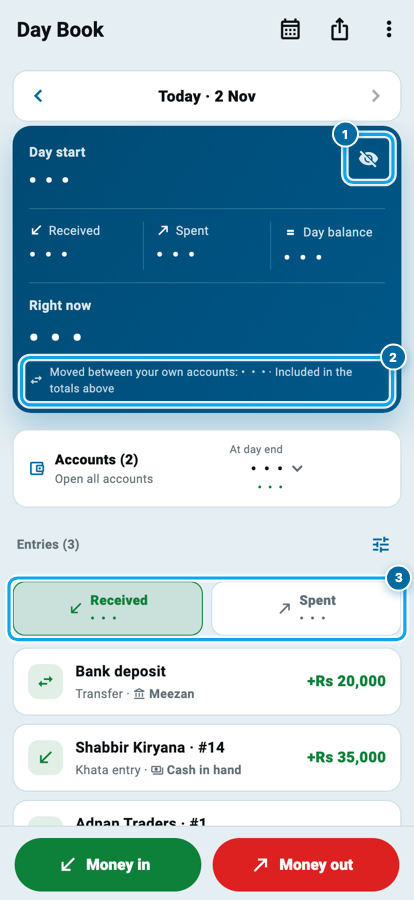
Each entry line still shows its own amount, the same as on an account's own page in Cash & Bank.
Your filters stay on
Every Monday you check what went on rent. Before this update you opened Expenses, set the same filter, and did it again next week, because the filter was gone the moment you pressed Back.
Now a list opens the way you left it. Set a filter once, and it is still on tomorrow, even after you close the app. The filter words sit under the search box (1) and the filter button shows how many are on (2). Tap Clear or the × on a word when you are done.
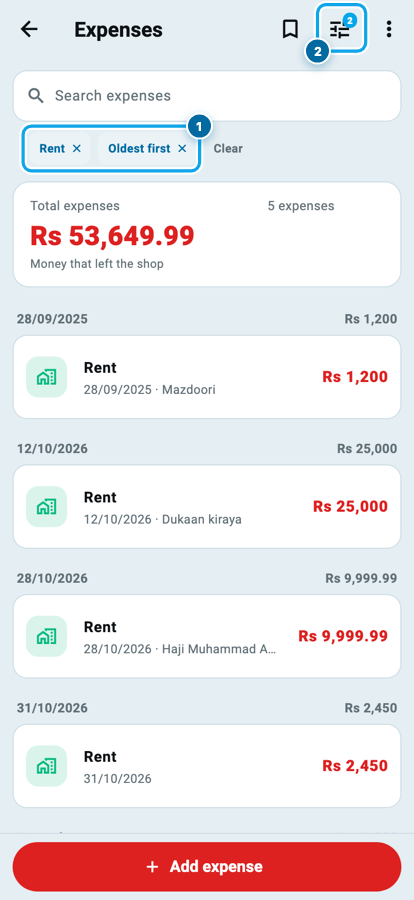
This works on Expenses, Loans, Suppliers, Employees, Investors, My reminders, Stock history, What to buy, Counter sales, Top products, Customers and Products.
A few things stay simple:
- Each business keeps its own filters. A filter you set in one shop never changes another.
- Words you type in a search box are not kept. Only the filters are.
- A link is one visit. Tap a line on the Profit page, like Salaries, and Expenses opens with that filter. Your own saved filter is still there next time you open Expenses yourself.
- Trash and History open clean, and so does one person's own page, so nothing there looks missing because of a filter you forgot.
This month stays this month
On a list with dates, like Expenses or Loans, tap the filter button, then Choose dates under Date, pick Today or This month (1), and tap Apply dates (2).
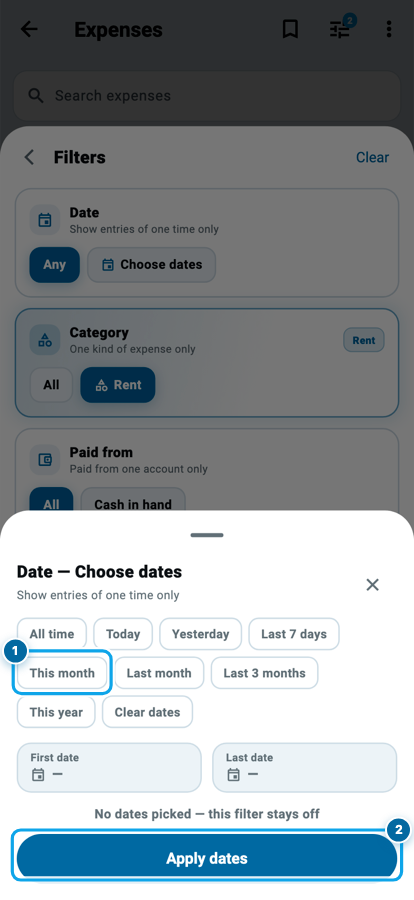
Pick This month in November, and in December it shows December, not last month. Dates you pick yourself stay exactly as you picked them, so a filter for March is still March.
Staff logins and computers
A staff login needs the See own transfers switch to see any of this. Without it, that login sees no transfer lines, and its Received and Spent stay without them. An account's own in and out figures still carry the money, so that account's day start and day end add up.
Windows goes from 3.4.0 straight to 3.6.0, so Windows users also get everything in Wasoolo 3.5.0, including duplicate entries and khata numbers by type. Mac and the web get the same changes as your phone.
Common questions
Did my income go up because of a transfer?
No. Received and Spent both rise by the same amount, so your Day balance stays the same. Your profit does not count a transfer at all.
Do old transfers show too?
Yes. Open any older day in the Day Book and its transfers show the same way, so that day's Received and Spent totals include them.
How do I delete a transfer?
Tap its line in the Day Book, then tap Delete on the Entry details page. Both lines go together, and you can restore it from Trash within 30 days.
Why is my list showing fewer entries than before?
A filter you set earlier may still be on. Look at the number on the filter button, then tap Clear to see everything again.
Will my filter show on my other phone?
Yes. Your filters follow your login, so they open the same on your other phone and on your computer.
Can I stop a list from keeping a filter?
Tap Clear when you finish. A list with no filter opens plain next time, and it stays plain until you set one again.