
GuideApp tutorials
Class 16: how to write expenses in Wasoolo
Class 16 of the Wasoolo course: record every shop expense with its category and account, let rent repeat by itself, and see where the month's money went.
What Class 16 covers, in order
- 1Open the Expenses pageFrom the More tab: the total that left the shop and every expense under its day.
- 2Write the amount and the dateThe amount first, today by default, any other day one tap away.
- 3Pick a categoryA ready one, a smaller one inside it, or a new one made on the spot.
- 4Say where it was paid from, and SaveCash, a bank account, or split between them, and that account goes down.
- 5Let rent repeat by itselfFill a repeating expense once, and Wasoolo writes it on its day.
- 6See where the money wentInsights by category and account, and the Expense Report as a PDF.
Every rupee that leaves your shop without buying stock is an expense: rent, the electricity bill, tea, a rickshaw for a delivery. Class 16 shows how to write each one in Wasoolo in a few taps, with its category and the account it was paid from, and how to see where the month's money went.
Open Expenses from the More tab
It is nine at night. The shutter is half down, the cash drawer is counted, and it comes up Rs 1,650 short. Then you remember: Rs 450 of tea for the boys, Rs 1,200 for the rickshaw that took two tins of ghee across town. Nothing was stolen. It was simply never written anywhere.
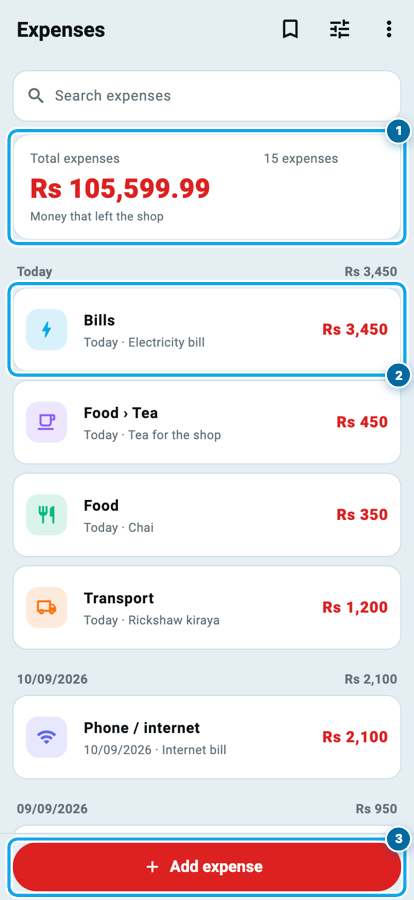
That is the job of the Expenses page. Open the More tab and tap Expenses, the tile that says Shop expenses, where the money goes.
At the top, Total expenses adds up everything you have written, with Money that left the shop under it. Below that, every expense sits under its day, newest first: its category, the day, your note and the amount. The search box finds any expense by its words, and the filter button next to the ⋮ menu narrows the list.
The red Add expense button waits at the bottom.
Add an expense: the amount comes first
Tap Add expense. The New expense form opens with the keyboard on Amount, because the amount is the one thing you always know.
Above it, Date says Today. Tap it to pick another day, earlier or later: next month's rent can be written the day you hear about it. Under the amount sit Category and Add note for your own words, and Save waits at the bottom.
There is no account row yet. It appears the moment you type an amount, so an empty form stays short.
Pick a category, or make one on the spot
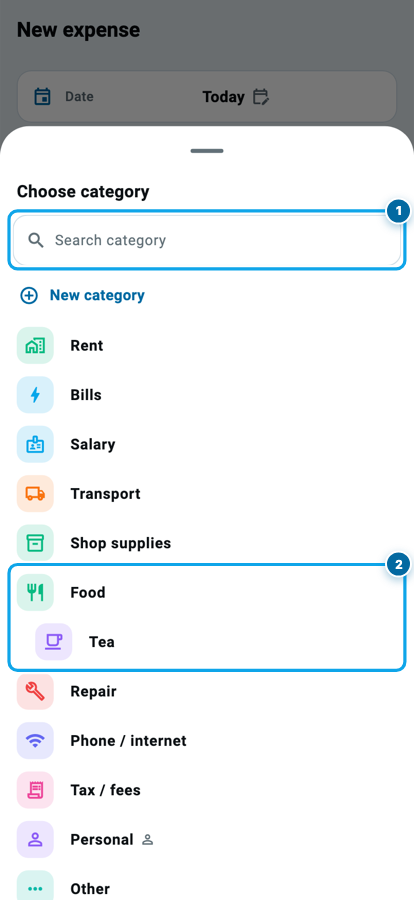
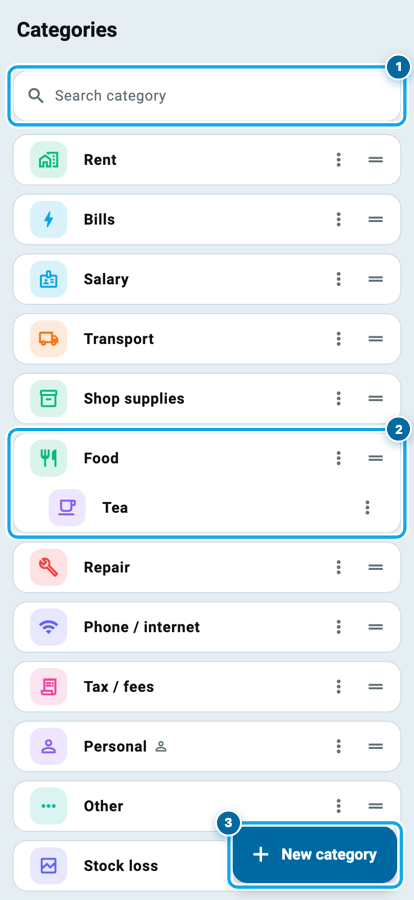
Tap Category and the Choose category sheet slides up. Every shop starts with eleven ready categories: Rent, Bills, Salary, Transport, Shop supplies, Food, Repair, Phone / internet, Tax / fees, Personal and Other.
A category can hold smaller ones. Tea already sits inside Food, so the form shows it as Food › Tea. The search box at the top finds any of them by name, and when yours is missing, New category is right there. The one you make comes back already picked.
Say where the money came from, then Save
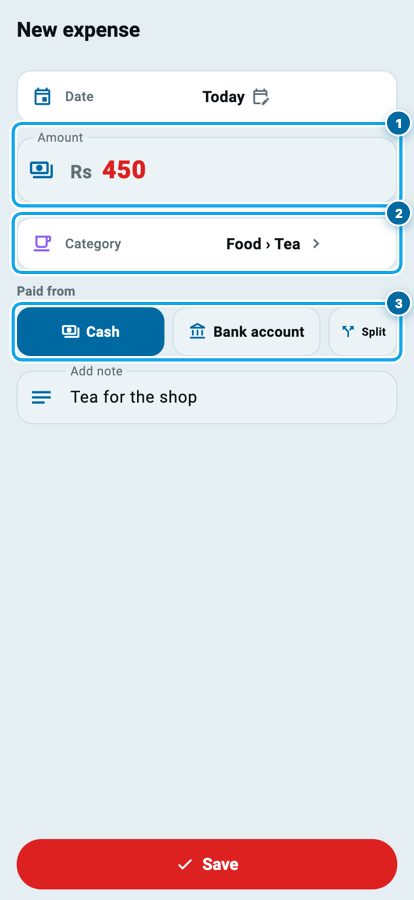
Type 450, pick Food › Tea, and write Tea for the shop in the note. Paid from has now appeared with three choices: Cash, Bank account, or Split when part came from the drawer and part from the bank.
Whichever you pick, that account goes down by the amount, exactly as in Class 2. The first time, Cash is chosen for you. After that, the form opens on the category and the account you used last, so the next cup of tea is a number and one tap.
Tap Save. The form closes and the expense sits at the top of today.
Write the same thing every day? The bookmark at the top of the Expenses page holds Prefilled expenses. Save one once, and on the form the same bookmark fills everything in one tap, still yours to change before Save.
Start your digital khata today
Free to start. Works offline. English, Roman Urdu & Hinglish. Your customers get their app free, forever.
A saved expense has its own page
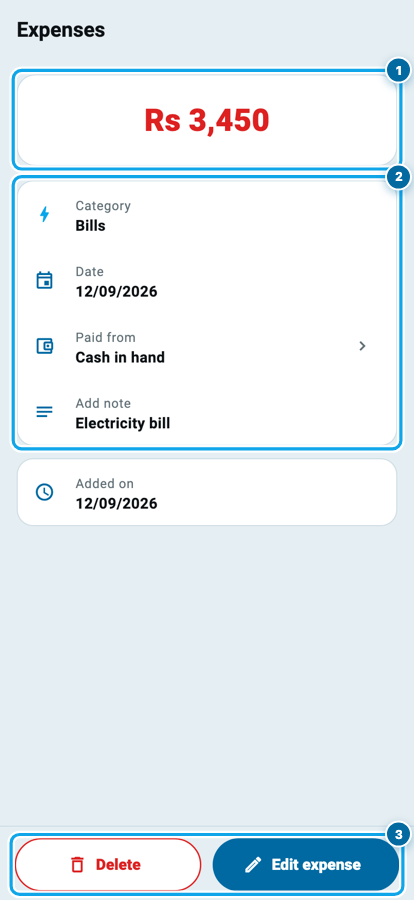
Tap any expense in the list and it opens in full: the amount in red at the top, then Category, Date, Paid from and your note, and Added on under them.
Paid from is a door. Tap it and you land in that account, where this expense is one of its lines.
Two buttons sit at the bottom. Edit expense opens the same form with everything filled in. Delete asks you to confirm, and then the money goes back into the account and the expense waits in Trash for 30 days.
A month of small expenses nobody wrote down
None of these is big on its own day. Written down, they are Rs 14,800 your sales had to earn before a single rupee of it was profit. Unwritten, they are the reason the drawer is short and nobody knows why.
Small costs are what that box is about. A shop that only writes the rent thinks its month cost Rs 25,000. Written down, the tea and the rickshaws are the difference between what you sold and your real profit, and the number your sales must beat before you earn anything at all.
Make the categories your own
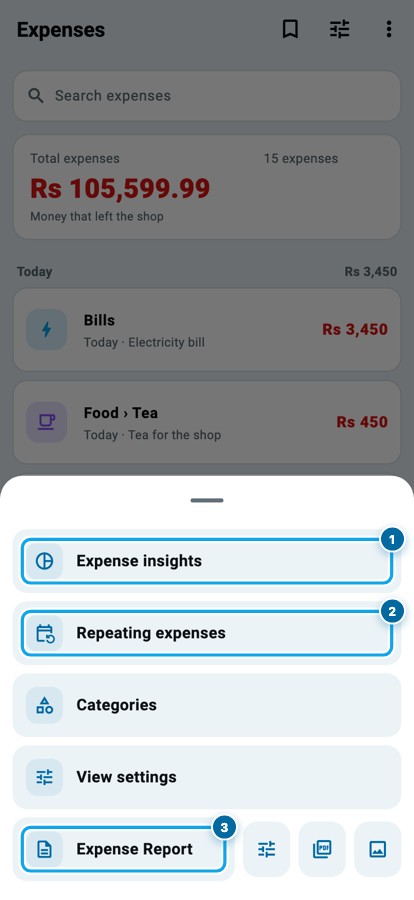
Your shop is not every shop. In the ⋮ menu on the Expenses page, tap Categories to see the whole list, every smaller category under its parent.
New category makes your own, with a name, an icon and a colour, and a parent when it belongs inside one. Below your list, Ready to add keeps common ones waiting, from a gas bill to godown rent, one tap each. A category you stop using can be hidden, and the expenses already filed under it stay exactly where they are.
View settings in the same menu decides what the Expenses page opens on: one long list, or category boxes first.
Rent that writes itself: repeating expenses
Some expenses come back on the same day every time. The landlord knocks on the first of the month. The night guard is paid every week.
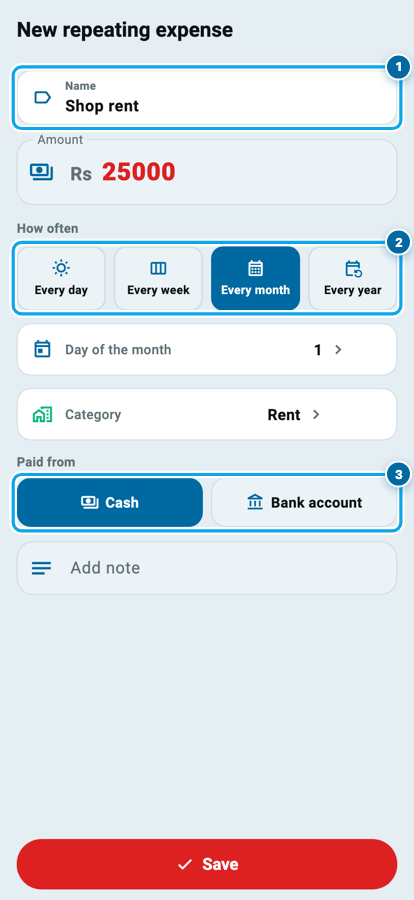
In the ⋮ menu, Repeating expenses holds them. Tap New repeating expense and fill it once: a Name like Shop rent, the Amount, How often (every day, week, month or year), the Day of the month it falls on, its Category, and the account it is Paid from.
From then on, when its day comes, Wasoolo writes that expense by itself and tells you: Repeating expense added. Closed for a month? Pause it and Start again later. Deleting one only stops the repeating, and every expense it already wrote stays.
Start your digital khata today
Free to start. Works offline. English, Roman Urdu & Hinglish. Your customers get their app free, forever.
See where the money went
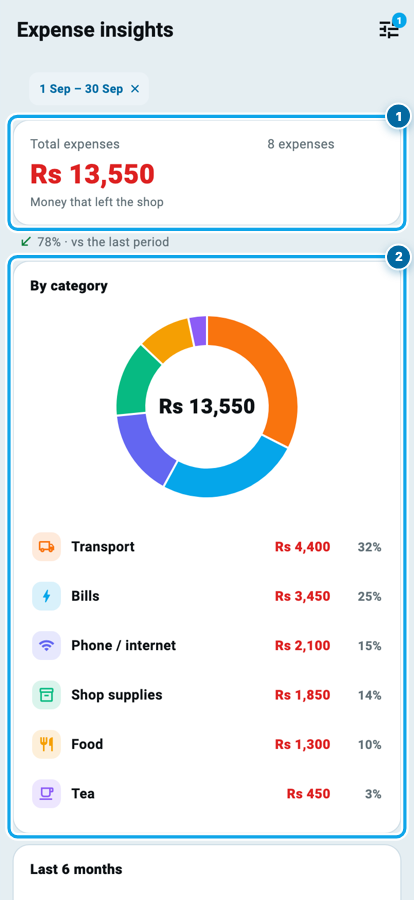
The writing pays off at the end of the month. Expense insights in the ⋮ menu opens on this month: the total and how it compares with the last period, then By category, a ring with each category's amount and share, a chart of the last six months, and the spending by account.
On the demo shop below, transport took Rs 4,400 of Rs 13,550. That is 32%, the biggest slice, and the first place to look before next month.
When you need it on paper, Expense Report in the same menu makes a PDF or an image of exactly what your Expenses page is showing. Search or filter the page first, by date, category, account or who paid, and the report follows.
Common questions
What counts as an expense in Wasoolo?
Money that leaves the shop and does not come back as stock: rent, bills, salary, transport, tea, repairs, fees. Buying stock and paying a supplier have their own pages in Wasoolo.
Can I write an expense for yesterday, or for next month?
Yes. Tap Date on the form and pick any day, earlier or later. Next month's rent can go in the day you know about it.
I paid half in cash and half from the bank. What now?
Choose Split under Paid from and type how much came from each account. The parts must add up to the amount before Save lets the expense through.
Can my staff see my personal expenses?
Only if you allow it. The Personal category and everything inside it stay hidden from a team member who does not have permission to see personal expenses.
I deleted an expense by mistake. Is it gone?
No. The money goes back into its account and the expense sits in Trash for 30 days, where you can bring it back.
Do my expenses change my profit?
Yes. The Profit page counts your shop expenses, so a month of rent, bills and tea shows there as money out, not as profit.